Prices from Amazon AU, updated daily. Swipe or use the arrows for more.
Disclosure: This article contains affiliate links to amazon.com.au. If you buy through one of these links we may earn a small commission at no extra cost to you. It does not change which products we recommend: we only suggest products we’d genuinely use ourselves. As an Amazon Associate, iFix Electronics earns from qualifying purchases.
Quick summary5 picks
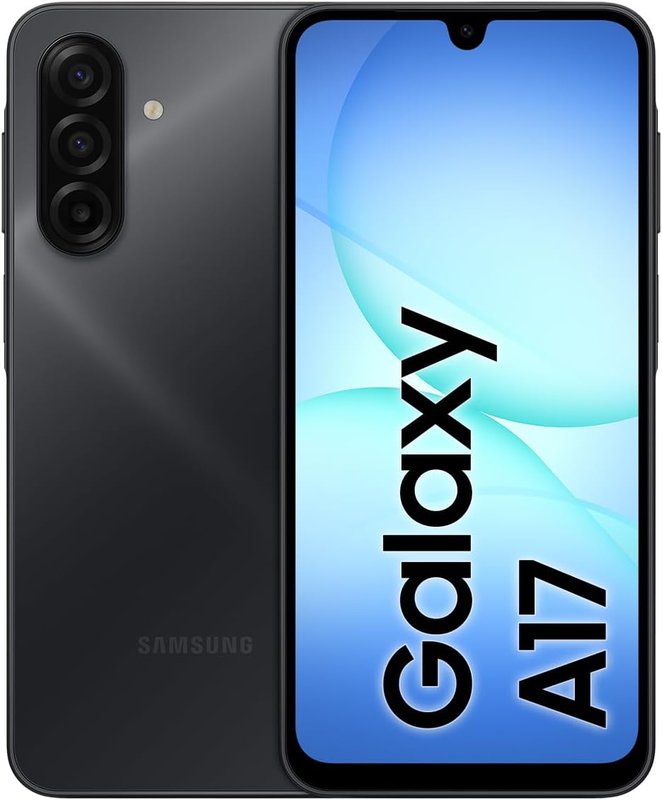
- Most PremiumSamsung Galaxy A17 5G about$310.94Big screen, simple Easy Mode, cheap to repair.
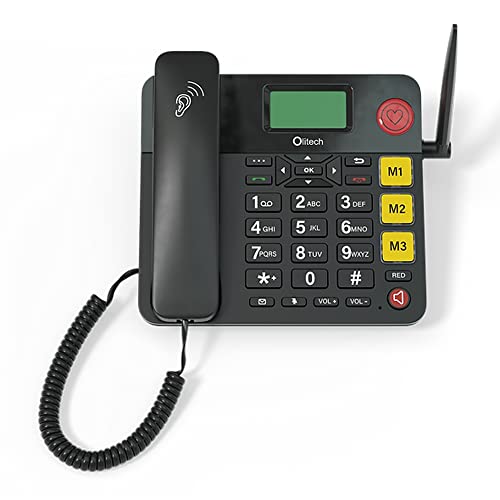
- Olitech EasyTel 4G about$188.00Big buttons and a one-press SOS call.
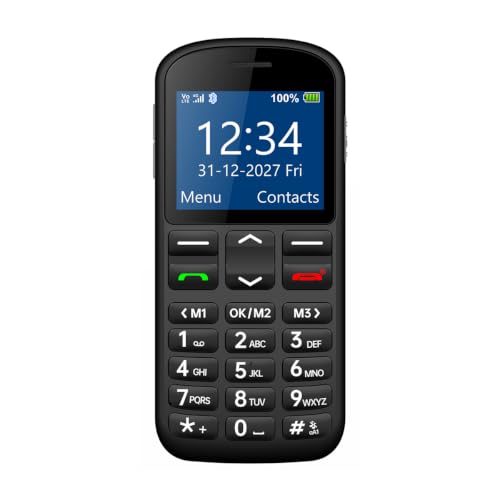
- Opel Mobile Big Button M 4G about$124.95Big buttons, and it texts GPS location to family.
- SimplestGigaset Comfort 600 4G about$119Keypad only. Drops into a charging cradle.
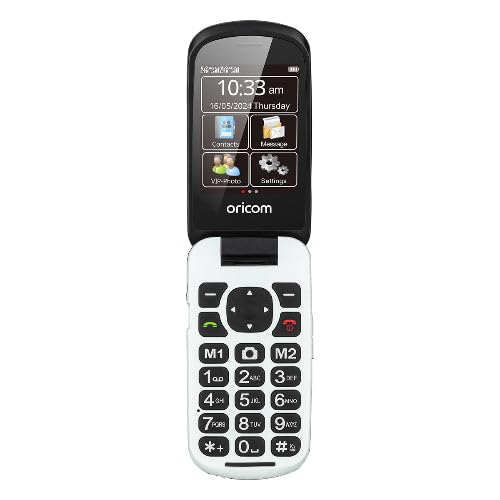
- Oricom EZY7510 about$199.00Extra loud, and the keypad speaks each number.
What Actually Matters for a Senior's Phone
Most phone buying guides treat "senior phones" as a category of glorified brick phones with three buttons and a logo. That misses the point entirely. What matters is understanding what the specific person needs. A 70-year-old who FaceTimes their grandkids daily and uses Google Maps to navigate has completely different needs from an 85-year-old who wants to make calls and text family.
Here's what we actually look for when helping an older person find the right phone:
- Screen size and brightness: Bigger is better. A 6-inch or larger screen is far easier to read, especially outdoors in Australian sunlight. High brightness (800+ nits) matters more than resolution. A phone you can see in the backyard or at the park is more useful than one with a technically superior display you can't read in daylight.
- Text and icon size: The best phones for seniors aren't ones with big text by default. They're ones where you can make the text very big through accessibility settings. Samsung's Easy Mode and iOS's accessibility features both do this well. A dedicated seniors phone with fixed large text can be limiting if the person wants flexibility.
- Battery life: Seniors are more likely to forget to charge their phone regularly or to put it on the charger overnight. A phone with a 4,000–5,000mAh battery that lasts two days of light use is significantly more practical than a flagship that dies by afternoon. A simple 4G feature phone stretches even further, often several days per charge.
- Durability: Not just whether it has a case, but whether the phone itself is built well enough to survive being dropped on a tiled floor or a hardwood deck. IP-rated water resistance matters too: spills happen.
- Simplicity of the interface: This varies enormously by the person. Some 75-year-olds are completely comfortable with an iPhone and have been using one for a decade. Others struggle with any touchscreen. Know your person before you decide.
- Call quality and speaker volume: Many older Australians have some degree of hearing loss. A phone with a loud, clear speaker and a hearing-aid compatible rating (M3 or M4) makes real calls significantly more accessible.
- Emergency features: An SOS or emergency button, whether hardware or software, provides enormous peace of mind. Most modern smartphones have this built in (hold power button + volume, or triple-press the side button on iPhone). Dedicated seniors phones often add a hardware SOS button on the back.
The right phone for a senior isn't the most impressive one. It's the one they'll actually use, can answer when it rings, and won't leave sitting in a drawer because it's too confusing.
Our Picks
Best Overall: Samsung Galaxy A17 5G
Samsung Galaxy A17 5G
Top Pick, Best All-RounderThis is the phone we recommend most often for seniors who want a proper smartphone but need it to be accessible. The A17 5G has a large 6.7-inch display with punchy colours, strong outdoor visibility, and a battery that comfortably handles two days of light use. But the real reason we like it for seniors is Samsung's software.
Samsung's Easy Mode (Settings → Display → Easy Mode) transforms the interface: icons become very large, the home screen simplifies to a grid of big app tiles, text increases across the whole system, and unnecessary complexity disappears. You can still access everything, but the visual clutter is gone. For a senior who's used to a feature phone and making the jump to a smartphone for the first time, Easy Mode is genuinely useful.
The A17 also supports 5G (future-proofing against the network transition away from 3G that's already happened), has a good enough camera for video calls and photos of grandkids, and is priced accessibly. Samsung supports it with security updates for several years.
From a repair perspective: screens on the A-series are relatively affordable to replace if cracked. Battery replacements are also available. This matters, because seniors are more likely to drop phones, and knowing you can get it fixed without spending half the phone's value on a repair is reassuring.
Key specs: 6.7-inch display • 5G capable • Android • Long battery life • Easy Mode included • AU $267
Check current AU priceBest Dedicated Seniors Phone: Olitech EasyTel 4G
Olitech EasyTel 4G Seniors Phone
Senior-Specific DesignThe Olitech EasyTel 4G is built from the ground up for older users. Instead of a touchscreen, it uses large, clearly marked physical buttons with tactile feedback, so dialling and texting stay simple for someone who has never been comfortable with a glass screen. The menu is pared back and the display uses high-contrast large text, which makes it easy to read at a glance.
It also includes a dedicated SOS emergency button that calls preset contacts, a feature that matters a lot to families and carers. Olitech is an Australian seniors-phone brand, and the EasyTel is designed around accessibility: a loud, clear speaker for anyone with some hearing loss, and 4G connectivity so calls stay reliable now that the 3G networks have been switched off. It even doubles as a landline replacement if you'd rather it sit on a bench at home.
The trade-off compared to a mainstream Android phone is that this is not an app phone. There's no app store, no web browser to speak of, and no video calling, so it won't run banking apps or FaceTime. For a senior who wants reliable calls, simple texts and a safety button, it's excellent. For someone who wants to browse the web, use banking apps and video call the grandkids, the Samsung Galaxy A17 with Easy Mode is the better fit.
Key specs: Big-button 4G phone • Dedicated SOS button • Hearing-aid friendly, loud speaker • High-contrast large text • Doubles as home phone • AU $188
Check current AU priceBest Simple Phone: Gigaset Comfort 600 4G
Gigaset Comfort 600 4G
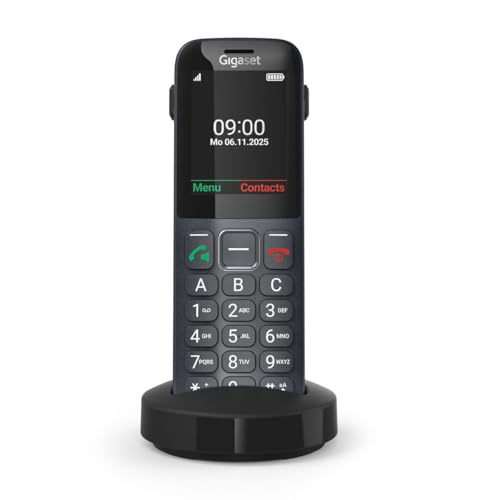
Simplest OptionIf the person you're buying for genuinely just needs to make calls and send the occasional text, with no interest in apps, cameras or the internet, the Gigaset Comfort 600 is the one I point families at. Gigaset built it to behave like a landline handset that happens to fit in a pocket: a physical keypad, a 2.4-inch colour display at 240 x 320, and menus that stay where you left them. It ships with a charging cradle, so charging means dropping the phone into the dock rather than lining up a cable. There is a USB-C port on it as well, for the day the cradle goes missing.
Three keys on the front, marked A, B and C, dial a stored contact on a single press. Set those to the daughter, the son and the GP and you have taken almost all of the dialling out of daily use. The phonebook holds up to 500 contacts, which is more than anyone buying this phone is going to fill.
Two things here matter more than the spec sheet lets on. The first is hearing. Bluetooth 5.0 LE pairs with headsets, and the handset is rated M4/T4, so a hearing-aid wearer on the T-coil setting gets speech instead of a buzz. The second is call blocking: the block list takes 50 numbers, and a separate trusted list of 50 always rings through. For someone who has already been worked over by a nuisance caller, that pair of lists does more good than any camera on a spec sheet. If it has already cost them money, my notes on protecting older parents from phone and online scams cover what to do next.
The battery is a replaceable lithium-ion 1000mAh rated up to 300 hours of standby and up to 9 hours of talk, and 4G VoLTE means it still works now that the 3G networks have been switched off across Australia. Replaceable is the part I care about: in three or four years, when it stops holding charge overnight, that is a battery swap and not a new handset.
It sells here through Gigaset's own Australian store, so a warranty claim goes to the brand rather than to a third-party reseller.
The caveat is the same as for everything in this half of the guide. If your parent or grandparent needs Medicare Online, My Health Record, bank authentication codes tied to an app, or video calls with the grandkids, this phone will not do it. Be honest about what they actually use before choosing the simplest option.
Key specs: 2.4-inch colour display • 4G VoLTE • Three one-press dialling keys • Charging cradle included • Hearing aid M4/T4 • Call blocking, 50 numbers • AU $119
Check current AU priceFor Flip Phone Fans: Opel Mobile 4G Flipfold
Opel Mobile 4G Flipfold
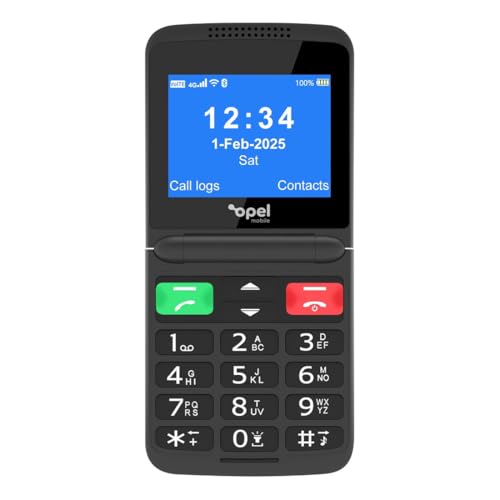
For Traditional PreferenceA lot of older Australians still prefer the flip phone form factor. It's familiar, it feels right in the hand, and the physical act of opening to answer and closing to hang up is intuitive in a way that tapping a glass screen isn't. The Opel Mobile 4G Flipfold brings that back with modern 4G network support, from the same Australian brand as the Big Button M and Home Phone 2 above.
The keypad is raised and tactile, and the fold-shut design protects the screen and keys in a pocket or handbag. Where the Olitech above is built around a hardware safety button, the Flipfold is the pick for someone who simply prefers the classic flip feel and doesn't need the SOS features.
Like the Gigaset above, this is not a smartphone. There's no app ecosystem and no touchscreen. But for a senior who specifically wants the feel and operation of a traditional flip phone, it's a genuinely good product that doesn't require any interface learning curve.
Key specs: Flip design • 4G network support • Physical keypad • Multi-day battery • No touchscreen • AU $146.98
Check current AU priceAt-a-Glance Comparison
| Phone | Type | Screen | SOS | GPS | Buttons | Price | Best for |
|---|---|---|---|---|---|---|---|
| Samsung Galaxy A17 5G | Smartphone | 6.7" | No | No | Touch | ~$267 | Top pick, versatile |
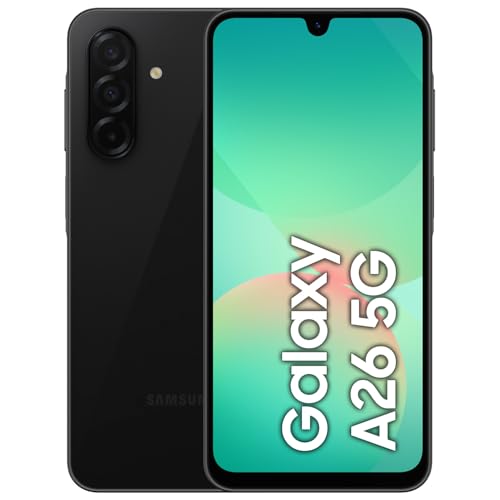
| Samsung Galaxy A26 128GB | Smartphone | 6.7" | No | No | Touch | ~$429.00 | Best screen, longest support |
| Olitech EasyTel 4G | Big-button 4G | Large text | Yes | No | Big buttons | ~$188.00 | Hardware SOS button |
| Opel Mobile Big Button M 4G | Big-button 4G | Large text | Yes | Yes | Big buttons | ~$124.95 | Families tracking location |
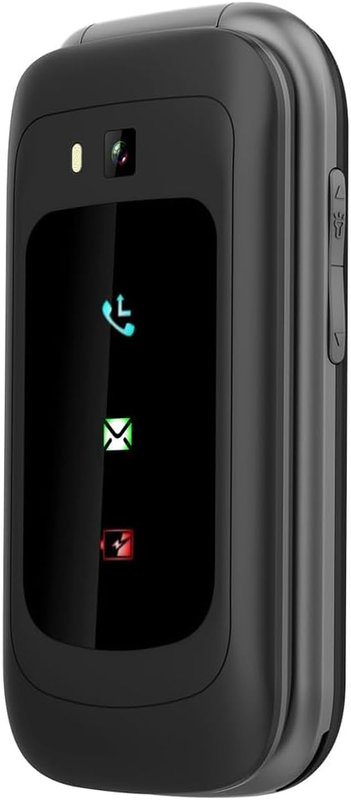
| Oricom EZY7510 Flip | Flip 4G | Small | Yes | No | Physical keypad | ~$199.00 | Hearing difficulty |
| Opel Mobile TouchFlip 4G | Flip 4G | Touch + keypad | No | No | Keypad + touch | ~$176.79 | Half-way to a smartphone |
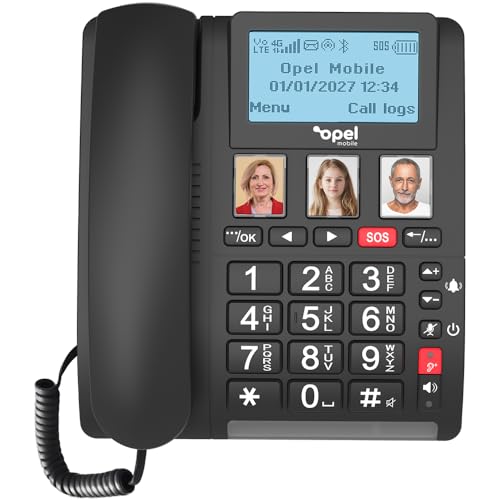
| Opel Mobile 4G Home Phone 2 | Home phone 4G | Large text | Yes | No | Big buttons | ~$197 | Landline replacement |
| Opel Mobile 4G Flipfold | Flip 4G | Flip | No | No | Physical keypad | ~$146.98 | Flip phone preference |
| Gigaset Comfort 600 4G | Simple 4G | 2.4in colour | No | No | Physical keypad | ~$119 | Calls & texts only |
Frequently Asked Questions
What is the easiest smartphone for an elderly person in Australia?
For elderly Australians who want a smartphone but find modern interfaces overwhelming, the Samsung Galaxy A-series (particularly the A17 5G) is a strong choice. It has a large, bright screen, simple menus, and Samsung's accessibility features include large text modes, high-contrast displays, and a simplified home screen. For those who find smartphones too complex, a dedicated seniors phone like the Olitech EasyTel 4G offers big physical buttons, a simplified menu, and an SOS emergency call button.
What phone has the biggest buttons for seniors?
For the largest physical buttons, the Olitech EasyTel 4G is a big-button seniors phone with proper oversized keys and a dedicated SOS button, ideal for those who struggle with touchscreens. The Gigaset Comfort 600 is another simple bar-shaped phone with a full physical keypad, plus three one-press keys for the contacts they call most. For a smartphone with the ability to increase button and text size significantly, the Samsung Galaxy A17 5G with accessibility settings enabled gives you very large on-screen elements.
Should I buy my elderly parent a new or refurbished phone?
A refurbished iPhone SE or Samsung Galaxy from a reputable dealer is often excellent value for seniors. The iPhone SE in particular has a proven, reliable interface that millions of Australians already know how to use. Buying refurbished can halve the price while giving you a quality handset. We sell tested, graded refurbished phones through our online store at ifixelectronics.com.au/store.html, all with a warranty and checked for battery health.
How do I set up a phone so it's easier for an elderly person to use?
On any Android phone, go to Settings > Accessibility and increase text size to the largest comfortable setting, enable high contrast text, and turn on large icon mode if available. On Samsung phones, use the 'Easy Mode' option in Settings which simplifies the home screen and makes all icons much larger. On iPhone, go to Settings > Display & Text Size to increase text size, and Settings > Accessibility > Zoom to allow screen magnification. Remove any apps they don't need and rearrange the home screen to only show the essentials: phone, messages, camera, and their most-used apps.
What phone is best for seniors who only want to make calls and texts?
The Gigaset Comfort 600 is our pick for seniors who genuinely only want to make calls and send texts. It has a physical keypad (no touchscreen to struggle with), a replaceable battery rated up to 300 hours of standby, 4G VoLTE for clear calls, and it comes with a charging cradle so there are no fiddly cables to plug in. The Opel Mobile 4G Flipfold is another good option for those who like the feel of a traditional flip phone: it opens to answer and closes to hang up, which many older Australians find intuitive.
Is an iPhone or Android better for elderly Australians?
Both work well, but each has advantages. iPhones have a very consistent, predictable interface that doesn't change much between models: once you learn it, it stays the same. Apple also provides updates for 5+ years. Android (particularly Samsung) offers better accessibility customisation and an Easy Mode that dramatically simplifies the interface. If the senior already has family members on iPhone and uses FaceTime, an iPhone makes sense. If everyone else in the family uses Android, an Android makes setup and support easier. The most important thing is picking the phone that family members can help with.