Prices from Amazon AU, updated daily. Swipe or use the arrows for more.
Disclosure: This article contains affiliate links to amazon.com.au. If you buy through one of these links iFix may earn a small commission at no extra cost to you. It doesn't change which products we recommend. We focus on what actually lasts based on 16 years of repair-shop experience.
Quick summary8 picks
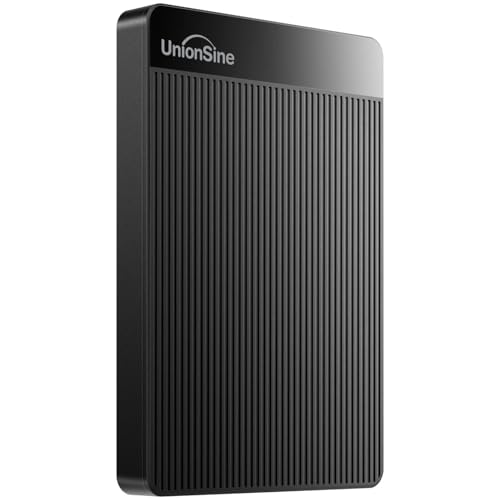
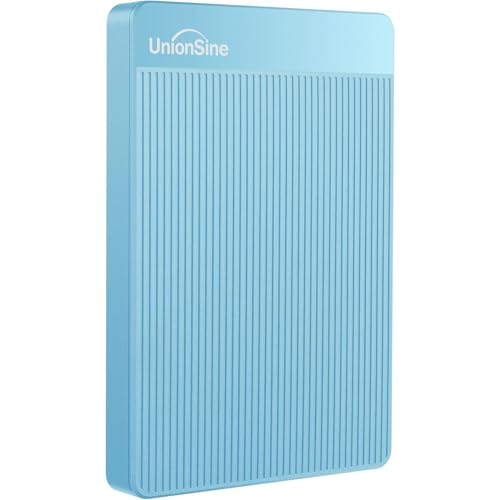
- Entry PickUnionSine 1TB Ultra Slim Portable External… about$129.99
- UnionSine 1TB Ultra Slim Portable External… about$129.99
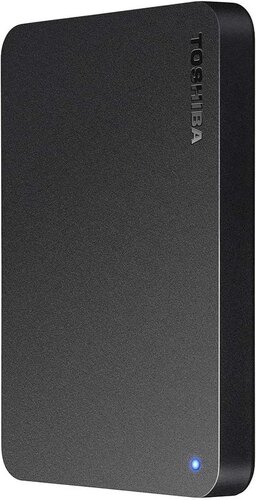
- Toshiba 2TB Canvio Basics Portable Hard… about$16907" screen.
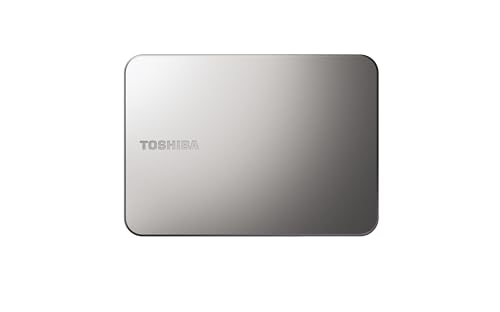
- Toshiba Canvio Flex 2TB Portable Hard Drive about$229
- Seagate One Touch 1TB about$165.00
- Western Digital My Passport USB3.0 External… about$274.00
- Toshiba Canvio Advance V10 4TB USB 3.0… about$269
- Most PremiumSeagate Expansion Portable HDD 5 TB about$323.50
Why the offline copy is the one that survives
Ransomware doesn't care how many copies of your photos you've got. It cares how many of them it can reach. If your backup drive is plugged into the laptop when the encryption starts, or your backup is a folder that syncs to the cloud every few minutes, the malware usually gets the originals and the backup in the same sitting, and you find out when every file has a strange new extension and there's a note on the desktop asking for crypto. The Australian Cyber Security Centre lists regular backups in its Essential Eight for exactly this reason, and the part people skip is that the backup has to be disconnected to count.
That's why a plain external hard drive still earns its place in 2026. It's the one piece of storage in the house that can sit in a drawer with no power, no network and no login, so nothing on the internet can touch it. Cloud sync is handy and I use it, but sync is a mirror rather than a backup: delete or encrypt a file on the laptop and the change flows up to the cloud copy within minutes. A drive you plug in on Sunday night, back up to, eject and put away is boring, and being boring is exactly why it works.
Most of the drives that come into the shop for data recovery aren't backups at all. They're the only copy, usually a portable that got used as extra space when the laptop filled up, and the family photos were moved onto it rather than copied. When that drive gets knocked off a desk there's no second copy to fall back on. All five drives below were picked to be the second copy, not the first, and every one of them does that job well enough that the choice mostly comes down to capacity and whether you want a password on it.
The 3-2-1 rule without the jargon
You'll see 3-2-1 quoted on every backup page, and it's sound advice once you strip the IT language off it. It means keeping three copies of anything you'd be upset to lose, on at least two different kinds of storage so one failure can't take out both, with one copy kept away from the house so a fire, a flood or a break-in doesn't get everything on the same night.
For most households that looks like this: the working copy on the laptop or desktop, a portable drive that gets a backup every week or so and lives unplugged in a drawer, and a third copy somewhere else. That third copy can be a second drive at a parent's place or the office, swapped every month or two, or a cloud backup service with version history. Two portable drives rotated between home and somewhere else is the simplest version I know of, and it's why one of the picks here makes sense to buy as a pair.
If you've got a lot of machines, or you want backups to happen without anyone remembering, a home NAS with snapshots is the next step up. It doesn't replace the unplugged drive, though. A NAS is still on the network, and it can still be reached by something that's already on your network, so I'd keep a portable drive that spends most of its life switched off even if you run one. The NAS handles the daily convenience, and the drive in the drawer is the insurance policy that nothing on the network can reach.
SMR, and why a 4TB portable slows down halfway through a backup
Here's the bit most listings leave out. Hard drives write data in tracks, and to fit 4TB or 5TB into a drive about the size of a phone, manufacturers overlap those tracks slightly, a bit like roof shingles. It's called shingled magnetic recording, or SMR. None of the five listings below state their recording method, but in my experience pretty much every pocket-sized portable at 4TB and above uses SMR, because that's how the capacity gets in there.
SMR is fine for reading and fine for most writing. Where it bites is a long, sustained write, like the first full backup of a laptop. The drive has a small fast area it writes into first, and once that fills it has to rewrite overlapping tracks as it goes, so the transfer rate can drop sharply partway through. People see a copy that started at over 100 MB/s crawl to a fraction of that and assume the drive's faulty. Usually it isn't, it's just catching up, and it'll get there if you leave it alone.
The practical upshot is to do the first backup overnight, plugged straight into the computer rather than through a bus-powered USB-C hub, and let it finish. After that, incremental backups only write what's changed, which is usually small enough that SMR rarely shows up at all. A 4TB drive at a realistic 100 to 130 MB/s takes somewhere around eight and a half to eleven hours to fill from empty, so don't start it at 10pm and expect to unplug it for school at 7am.
If you need speed rather than capacity, for video editing or a drive that gets written to all day, a portable SSD is the better tool, and I've compared the Samsung T7 Shield and T9 separately. For a backup that gets written once a week and read hopefully never, spinning drives still give you the most terabytes for the money by a long way.
Why every pick here is a portable drive
Desktop external drives use a full-size 3.5-inch mechanism, run off a mains power brick, and generally give you more capacity for the money. I looked for them in this price band and couldn't find enough stocked by Amazon AU or an Australian storefront to recommend, so all five picks are pocket-sized portables that run off the USB port. For a backup drive that lives in a drawer, I don't think that's a bad outcome.
A portable has one cable and no brick, so there's one less thing to lose and one less plug pack to fail. It's small enough to take to a second location for the offsite copy without thinking about it, and the smaller mechanisms are built to put up with a bit more movement than a desktop drive, although 'put up with' is doing a lot of work in that sentence. There's more on drops in the bench section further down.
The trade-off is power. A portable draws everything it needs from the USB port, and on an older laptop, a front-panel port on a desktop or an unpowered hub, that can be marginal. The symptom is a drive that clicks, spins up and down, or disconnects halfway through a copy. Before you assume the drive's dying, try a rear port on the desktop or a different cable. Nine times out of ten that's the fix, and it costs nothing to try. The other common culprit is a thin, long or worn cable, which drops just enough voltage over its length to leave a portable drive short of power when it spins up.
Passwords, encryption and the recovery trap
Two of the picks, the Seagate One Touch and the WD My Passport, advertise password protection, and the One Touch specifically lists hardware encryption. For a drive that holds tax records, scanned ID and every photo you own, and that sometimes travels to a second house, that's worth having. If the drive gets lost or pinched, a password-locked drive is a brick to whoever ends up with it.
The catch is on the recovery side, and it's one I'd want explained to me before I bought. On a lot of current portables the USB socket is soldered straight onto the drive's own circuit board, and on hardware-encrypted models the encryption is handled by that same board. If the board dies, or the USB socket gets snapped off, you can't simply pull the drive out and read it in a dock. Recovery is still often possible, but it means board-level work plus the original password, and it costs more than recovering a plain drive.
So if you turn the password on, write it down somewhere that isn't the drive, and don't treat encryption as a substitute for a second copy. A forgotten password on an encrypted drive is about the hardest recovery there is, and sometimes it can't be done at all. If you'd rather not have any of that to manage, the two Toshibas and the Seagate Expansion are plain drives with nothing to forget. The external drive recovery guide goes through the common failures one at a time if you want the detail.
How much space you actually need
Start with how much is on the computer now, not how big its SSD is. In my experience most household laptops carry somewhere between 100GB and 400GB of real data, and a fair chunk of that is apps you'd reinstall anyway. A 4TB drive covers that many times over, which matters because decent backup software keeps older versions of files, and those older versions are what save you when ransomware or a bad edit quietly overwrote the current copy a few weeks ago.
For one computer, 4TB is plenty for years of versioned backups. For a family with two or three laptops backing up to the same drive, or anyone with a big photo or video library, the 5TB Seagate Expansion gives you headroom without much more outlay. I'd lean towards 4TB in this band, because backups only ever grow and the bigger drives cost less per terabyte. The one 2TB pick here, the Canvio Flex, is for a single laptop with a small library or a USB-C-only machine.
On Windows, File History or a scheduled image backup does the job. On a Mac, Time Machine wants the drive formatted its own way, which the Seagate Expansion listing says outright, so expect to reformat whichever drive you pick and don't store anything on it first. Either way, set it up so the drive is only connected while the backup runs, then eject it properly and put it away. Most backup tools will nag you when a week goes by without a backup, and I'd leave that reminder switched on, because the weeks slip past faster than anyone expects and the drawer drive is only as current as its last run.
How to make a backup drive last
The biggest killer of portable drives is movement while they're spinning. Unplug a drive mid-copy and knock it on the way, or leave it balanced on a laptop lid that gets closed, and the read heads can touch the platters. After that you'll usually hear clicking, and every extra minute powered on can do more damage. If a drive starts clicking, stop, unplug it and don't keep retrying. That one decision makes more difference to what's recoverable than anything else you can do.
Past that it's mostly common sense. Eject before unplugging so the drive can finish writing and park its heads. Keep it somewhere dry and out of a hot car. Use the cable it came with or a good replacement, because a loose or worn cable causes more 'the drive's dead' panic than actual dead drives do. And test a restore every few months by opening a handful of files from the backup, since a backup you've never restored from is really just a hope.
I'd plan on replacing a backup drive every four or five years, or sooner if your backup software or a SMART health check starts reporting reallocated sectors. Drives rarely die without any warning, but the warnings are easy to miss when nobody's looking. If you're not sure what a drive's health readout is telling you, bring it to our computer repair workshop on the Central Coast and I'll read it for you before anything goes wrong.
The 5 picks, $195 to $329
Prices are Amazon AU at time of writing (1 October 2026) and move week to week. Ranks are Amazon AU category sales ranks, checked the same day.

Toshiba Canvio Advance V10 4TB Portable External Hard Drive
ASIN B08XYWVBTN • $278.00 • Ships from Amazon AU
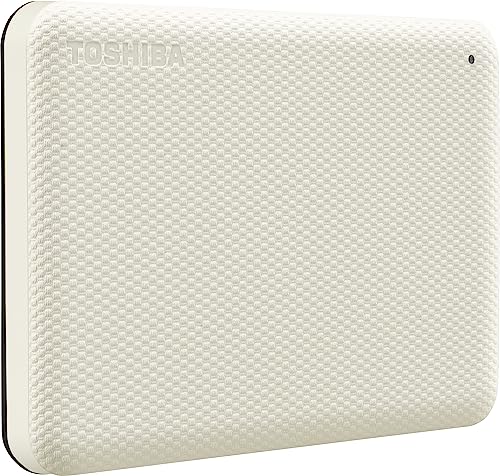
The highest-ranked drive in this guide, sitting at #2 in Amazon AU's External Hard Drives category at $278, and sold and shipped by Amazon AU itself. The Advance is Toshiba's 4TB step up from the Canvio Flex further down, in a white, higher-finish case that the listing describes as compact enough to carry in a pocket or bag. Toshiba doesn't give much away beyond that: 4TB, USB 3.0, and a connection to a PC or laptop over the supplied USB cable. That's all a weekly backup drive actually needs to do, and the rank suggests plenty of Australians have come to the same conclusion. I've put it first because it pairs the top rank with first-party Amazon AU supply, which keeps returns simple if a drive arrives dead.
For backup use, the thing I'd pay attention to is what the listing doesn't say. There's no mention of backup software, password protection or hardware encryption, so treat it as a plain drive and pair it with the backup tool already built into your computer, File History on Windows or Time Machine on a Mac. That isn't a weakness. A plain drive with nothing layered over the top is the easiest kind to recover if something goes wrong later, since there's no encryption key tied to the drive's own board. For a household's weekly unplugged copy, a plain drive run by the operating system's own backup tool is the setup I'd trust the most and fiddle with the least.
So where does the extra money over the Canvio Flex go? Mostly into double the capacity, 4TB against 2TB, for $79 more. If you want the top-ranked drive with room to grow, this is it. If you're buying two drives to rotate between home and a second location, which is the setup I'd suggest for most families, the Canvio Flex below costs less per drive, and it's enough if your backup fits in 2TB.
Honest caveats: Toshiba's listing is thin: no recording method, speed figure, warranty length or bundled software is stated, so check those on the current listing before you buy. At 4TB in a portable case, expect SMR slowdowns on the first long backup. No password or encryption option is listed, so it isn't the pick for a drive that travels with sensitive records.
Best for: A single, plain, top-ranked backup drive for one computer, bought straight from Amazon AU.
Capacity: 4TB • Connection: USB 3.0 • Case: Compact, white finish • Encryption: Not stated on the listing • Seller: Amazon AU • Price: $278 at time of writing • Rank: #2 in External Hard Drives (Amazon AU)
View on Amazon AU
Toshiba Canvio Flex 2TB Portable Hard Drive (USB-C and USB-A)
ASIN B0FGJP536W • $199.00 • Ships from Amazon AU
#47 in External Hard Drives at $199, sold by Amazon AU, and it's the drive in this guide I'd point a USB-C laptop owner at first. It's a 2TB, 2.5-inch portable hard drive on a USB 3.0 interface the listing quotes at up to 5 Gbit/s, and Toshiba says it suits Mac and Windows computers, smartphones and tablets, and works with most USB-C and USB-A devices. That last part is the practical difference. A lot of newer laptops have lost their full-size USB-A ports, and a drive that works with either connector saves you a dongle that ends up lost in a drawer. The listing also calls it compact and lightweight, which is what you want in the drive that gets carried to a second location.
I'll be straight about the trade: it's half the capacity of the 4TB drives here, and the Advance at $278 gives you double the space for $79 more. Before you buy, add up what's on the computer and allow two or three times that for older versions of files. If the answer is under 2TB, this is the less costly way in. If it's over, spend the extra on the Advance. Two of these come to $398, which is $69 more than the single 5TB Seagate, and two drives rotated between home and somewhere else make a better backup system than any single drive, however good it is. Label them A and B, back up to whichever one's at home, then swap them on your next visit to your parents or the office. If the house has a bad night, one copy is always somewhere else, and if one drive fails, the other is at most a few weeks out of date.
The listing says the drive is for Mac use as well as Windows, but Time Machine still wants Apple's own format, so plan on a one-minute reformat in Disk Utility before you copy anything on. It's a plain drive with no password layer listed, which I think is the right call for the copy that sits at home, since the only people likely to pick it up are the ones who live there. If you want the offsite drive locked, pair one Flex at home with a Seagate One Touch for the drive that travels.
Honest caveats: 2TB is half the space of the 4TB picks here, and backups only ever grow. The listing gives no recording method, speed figure beyond the USB 3.0 interface rate, warranty length or encryption, and no password protection is listed, so a lost drive is readable by whoever finds it. Mac users need to reformat before using it with Time Machine.
Best for: A single laptop with a modest library, especially a USB-C one, and a pair of them for the simplest home and offsite rotation.
Capacity: 2TB • Format: 2.5-inch portable HDD • Connection: USB 3.0, up to 5 Gbit/s • Ports: Works with most USB-C and USB-A devices • Works with: Mac, Windows PC, smartphone and tablet • Finish: Warm silver • Encryption: Not stated on the listing • Seller: Amazon AU • Rank: #47 in External Hard Drives (Amazon AU)
View on Amazon AU
Seagate One Touch Portable External Hard Disk Drive with
ASIN B094QZTVFF • $195.00 • Ships from Amazon AU
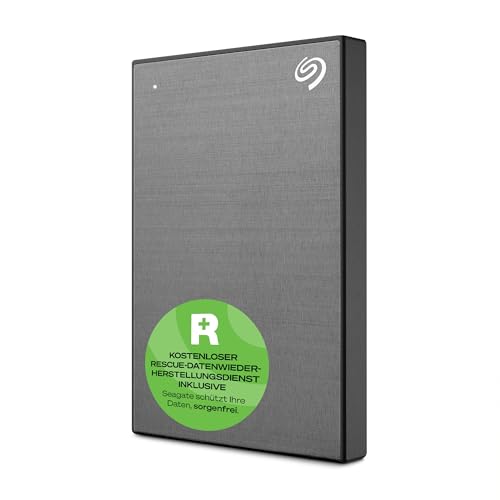
At $195 and #3 in External Hard Drives, the One Touch is the pick for a drive that leaves the house with sensitive files on it. The listing states password-activated hardware encryption, so a lost or stolen drive shows up as locked rather than as a folder of tax returns. It's USB powered, has a textured metal finish, works on Windows and Mac without reformatting, and Seagate includes its own software for customised backups and folder mirroring, where anything dropped into a nominated folder syncs across automatically. The title also includes Seagate's data recovery services, and the terms of that are worth reading at purchase. The 1TB version is first-party Amazon AU stock as well, so returns are simple if it arrives faulty.
The encryption is the reason to buy it and also the reason to be careful. As I covered above, hardware encryption ties your data to the drive's own controller board, so if that board fails, recovery needs board-level work and your password. Write the password down and store it somewhere safe that isn't on the drive or only in your head. I'd also skip the folder-mirroring feature for the backup role: a mirror copies deletions and encrypted files across just as happily as good ones, which is exactly what you don't want from the copy that's meant to survive ransomware. Use it as a versioned backup target instead, pointed at by File History, Time Machine or Seagate's own backup tool with version history turned on.
The bundled recovery service is a real plus if it's current and applies in Australia, so check the terms on the listing before counting on it. For most households I'd still say the plain Toshiba pair is the better system. But for a sole trader carrying client records between home and work, or anyone whose offsite copy lives in a car or a bag, the One Touch's lock is the feature that matters most. A drive that lives in a bag is more likely to go missing, and the password is what turns a lost drive from a data breach into an annoyance. Just make sure there's still an unencrypted or separately stored copy somewhere, so a dead board never becomes the end of the story.
Honest caveats: Hardware encryption makes a failed board harder and dearer to recover, and a forgotten password may make the data unrecoverable. The recovery-service terms, warranty length and recording method aren't spelled out in the listing text, so read them at purchase. Folder mirroring isn't a backup, so don't use it as one.
Best for: An offsite or travelling drive carrying records you'd hate a stranger to read.
Capacity: 1TB • Connection: USB 3.0, USB powered • Security: Password-activated hardware encryption • Software: Custom backup and folder mirroring • Compatibility: Windows and Mac without reformatting • Finish: Textured metal • Seller: Amazon AU • Rank: #3 in External Hard Drives (Amazon AU)
View on Amazon AU
Western Digital My Passport 4TB USB 3.0 External Hard Drive
ASIN B07VP5WG78 • $270.85 • Ships from Amazon AU
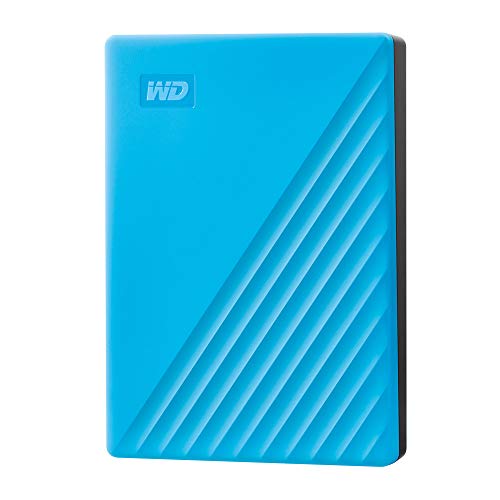
#6 in External Hard Drives at $271 from Amazon AU, and a model I see a lot of, simply because so many people already own one. The listing is brief: 4TB, USB 3.0, model WDBPKJ0040BBL-WESN in blue, and password protection to help keep the contents safe. WD doesn't detail the software or the encryption method in the listing text I had, so I'll stick to what it says, which is that you can set a password and the drive stays locked without it. For a lot of buyers that's enough, and the familiarity is a fair reason on its own if WD's tools are already part of your routine from an older drive.
From a recovery point of view, My Passport drives are the example I'd reach for when explaining the soldered-USB problem from earlier. In my experience the USB socket on these is part of the drive's own board rather than a separate adapter, so a snapped socket or a failed board can't be solved by moving the drive into a new case. It's usually recoverable, but it's board-level work. The prevention is the same as for any portable: don't let it hang off the laptop by its cable, don't yank the plug out sideways, and don't make it the only copy of anything you care about. Treated that way, it'll usually give you years of quiet service.
Why pick it over the Seagate One Touch? Mostly familiarity, since they're within a few dollars of each other and both offer password protection. If you're starting fresh, I'd lean to the One Touch for its clearly stated hardware encryption. If you're replacing an ageing My Passport and your backup routine already works, stick with what you know and just set a reminder to check the drive's health now and then. One tip if you are replacing an old one: don't wipe the old drive straight away. Keep it as an extra copy until the new drive has a few weeks of backups on it and you've tested a restore, and only then retire the old one.
Honest caveats: The listing text is minimal: no recording method, speed figure, warranty length or software detail is stated. Password protection adds the same recovery complications as any locked drive, so record the password somewhere safe. At 4TB, expect SMR slowdowns on long first backups. Check the current listing for Mac formatting before first use.
Best for: Replacing an older My Passport without changing a backup routine that already works.
Capacity: 4TB • Connection: USB 3.0 • Security: Password protection • Model: WDBPKJ0040BBL-WESN • Colour: Blue • Seller: Amazon AU • Rank: #6 in External Hard Drives (Amazon AU)
View on Amazon AU
Seagate Expansion Portable HDD 5TB
ASIN B08ZJFYB9J • $329.00 • Ships from Amazon AU
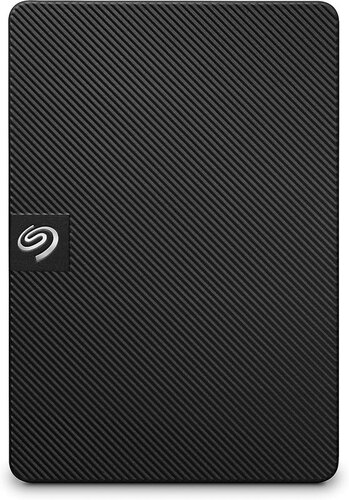
The biggest drive here: 5TB for $329, #9 in External Hard Drives and sold by Amazon AU. The Expansion is Seagate's plain range, with no encryption and no password, just drag-and-drop storage that's recognised automatically by Windows and Mac computers over USB 3.0. The listing is upfront that Time Machine needs a reformat, which I appreciate, and it states the drive comes with a limited warranty and Seagate's Rescue Data Recovery Services, so if something does go wrong in the covered period there's a recovery path included in what you paid. A plain drive plus a recovery service is, I reckon, a sensible combination for the copy that sits in a drawer.
This is the one for a family backing up two or three laptops to the same drive, or anyone with a big photo library. That extra terabyte over the others goes a long way once your backup software starts keeping versions, and it buys you a year or two more before the oldest versions start getting pruned. The 4TB Expansion is also listed at $275, which makes the 5TB the stronger buy per terabyte by a clear margin. Being a plain drive, it's also the easier kind to recover if the worst happens, which is part of why I rate plain drives so highly for the unplugged copy. No password to lose, no encryption key tied to the board.
The same caveats as the others apply, and they apply a little more at 5TB. A bigger SMR drive takes longer to fill, so the first full backup is realistically an overnight job, possibly longer on an older laptop. It's also more data riding on one drive, which makes the second-copy habit more important, not less. If you've got 5TB worth of photos and video, you want two of something. That could be a pair of these, or one of these at home and a cloud backup service for the offsite copy, which is the more practical answer for a lot of families once the photo library is this large. Either way, do the first backup overnight and leave it alone until it's finished.
Honest caveats: 5TB in a portable case almost certainly means SMR, so the first full backup will be slow. There's no password or encryption. Warranty length and recovery-service terms aren't detailed in the listing text, so check them at purchase. Mac users must reformat before using it with Time Machine.
Best for: Several computers or a large photo library backing up to one plain, recoverable drive.
Capacity: 5TB • Connection: USB 3.0 • Setup: Drag-and-drop, auto-recognised on Windows and Mac • Time Machine: Reformat required • Extras: Limited warranty, Rescue Data Recovery Services • Seller: Amazon AU • Rank: #9 in External Hard Drives (Amazon AU)
View on Amazon AUSide-by-side comparison
What we see fail at the bench: external hard drives
External drives come in for recovery far more often than for repair, because by the time anyone brings one in, the drive itself matters less than what was on it. The failures fall into three groups, and they're consistent enough that you can buy and use a drive to avoid most of them. None of them are rare, and all three are far less painful when the drive in question was a backup rather than the only copy.
Drops while the drive is spinning
This is the big one. The drive was running, got knocked off a desk or pulled off the couch by its cable, and now it clicks, beeps or spins up and stops. Inside, the read heads fly a tiny distance above the platters, and a knock while they're flying can crash them into the surface. Powering it on again and again after that can grind the damage in further. The data is often still recoverable if the drive was stopped straight away, but it's clean-room work and priced accordingly. Prevention is dull: don't move a drive while it's running, and don't let it hang off a laptop by its lead.
Snapped and loose USB sockets
Portables in this class generally use either the wide USB 3.0 Micro-B socket or USB-C, and both take a beating if the drive gets moved around with the cable still in. I see sockets levered off the board and cracked solder joints from cables bent sideways. On drives with a separate USB adapter board, that's a simple swap. On drives where the socket is part of the drive's own board, and especially on encrypted ones, it's a more involved repair, and sometimes the socket is resoldered just long enough to copy the data off. Pull the cable out straight, never at an angle.
Slowly dying drives nobody noticed
A drive starts developing bad sectors, backups take longer and longer, the odd file won't open, and nobody notices because nobody ever checks. By the time it comes in, it's often throwing read errors on the very files people wanted back. A free SMART health tool will usually show reallocated or pending sectors climbing for months before a drive gives up. If your backups are getting slower for no obvious reason, or the drive makes a new noise, copy what matters off it onto something else first, then worry about working out what's wrong with it.
Decision tree: which one should you actually buy?
- One drive for a single laptop's weekly backup? → The Toshiba Canvio Advance V10 4TB at $278, the top-ranked drive here and sold by Amazon AU. Plain, simple and easy to recover.
- Setting up a proper rotation with an offsite copy? → Two Toshiba Canvio Flex 2TB drives at $199 each, if your backup fits in 2TB. Keep one at home and one elsewhere, and swap them every month or so.
- Carrying client or tax records between home and work? → The Seagate One Touch 4TB at $268 for its hardware encryption. Write the password down somewhere safe.
- Replacing an old My Passport and happy with your routine? → The WD My Passport 4TB at $271 keeps your existing tools and habits, with password protection.
- Several laptops or a big photo library on one drive? → The Seagate Expansion 5TB at $329, the most space here and a plain drive that's easier to recover.
- Drive clicking, not showing up, or socket broken? → Stop powering it on and bring it to our Erina workshop. I'll tell you what's failed and what recovery would involve before anything is opened.
Frequently asked questions
Is an external hard drive enough protection against ransomware?
On its own, only if it's unplugged when the attack happens. Ransomware encrypts whatever it can reach, which includes any drive that's connected at the time and any cloud folder that syncs automatically. A drive you connect for the backup, eject afterwards and store away is out of reach for the rest of the week. Pair it with backup software that keeps older versions of files, so if something nasty slips into a backup before you notice, you can still restore from an earlier point. For most households that combination of an unplugged drive and versioned backups is the most useful protection you can buy.
Should I buy an SSD or a hard drive for backups?
For a weekly backup, a hard drive still gives you far more space for the money. A 4TB portable hard drive costs roughly what a much smaller portable SSD does, and backups only need to be written once a week, so the SSD's speed doesn't buy you much. SSDs make more sense for a drive you work from every day, for video, or for something that gets thrown in a bag constantly, since there are no moving parts to damage in a drop. Plenty of people end up with both: an SSD for daily work and a hard drive for the backup.
What is SMR and should I avoid it?
SMR stands for shingled magnetic recording, a way of overlapping data tracks to fit more capacity into the same space. It slows down during long continuous writes because the drive has to rewrite neighbouring tracks as it goes. For a backup drive that's mostly an annoyance on the first full backup, which can take much longer than expected. After that, incremental backups are small and the slowdown rarely shows. You'd avoid SMR for a NAS array or a drive under constant heavy writing, but for a portable backup at 4TB or more it's close to unavoidable and perfectly usable.
How long do external hard drives last?
In my experience a portable hard drive that's handled gently usually lasts four to six years before it starts showing signs of wear, and plenty go longer. The ones that die young almost always died from a drop, heat or a damaged socket rather than old age. Because you can't predict which drive will fail, the safer approach is to plan on replacing it around the five-year mark, check the drive's SMART health now and then, and always keep a second copy so one failure never costs you anything.
Can you recover data from a dead external hard drive?
Often, yes, but it depends on what failed. A broken cable or a failed USB adapter is usually a simple fix. A drive that clicks after a drop needs clean-room work, which costs a lot more. Encrypted drives and drives with the USB socket built into the main board are harder again, and a forgotten password on a hardware-encrypted drive may be unrecoverable. The best thing you can do the moment a drive misbehaves is stop powering it on, because repeated attempts on a damaged drive usually make things worse.
Do I need to format a new external drive for Mac?
Usually, yes, if you want to use it with Time Machine. Most drives ship formatted for Windows, and some can be read and written by a Mac as they come, but Time Machine wants the drive in Apple's own format. The Seagate Expansion listing says so outright, and the same applies to the others in practice. Reformatting takes a minute in Disk Utility, but it erases everything on the drive, so do it before you copy anything on. If you need to move files between a Mac and a Windows PC, that's a different job and better handled by a second drive.
Related buying guides
When the backup drive starts clicking
A clicking drive, one that's stopped showing up, or a USB socket hanging off the board are all things to stop and have looked at rather than retry. Every extra power-up on a damaged drive can cost data. Bring it in to the workshop at Erina and I'll tell you what's failed, whether the data looks recoverable, and what that would involve, before you spend anything.
Visit our Erina workshop Book Online