Prices from Amazon AU, updated daily. Swipe or use the arrows for more.
Disclosure: This article contains affiliate links to amazon.com.au. If you buy through one of these links iFix may earn a small commission at no extra cost to you. It doesn't change which products we recommend. We focus on what actually lasts based on 16 years of repair-shop experience.
Quick summary7 picks
- Entry PickLG 27UP850K-W 27" UHD 4K IPS Monitor about$44527" screen.
- MSI Modern MD342CQP 34" UltraWide USB-C 98W… about$447120Hz refresh, 34" screen, 98W.
- Samsung 34 Inch S65TC Thunderbolt WQHD… about$699100Hz refresh, 34" screen, 90W.
- BenQ MA270UP 27” 4K Nano Gloss Monitor for… about$84927" screen, 90W.
- BenQ PD2725U Designer Monitor about$99965W.
- ASUS ProArt Display 5K PA27JCV Professional… about$1,19996W.
- Most PremiumBenQ PD2732U 27" 4K Adobe RGB/Display P3… about$1,29927" screen, 90W.
Why a MacBook is fussier about monitors than a Windows laptop
Plug a Windows laptop into almost any monitor and it'll look fine, because Windows lets you scale text by any percentage you like. macOS doesn't work that way. It's built around drawing everything at exactly twice the resolution and shrinking it down, so a monitor that's the wrong pixel density for its size can look soft, or make everything too big or too small. That's the main reason a screen that suits a Windows desk can feel slightly off on a Mac.
The second reason is the cable. Every current MacBook Air and Pro charges over USB-C, so the best setup is one cable from the laptop to the monitor that carries the picture, charges the battery and runs the USB ports on the back of the screen. You shut the lid or leave it open, plug one lead in when you sit down, and unplug one lead when you leave. Once you've used a desk like that it's hard to go back to a charger and two adapters.
The third reason catches more people than the other two. A base M-series MacBook can only drive a limited number of external screens, and the number depends on which chip it has. I've had customers buy two monitors for a dual-screen setup, then find their MacBook Air will only light one of them. That's not a fault and nothing we can fix, it's how the chip is designed, so it's worth checking before you order.
So this guide is narrower than our general monitor guides. Every pick takes a picture over USB-C or Thunderbolt, every one charges a laptop over that same cable or tells you plainly where the listing leaves it out, and I've judged them on how they look on macOS rather than on gaming refresh rates. If you're still choosing the laptop itself, read the MacBook guide first, because the chip decides more of this than the monitor does.
Pixel density and macOS scaling: 4K, 5K and ultrawide
Here's the short version. Apple's own screens sit at roughly 218 to 254 pixels per inch, and macOS looks sharpest when an external screen is close to that density. A 27-inch 5K screen (5120 by 2880) is exactly that: it shows the same amount of space as a 1440p screen, drawn at double detail, with nothing scaled in between. That's why 5K monitors cost more and why Mac users keep asking for them.
A 27-inch 4K screen is the common middle ground, and it's usually good enough. At its sharpest setting everything looks like a 1080p screen, which most people find too big. Most people pick the setting that looks like 1440p instead, and macOS then draws the desktop at 5K and shrinks it to fit the 4K screen. Text is still crisp at a normal viewing distance, but it's a touch softer than on 5K and it costs the graphics chip a bit more work.
A 34-inch ultrawide at 3440 by 1440 is a different trade. It's only about 110 pixels per inch, so macOS draws it at normal size with no doubling at all. Since Apple dropped subpixel text smoothing years ago, text on a screen like that looks noticeably less sharp than on your MacBook's own display. In return you get a huge amount of side-by-side room for timelines, spreadsheets and two documents at once, and for a lot of people that's the better use of the money.
My rule of thumb, from setting these up for people: if you read and write all day, 5K or 4K at 27 inches will be easier on you than an ultrawide. If you edit video or audio, trade, or keep a lot of windows open side by side, the ultrawide's width usually wins and you stop noticing the softer text after a week. A 32-inch 4K sits in between, at about 140 pixels per inch, which is why I've left 32-inch screens out of the picks this time.
One cable: USB-C, Thunderbolt and charging wattage
USB-C on a monitor can mean three different things, and the listings rarely spell it out. Some ports only carry power or data. Most carry a DisplayPort video signal plus USB data and charging, which is what you want. A few are proper Thunderbolt ports, which add more data bandwidth, can daisy-chain a second screen and run faster drives off the hub. All five picks take video over USB-C, and one has full Thunderbolt 4.
Charging wattage is the number to check against your laptop. A MacBook Air is happy on 30 to 70 watts, and anything here charges it at full speed. A 14-inch MacBook Pro shipped with chargers in the 70 to 96 watt range depending on the chip, so a 90 or 98 watt monitor keeps it topped up. A 16-inch Pro shipped with a 140 watt charger, and on a monitor that delivers 90 to 98 watts it'll charge more slowly and can lose ground under a long export.
The cable matters as much as the port. A USB-C cable rated for 60 watts can't carry 90 or more, and a cable without enough data lanes can drop the picture to a lower resolution or refuse to show one at all. Use the cable that came in the box, and if you need a longer one buy a known brand rated for 100 watts and video. We see a fair few laptops in the shop with damaged charging ports from no-name leads, and there's more on that in our write-up on what no-name chargers and cables do.
How many external screens your MacBook can run
This is the one to check before you spend anything. Going by Apple's published specs, base M1 and M2 MacBook Airs and base M1 and M2 13-inch Pros drive one external screen. The M3 MacBook Air can run two, but only with its lid closed. The M4 and later MacBook Airs drive two external screens with the lid open. Pro, Max and higher-tier chips in the MacBook Pro run more. Look up your exact model on Apple's tech specs page, because the rules have changed with almost every generation.
If your MacBook only drives one screen, a single big screen is the better buy than two small ones, and that's part of why there's an ultrawide in the picks. There are DisplayLink docks that get around the limit with software, and they work for spreadsheets and documents, but video playback and some apps don't always behave on them, and they need a driver that has to keep up with each macOS update. I'd only go that way if two separate screens matter more to you than a smooth setup.
Refresh rate is less of a worry than people think. None of the picks runs above 120Hz, and any current Apple chip handles these resolutions at those rates over USB-C. Where it can trip you up is going through a hub or dock in between, which may cap the screen at 30Hz at 4K or 5K. Plug the monitor straight into the laptop first, then add anything in between once you know the screen works properly on its own.
Ports, hubs and what plugs into the monitor
Most of these monitors double as a hub, which is the other half of the one-cable desk. The USB-A and USB-B ports on the back run your keyboard, mouse, webcam or a drive through the same USB-C lead that charges the laptop. The MSI, the Samsung and the BenQ list extra USB ports, and the Samsung adds a wired network port, which suits a MacBook Air because it doesn't have one. The LG listing doesn't detail its hub, so check the current listing if you need specific ports.
Hub speed varies more than the marketing suggests. Some monitors run their USB ports at 5Gbps, some at the slower USB 2.0 speed when the screen is at full resolution, because the video takes most of the cable's lanes. That's fine for a keyboard and mouse, and slow for copying big video files to a drive. If you do that a lot, plug the drive straight into the MacBook, or look at USB-C hubs that tell the truth about wattage for a separate Thunderbolt dock.
KVM switches are worth knowing about if you run a work PC and a personal Mac on one desk. The MSI and the Samsung both list one: plug two computers in and the monitor switches your keyboard and mouse along with the picture. It's tidier than a separate KVM box and there's one less power brick under the desk. If you mount the screen on a monitor arm instead of its stand, check the VESA mount size first; the MSI lists 75mm brackets in the box.
Gloss, matte and colour on a Mac
MacBook screens are glossy, so a matte monitor beside one can look slightly washed out at first. BenQ's Nano Gloss screen is designed to look closer to a MacBook, and ASUS uses its own low-reflection coating on the ProArt. Matte is still the better choice for a desk facing a window, because a glossy screen shows every lamp and bright shirt behind you. Look at where the light comes from in your room before you decide.
Colour is mostly about the P3 range Apple uses on its own screens. The LG, MSI and ASUS list DCI-P3 coverage between 95 and 99 percent and BenQ lists P3 without a figure, so photos and video look close to what you see on the MacBook. The ASUS goes further with factory calibration and a stated colour error under 2, which matters if you print or deliver colour work to clients, and not much if you mostly write and browse.
Brightness and volume control from the Mac keyboard is a small thing that makes a big difference day to day. Most third-party monitors ignore the MacBook's brightness keys, so you end up poking at buttons under the screen. BenQ's MA range lists control from the MacBook keyboard. On the others, a small free app called MonitorControl usually does the same job over the cable, and it's what I set up for most people who buy a non-Apple screen.
What fails on a monitor, and on the MacBook end
Monitors are mostly reliable, and when they fail it's usually the power board. The capacitors on the internal power supply dry out with heat, and the screen starts flickering, taking longer to come on, or clicking and going dark. The second common fault is the LED backlight strip, which shows up as a dim patch along one edge or a screen that goes black while you can still faintly see the picture with a torch. Both are repairable, but on a screen under $500 the repair often isn't worth the parts and labour.
USB-C monitors add one more part that fails: the charging controller. If it fails, the screen often still shows a picture but stops charging the laptop, or charges it at a crawl. Before you assume that, try the original cable and a second laptop, because a damaged cable or a worn port on the MacBook causes the same symptoms. A MacBook that only charges when the plug is held at an angle usually has a worn or damaged port, and that's a repair we do often.
The laptop end is where most desk setups do their damage. A heavy cable hanging off the side of a MacBook levers the USB-C port every time the laptop moves, and a coffee knocked over on a crowded desk finds its way under the keyboard. If you're setting up a desk, run the cable along the desk edge and keep drinks on the far side of the monitor. If the worst happens, our page on MacBook liquid damage explains what to do in the first hour.
How I picked these five
I started with Amazon AU's current USB-C and Thunderbolt monitors between about $400 and $2,250, then kept only new units sold by Amazon AU or the brand's own Australian store, with a stated manufacturer warranty. Four are sold by Amazon AU and one by BenQ Australia. Every pick has a model code that matches its title. I left out portable screens, which our guide to portable USB-C screens covers, and gaming-first screens, which care about refresh rate more than macOS scaling.
I dropped two BenQ listings I would otherwise have picked, the 5K MA270S and the 32-inch MA320UG, because their feature text describes a different model from the title (one lists a part number from the other), and I don't recommend a listing when I can't tell exactly what's in the box. The 4K MA270UP's title, features and model code all agree, so it stays. Several 32-inch 4K screens were left out for the pixel density reason above.
The five picks run from $445 to $1,199 at time of writing: two ultrawides, one 27-inch 4K at entry price, one 27-inch 4K built for Macs and one 27-inch 5K. A few close contenders are in the extras below the picks. If you'd rather have an OLED screen for mixed work and play, our OLED ultrawides guide covers those, and if anything on your current setup has stopped working, computer repairs on the Central Coast is where to start.
The 5 picks, $445 to $1,199
Prices are Amazon AU at time of writing (5 November 2026) and move week to week. Ranks are Amazon AU category sales ranks, checked the same day.

MSI Modern MD342CQP 34-inch UltraWide USB-C Monitor (3440x1440, 98W)
ASIN B0DJGT5GXC • $447 • Ships from Amazon AU
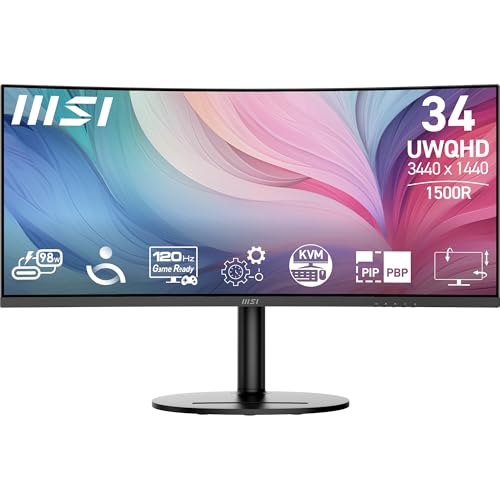
The MSI Modern MD342CQP is the best-selling monitor on Amazon AU at time of writing, sitting at #1 in the Monitors category, and I can see why. It's a 34-inch curved ultrawide at 3440 by 1440 with a USB-C port that carries video and up to 98 watts of charging, which is enough to keep a 14-inch MacBook Pro topped up at full speed. At $447 it costs about the same as a decent 27-inch 4K screen. It's sold by Amazon AU, and the listing states a three-year manufacturer warranty. It also ranks #23 across the whole Amazon AU site, which is unusual for a monitor, and the model code Modern MD342CQP matches the title, so you know exactly which unit turns up.
The panel is VA rather than IPS, with a stated 3,500 to 1 contrast ratio, 300 nits brightness and 95 percent DCI-P3 coverage, and it runs at up to 120Hz. VA gives deeper blacks than IPS, though dark scenes can smear a little in fast motion, which matters for games more than for work. The ports are one USB-C, two HDMI 2.0b and one DisplayPort 1.4a, plus a 5Gbps hub with two USB-A ports, a headphone jack, 3-watt speakers and a KVM switch for a second computer. The stand adjusts in three ways and it ships with 75mm VESA brackets. The hub runs on a USB-B upstream link, so your keyboard and mouse move between computers with the KVM rather than through the USB-C cable alone.
On a Mac this screen runs at normal size, with no Retina doubling, so text is softer than on the MacBook itself. I think the width makes up for it for timelines, spreadsheets and two documents side by side. The stand's three-way adjustment covers height and tilt, but if you want it on an arm the 75mm brackets are in the box. Keep the vents on the back clear of the wall, because heat is what ages a monitor's power board. For a MacBook that only drives one external screen, this is the one I'd buy.
Honest caveats: Honest caveats: at about 110 pixels per inch, macOS text isn't as crisp as on a 4K or 5K screen. The USB hub runs at 5Gbps, so it's fine for a keyboard and webcam and slow for big file copies. The built-in speakers are 3 watts and won't replace real speakers.
Best for: A MacBook that drives one external screen, used for wide timelines, spreadsheets or side-by-side windows.
Screen: 34-inch curved 1500R, 3440 x 1440, VA • Refresh: Up to 120Hz • Colour: 95% DCI-P3, 300 nits, 3,500:1 • USB-C: DisplayPort Alt mode, 98W charging • Other inputs: 2x HDMI 2.0b, 1x DisplayPort 1.4a • Hub: USB-B upstream, 2x USB-A 5Gbps, KVM • Warranty: 3 years (listing) • Seller: Amazon AU • Rank: #1 in Monitors (Amazon AU)
View on Amazon AU
LG 27UP850K-W 27-inch UHD 4K IPS USB-C Monitor
ASIN B0DG1QCZMB • $445 • Ships from Amazon AU
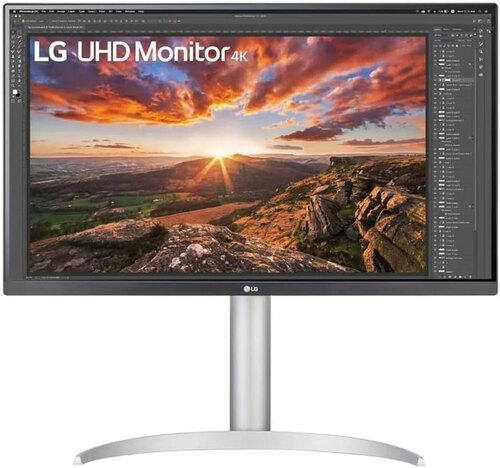
The LG 27UP850K-W is the least expensive way into a 27-inch 4K screen with a USB-C video port from a major brand, at $445 and sold by Amazon AU. It ranks #39 in Amazon AU's Monitors category. It's an IPS screen at 3840 by 2160 with VESA DisplayHDR 400 and 95 percent DCI-P3 listed, which is close to the colour range of a MacBook's own screen. The listing states a three-year parts and labour warranty, and the stand adjusts for height, tilt and pivot. Pivot means you can turn it to portrait for long documents or code, which suits a writing desk. The listing also lists AMD FreeSync, which a Mac ignores, so don't count it as a feature here.
On macOS I'd run it at the setting that looks like 1440p, and at a normal distance text is crisp. It's a step down from 5K, but a big step up from any 1440p or ultrawide screen for reading and writing all day. The white finish suits a silver or white MacBook on the desk, and the model code 27UP850K matches the title. HDR 400 is the entry level of HDR, so treat it as a slightly brighter screen for photos and video rather than a proper HDR display. At 27 inches and 4K the pixel density is about 163 per inch, well above an ultrawide and below 5K, and that's the sweet spot for most people's money.
The listing doesn't state how many watts its USB-C port delivers, and it doesn't detail the hub. That matters if you want one cable to charge a 14 or 16-inch MacBook Pro, so check the current listing or LG's spec sheet before you rely on it for charging, and keep the MacBook charger handy until you know. For a MacBook Air the charging question matters less, because an Air runs happily on a low-wattage supply. Wipe the screen with a dry microfibre cloth only, since IPS coatings mark easily. It's the pick I'd suggest for writing and admin work on a tight spend.
Honest caveats: Honest caveats: the USB-C charging wattage and the hub ports aren't stated on the listing, so you can't plan a one-cable Pro desk on it without checking LG's spec sheet first. 4K at 27 inches is scaled on macOS, so it's slightly softer than 5K. HDR 400 is entry-level HDR.
Best for: A MacBook Air owner who reads and writes all day and wants a sharp 4K screen at the lowest spend.
Screen: 27-inch, 3840 x 2160, IPS • Colour: 95% DCI-P3 (typ.), DisplayHDR 400 • USB-C: Video over USB-C; wattage not stated on the listing • Other features: AMD FreeSync • Stand: Height, pivot and tilt • Model: 27UP850K • Warranty: 3 years parts and labour (listing) • Seller: Amazon AU • Rank: #39 in Monitors (Amazon AU)
View on Amazon AU
Samsung 34-inch S65TC Thunderbolt 4 WQHD Curved Monitor (LS34C650TAEXXY)
ASIN B0CQ7HPZHH • $699 • Ships from Amazon AU
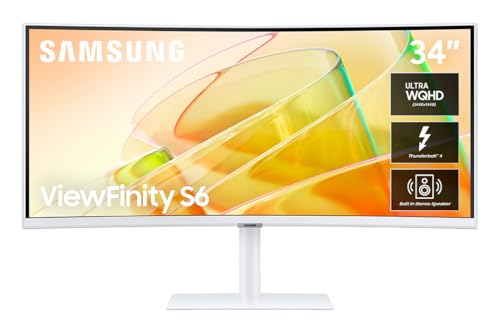
The Samsung S65TC is the only pick here with a full Thunderbolt 4 port, and it's a 34-inch curved ultrawide at 3440 by 1440 for $699, sold by Amazon AU. It ranks #68 in Amazon AU's Monitors category. The Thunderbolt port carries video, data and 90 watts of charging, and the listing adds HDMI, DisplayPort, a USB 3 hub and a wired network port. The part number LS34C650TAEXXY ends in XXY, which is Samsung's Australian code. Thunderbolt 4 also means a second Thunderbolt device can plug in behind it, and the hub has more bandwidth to share. The listing states a 21:9 aspect ratio and HDR10 support, and the stand is height adjustable.
The network port is the reason I'd pick it over the MSI for a lot of MacBook owners. No current MacBook has one, and a wired connection through the monitor is steadier than Wi-Fi for video calls and big uploads. Thunderbolt also gives the hub more bandwidth to share with the screen than a plain USB-C video port does. The screen runs at 100Hz with a tighter 1000R curve, and it has built-in speakers, a KVM switch and a stand with height, swivel and tilt adjustment. Samsung's Easy Setting Box software for splitting the screen is a Windows app, so on a Mac use the built-in window tiling instead. The white finish suits a silver MacBook.
As with the MSI, macOS runs this screen at normal size, so text is softer than on 4K or 5K. The tighter curve suits sitting close and centred, and the screen can look a little bent if you sit off to one side. Leave a gap behind it for airflow, and if the wired network drops out, try the Mac's network settings before you blame the monitor. It's $252 more than the MSI for Thunderbolt and the network port, and if you'd use both, I think that's money well spent.
Honest caveats: Honest caveats: the listing states a one-year warranty, shorter than the three years on the MSI, LG, BenQ and ASUS. 90 watts will charge a 16-inch MacBook Pro slowly under heavy load. Refresh is 100Hz, below the MSI's 120Hz. The listing doesn't state brightness or colour coverage figures.
Best for: A MacBook owner who wants wired networking and Thunderbolt bandwidth through one cable to an ultrawide.
Screen: 34-inch curved 1000R, 3440 x 1440 • Refresh: 100Hz, AMD FreeSync • Thunderbolt: Thunderbolt 4, 90W charging • Other inputs: HDMI, DisplayPort • Hub: USB 3 hub, LAN port, KVM • Model: LS34C650TAEXXY • Warranty: 1 year (listing) • Seller: Amazon AU • Rank: #68 in Monitors (Amazon AU)
View on Amazon AU
BenQ MA270UP 27-inch 4K Nano Gloss Monitor for Mac (USB-C, 90W)
ASIN B0FNNH6Y4G • $849 • Sold by BenQ Australia on Amazon AU
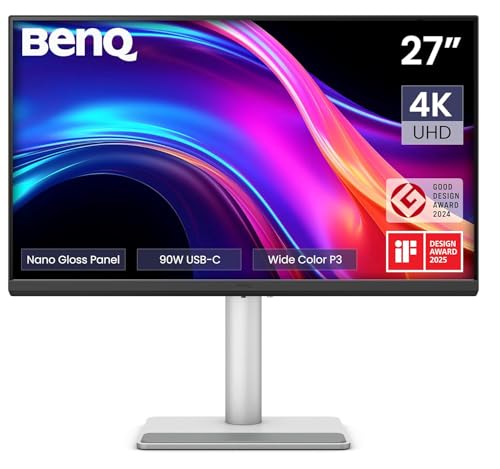
The BenQ MA270UP is a 27-inch 4K screen designed around a MacBook, at $849 and sold by BenQ Australia, the brand's own local store. It ranks #18 in Amazon AU's Monitors category, though that rank is shared across BenQ's MA range listings. It has two USB-C ports: one delivers 90 watts to charge a MacBook, and the other 15 watts for an iPad or iPhone. There are also two HDMI ports and a USB hub, and the stand adjusts for height, tilt, swivel and pivot. The 15-watt second port is a small thing that means one less charger on the desk for a phone or iPad. BenQ's 5K and 32-inch siblings sit on the same listing family, but I left those two out for the reasons above.
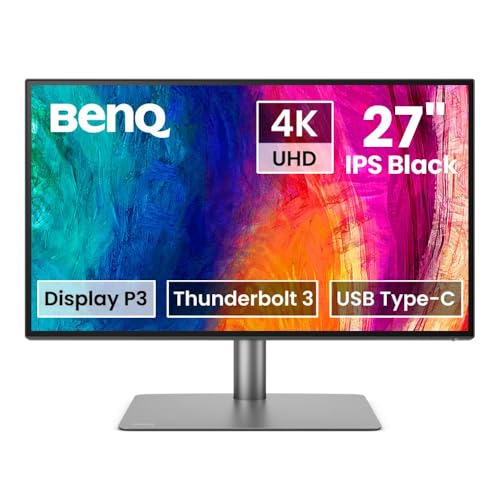
What you're paying the extra for over the LG is the Mac side of things. BenQ says the colour is tuned to match a MacBook's P3 screen, and the Nano Gloss finish looks closer to Apple's glossy screens than a matte monitor does. The brightness and volume keys on the MacBook keyboard control the monitor directly, which most third-party screens can't do without an app. The silver finish matches the laptop, and the model code MA270UP matches the title and features. The listing doesn't state refresh rate or brightness, so I'd treat it as a 60Hz work screen. The features also list a P3 colour range rather than a percentage, so I can't compare it figure for figure with the LG.
On macOS I'd run it at the looks-like-1440p setting, same as the LG, and text is crisp at normal distance. The gloss finish will show reflections from a window behind you, so check where the light falls on your desk before you choose it. Clean it with a dry microfibre cloth, because gloss shows smears more than matte. It's sold by BenQ's own Australian store rather than Amazon AU, and the listing states a three-year warranty. For a MacBook owner who wants a screen that looks and behaves like part of the Mac, it's the one I'd pick.
Honest caveats: Honest caveats: the gloss finish shows reflections in bright rooms. 4K at 27 inches is scaled on macOS, so it's slightly softer than 5K. The listing's sales rank is shared across BenQ's MA range, so it isn't this model's own figure. The listing doesn't state refresh rate or brightness.
Best for: A MacBook owner who wants a glossy 4K screen that matches the Mac's colours and keyboard controls.
Screen: 27-inch 4K, Nano Gloss • Colour: P3 gamut, Mac colour matching • USB-C: 2x USB-C: 90W and 15W • Other inputs: 2x HDMI • Mac controls: Brightness and volume from MacBook keyboard • Stand: Height, tilt, swivel, pivot • Warranty: 3 years (listing) • Seller: BenQ Australia • Rank: #18 in Monitors (Amazon AU, listing shared with BenQ's MA range)
View on Amazon AU
ASUS ProArt Display 5K PA27JCV 27-inch USB-C Monitor (96W)
ASIN B0DP88WX8G • $1,199 • Ships from Amazon AU
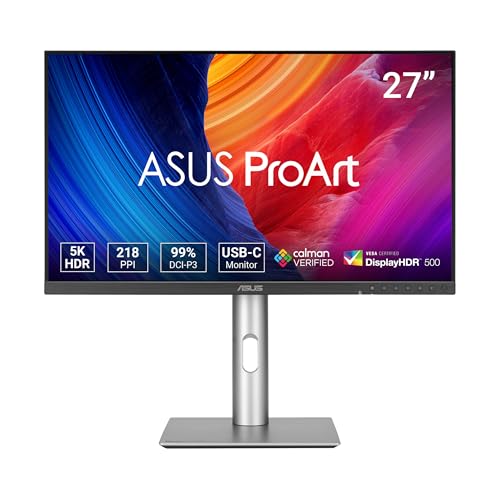
The ASUS ProArt PA27JCV is a 27-inch 5K screen at 5120 by 2880, the same resolution and density as Apple's own Studio Display, for $1,199 and sold by Amazon AU. It ranks #144 in Amazon AU's Monitors category. On macOS that means the full Retina look: everything is the size of a 1440p screen, drawn at double detail with no scaling in between, so text is as sharp as on the MacBook itself. Its USB-C port carries DisplayPort video and 96 watts of charging. The listing's release date is April 2025, so it's a current model, and the grey and silver finish sits well beside a MacBook. It's sold and shipped by Amazon AU, so a return goes through Amazon rather than an overseas seller.
ASUS lists 99 percent DCI-P3 and 100 percent sRGB, factory calibration with a stated colour error under 2, and Calman verification, so it's ready for photo and video work out of the box. It has an ambient light sensor and a backlight sensor that keep the brightness and colour steady as the room changes, and the listing states DisplayHDR 500. The IPS screen uses ASUS's own low-reflection coating, which sits between matte and gloss. There's also DisplayPort, HDMI and a USB hub on the back. Calman verification means the factory calibration report can be checked with Calman software, which matters to people who hand colour work to printers. If you don't, it still means the screen looks right out of the box without any fiddling.
This is the one I'd suggest for anyone who stares at text or photos for a living on a Mac. 96 watts keeps a 14-inch MacBook Pro fully charged, though a 16-inch Pro will charge slowly under a long export. The model code PA27JCV matches the title, and the listing states a three-year warranty. The listing doesn't state refresh rate, so treat it as a 60Hz work screen. Keep the sensors on the front clean and unobstructed, or the auto brightness will drift. It's the sharpest screen here for macOS by a clear margin.
Honest caveats: Honest caveats: it costs about $750 more than the LG for the jump from 4K to 5K. The listing doesn't state refresh rate, so plan on 60Hz. 96 watts is below a 16-inch MacBook Pro's 140-watt charger, so heavy work will drain the battery slowly. There are no built-in speakers listed.
Best for: A photographer, designer or writer on a MacBook who wants Retina-sharp text and calibrated colour.
Screen: 27-inch 5K, 5120 x 2880, IPS • Colour: 99% DCI-P3, 100% sRGB, Delta E < 2 • HDR: VESA DisplayHDR 500 • USB-C: DisplayPort Alt mode, 96W charging • Other inputs: DisplayPort, HDMI, USB hub • Sensors: Ambient light and backlight sensors • Warranty: 3 years (listing) • Seller: Amazon AU • Rank: #144 in Monitors (Amazon AU)
View on Amazon AUSide-by-side comparison
What we see fail in the workshop: MacBook desk setups
Most of the desk-setup faults that come in aren't the monitor at all. They're the MacBook's charging port, the cable between the two, or a drink that went over on a crowded desk. These are the three I see most, and what to check before you assume the expensive part has failed. Nearly all of them start small and cost less to fix when they're caught early.
The USB-C port on the MacBook wears out
A cable that hangs off the side of the laptop puts a little sideways force on the port every time the MacBook is moved, opened or pushed back on the desk. Over months the contacts loosen, and the first sign is a laptop that only charges when the plug sits at a certain angle, or a monitor that flickers off when you touch the cable. Try the other port and a second cable first. If one port is fine and the other isn't, it's usually the port or its board connection, and that's a repair rather than a new laptop.
No-name cables that can't carry the power or the picture
A replacement USB-C cable from a servo or a marketplace might charge a phone perfectly and still fail on a monitor. Cables need enough current rating for 90 watts or more and enough data lanes for the video signal. Underrated cables run warm, charge slowly, or drop the screen to a lower resolution or a black screen. We also see no-name leads damage port contacts when their plugs are slightly out of size. Use the cable that came with the monitor, or a known brand rated for 100 watts and video.
Liquid on a MacBook next to the monitor
A desk with a monitor, a keyboard and a laptop leaves less room for a coffee, and it's the MacBook that usually catches it. Liquid under the keyboard reaches the logic board within minutes, and corrosion carries on for days after it looks dry. Unplug it from the monitor, shut it down and don't try to charge it to see if it's alright. Bring it in as soon as you can; the earlier we clean the board, the more of it we can usually recover, and you'll know the cost before any work starts.
Decision tree: which one should you actually buy?
- You've got a base M1 or M2 MacBook Air and want more screen room? → It drives one external screen, so go wide: the MSI Modern MD342CQP at $447 gives you the most room on one cable.
- You read and write all day and want the sharpest text for the least money? → The LG 27UP850K-W at $445 is 4K at 27 inches; check the charging wattage on LG's spec sheet if it'll charge a Pro.
- You want wired networking and Thunderbolt through the monitor? → The Samsung S65TC at $699 is the only Thunderbolt 4 pick and adds a network port the MacBook doesn't have.
- You want a screen that looks and behaves like part of the Mac? → The BenQ MA270UP at $849 has a glossy finish, Mac colour tuning and keyboard brightness control.
- You do photo, design or long writing work and want Retina-sharp text? → The ASUS ProArt PA27JCV at $1,199 is 5K, the same density as Apple's own screens, with factory calibration.
- Your MacBook only charges at an angle, or the monitor drops out when you touch the cable? → Try another port and cable first, then bring the laptop to our Erina workshop and we'll check the port and charging circuit and tell you the cost first.
Frequently asked questions
Is a 4K monitor good enough for a MacBook, or do I need 5K?
A 27-inch 4K monitor is good enough for most people. Run it at the setting that looks like 1440p and text is crisp at a normal viewing distance. A 27-inch 5K monitor is sharper because macOS can draw it at exactly double detail with no scaling, the same way it draws a MacBook's own screen. If you read, write or edit photos for hours a day, 5K is noticeably nicer. If you mostly browse, email and do admin, 4K is the better use of the money.
Can a USB-C monitor charge my MacBook Pro?
Yes, if its USB-C port delivers enough power. A MacBook Air charges at full speed from almost any USB-C monitor. A 14-inch MacBook Pro is fine on a 90 to 98 watt monitor. A 16-inch MacBook Pro shipped with a 140 watt charger, so on a 90 or 96 watt monitor it charges more slowly and can lose charge during long heavy work. Use the cable that came with the monitor, because a cable rated for less power will limit charging.
How many external monitors can my MacBook Air run?
It depends on the chip. Going by Apple's published specs, base M1 and M2 MacBook Airs run one external display. The M3 MacBook Air runs two, but only with the lid closed. The M4 and later MacBook Airs run two external displays with the lid open. MacBook Pros with Pro or Max chips run more. Check your exact model on Apple's tech specs page before buying two monitors, because the limit is set by the chip and can't be changed.
Why does text look blurry on my ultrawide monitor with a Mac?
A 34-inch ultrawide at 3440 by 1440 has about 110 pixels per inch, so macOS draws it at normal size with no Retina doubling. Apple removed subpixel text smoothing from macOS years ago, so text on lower-density screens looks softer than on a Windows PC or on the MacBook's own screen. It isn't a fault. Turning off font smoothing in Terminal settings changes it slightly for some people, but a 4K or 5K screen is the real fix if sharp text matters most.
Do I need a Thunderbolt monitor, or is USB-C enough?
For most MacBook owners USB-C with DisplayPort video and charging is enough. It carries the picture, charges the laptop and runs a basic USB hub over one cable. Thunderbolt adds more data bandwidth for fast drives and docks, and can chain a second Thunderbolt screen. If you copy big video files through the monitor's hub or want a wired network port, Thunderbolt is worth having. If you plug in a keyboard, mouse and webcam, USB-C is fine.
My monitor stopped charging my MacBook. Is the monitor faulty?
Not always. Try the original cable, then the other USB-C port on the MacBook, then another laptop or phone if you have one. If the monitor charges another device, the problem is usually the MacBook's port or a damaged cable. If the MacBook only charges with the plug held at an angle, the port is worn or damaged, and that's a repair. If the monitor won't charge anything but still shows a picture, its charging controller may have failed.
Related buying guides
MacBook not charging from the monitor, or had a spill?
Most MacBook desk faults we see are worn USB-C ports, damaged cables and liquid on the logic board. Bring it into our Erina workshop and we'll check the port, the charging circuit and the board, and tell you what it'll cost and whether it's worth fixing before you spend anything.
Visit our Erina workshop Book Online