Prices from Amazon AU, updated daily. Swipe or use the arrows for more.
Disclosure: This article contains affiliate links to amazon.com.au. If you buy through one of these links iFix may earn a small commission at no extra cost to you. It doesn't change which products we recommend. We focus on what actually lasts based on 16 years of repair-shop experience.
Quick summary7 picks
- Entry PickMacBook Air 13-inch M5, 512GB, Starlight about$1,747
- MacBook Air 13-inch M5, 1TB, Midnight about$2,049
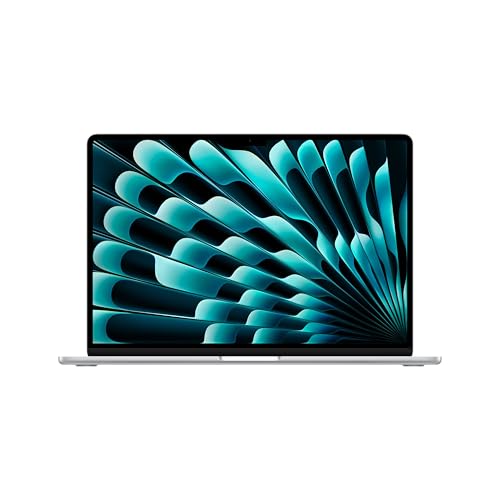
- MacBook Air 15-inch M5, 512GB, Sky Blue about$2,047
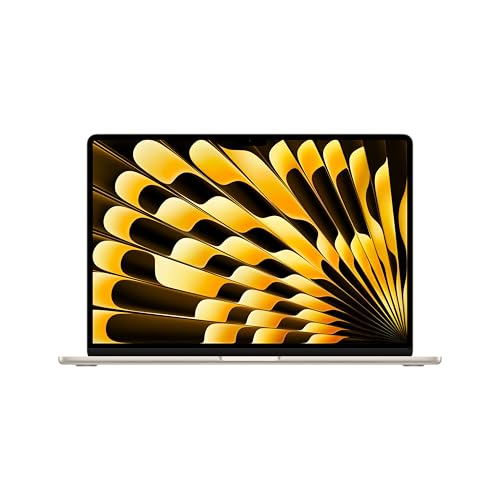
- MacBook Air 15-inch M5, 24GB, 1TB, Starlight about$2,797
- MacBook Air 15-inch M5, 1TB, Silver about$2,349
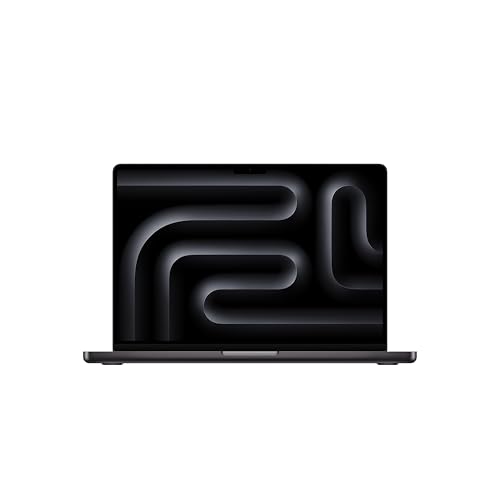
- MacBook Pro 14-inch M5, 16GB, 1TB about$3,097
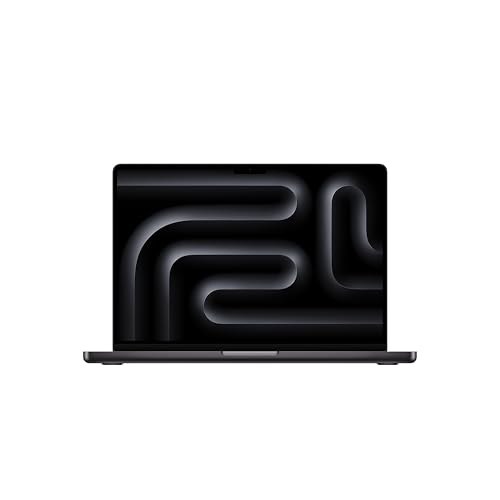
- Most PremiumMacBook Pro 14-inch M5, 24GB, 1TB about$3,346
Why storage is the whole decision on a MacBook
On every MacBook here, the memory and the SSD are soldered to the logic board. There's no slot to add RAM and no drive to swap for a bigger one. Whatever you tick on the order page is what that machine will have until the day it's retired, and that's the single biggest difference between buying a Mac and buying most Windows laptops. It's also why I've built this guide around memory and storage rather than benchmark scores.
I've picked five MacBooks from $1,747 to $3,346, all with Apple's M5 chip and all sold and shipped by Amazon AU. Two are 13-inch MacBook Airs, one at 512GB and one at 1TB, so you can see exactly what the storage step costs. Then there's the 15-inch Air, and two 14-inch MacBook Pros that differ only in memory, 16GB against 24GB. The lead pick, the 13-inch Air, is #1 in Amazon AU's Traditional Laptops category, which tells you where most people end up.
If you want the technical background on why Apple builds them this way, I've written about how Apple's SSDs have changed over the years, from removable blades to chips on the board. The short version is that it makes the machines thinner and faster, and it makes the spec you buy permanent.
Why buy from Amazon AU rather than Apple? Prices move week to week and are sometimes lower, and a Mac shipped by Amazon AU is new Australian stock with Apple's warranty the same as anywhere else. What I'd steer clear of is marketplace sellers you don't recognise, import versions with foreign keyboards and chargers, and anything that isn't listed as new.
One thing I won't do is pad out what Apple's Amazon listings leave out. The Pro listings in particular don't state the screen, the ports or the weight, so where a spec isn't on the listing I'll say so, and you can check Apple's own spec pages before you order.
How much memory and storage you actually need
Every pick here starts at 16GB of unified memory, and that's the right floor in 2026. For email, browsing with a lot of tabs, Microsoft 365, photo editing and video calls, 16GB is comfortable. You'll want 24GB if you edit 4K video, run virtual machines, work with big Lightroom catalogues or run local AI models, and it's worth having if you plan to keep the machine for six years or more. On the 14-inch Pro, going from 16GB to 24GB costs $249 at time of writing.
Storage is where I'd spend first. The 13-inch Air goes from $1,747 at 512GB to $2,049 at 1TB, which is $302, and that step also gets you the 10-core GPU instead of the 8-core. 512GB is fine if your photos and files live in iCloud or OneDrive and you don't keep a big music or video library on the machine. If you shoot video, keep years of photos locally or install big creative apps, take the 1TB.
The problem I see most often isn't a slow Mac, it's a full one. When the SSD gets down to its last few gigabytes, macOS has nowhere to put its swap and cache files, updates fail, and the whole machine feels like it's aged five years overnight. People bring it in expecting a fault. Usually it's just full, and the fix is moving files to an external drive, which is fine, but it's not what you paid $2,000 for.
A quick way to decide is to open the storage settings on the computer you're using now and see how much you've used. If it's over 300GB, a 512GB Mac will probably feel full within a couple of years. If it's under 200GB, you're likely fine at 512GB.
If the budget's tight, my order is storage first, then memory, then chip. A bigger SSD solves more everyday problems than a faster processor ever will.
Air or Pro: what the extra money buys
The MacBook Air has no fan. That's why it's silent, and it's also why it slows itself down under a long, heavy load to stay cool. For writing, browsing, office work and the odd photo edit, you'll never notice. For a 40-minute video export or a long code build, you will. The Pro listing says it delivers the same performance whether it's on battery or plugged in, and it's built to hold that performance for longer under load, which is what you're paying for.
Battery is the other headline. Apple quotes up to 18 hours for the Air and up to 24 hours for the 14-inch Pro. Those are Apple's figures under its own test conditions, and real use is always lower, but the gap between the two is real enough. The Air listings also spell out the ports: two Thunderbolt 4, MagSafe charging and a headphone jack, with support for two external displays. The Pro listings here don't state their ports, so check Apple's spec page if you need HDMI or an SD slot.
My honest take is that most people should buy an Air. The Pro makes sense for people whose work keeps the chip busy for long stretches: video editors, developers, photographers working through hundreds of raw files at a time. If you're not sure which group you're in, you're almost certainly in the first one, and the money is better spent on storage.
The 13-inch against the 15-inch Air is a simpler choice. The 15-inch gets a 15.3-inch screen against 13.6 inches and six speakers instead of four, according to the listings. It costs $300 more than the 13-inch at the same 512GB, and the listings don't state either one's weight. If it lives on a desk, the 15-inch is lovely to use. If it goes in a backpack every day, I'd stick with the 13.
Back it up, because the SSD can't come out
On older MacBooks, when a logic board died we could usually pull the SSD and get your files off it. On these, the storage is part of the board and the data is encrypted to that specific chip. If the board takes liquid or a power fault badly enough, getting the data back is far harder and sometimes not possible at all. That changes how you should treat backups.
Set up Time Machine on day one. It's built into macOS and it'll quietly back up everything to an external drive every hour while it's plugged in. Any decent USB-C drive will do, and our external hard drive picks cover a range of sizes. iCloud Drive or OneDrive on top of that gives you an off-site copy as well. Two copies in two places is the habit that saves people.
If the worst does happen and there's no backup, don't keep trying to power it up. Every attempt can make things worse. Bring it in and talk to us about data recovery options before anything else is tried, because the first attempt is often the best chance you'll get.
If you're running a small business on a MacBook, I'd add a second external drive and swap them weekly, keeping one away from the office. Fire, theft and a burst pipe don't care how good your Time Machine schedule is.
It sounds like a chore for a brand-new machine, but it's the one bit of setup I'd never skip on a Mac.
Liquid, hinges and the repairs that cost the most
The most expensive thing that happens to a modern MacBook is a drink. Liquid runs down through the keyboard onto the board, and because the memory and storage are on that board, a bad spill can take everything with it. If it happens, unplug it, switch it off straight away and don't try to dry it with a hair dryer. Then get it to someone who does MacBook liquid damage repair at board level, because corrosion keeps working for days after the liquid has dried.
The second big one is the screen. Closing the lid on a pen, a pair of earbuds or a USB stick is enough to crack the display, and on these machines the screen is one assembly with the lid. That's a costly part. A cable or an earbud left on the keyboard is the usual cause. Our page on MacBook screen replacement goes through what that job involves.
Batteries are the third, and the most predictable. They wear with every charge cycle, and after a few years most hold noticeably less than they did new. macOS has optimised charging built in, and it's worth leaving on. A MacBook battery replacement is a normal part of owning one for six or seven years, not a sign that something's gone wrong.
One more thing on liquid. A lot of people keep a water bottle next to the laptop, and the bottles with a loose sports lid are the ones I see cause trouble. Keeping drinks on the far side of the desk sounds fussy, but it costs a lot less than a new logic board.
None of these are reasons not to buy a Mac. They're reasons to buy a decent sleeve, keep drinks off the desk and take the backups seriously.
Should you upgrade your old MacBook instead?
Before you spend $2,000 or more, it's worth asking whether the Mac you already have can keep going. Older Intel MacBooks with a removable SSD can often be given a bigger, faster drive and a new battery for a lot less than a new machine, and for email, browsing and documents they'll keep doing the job. The catch is software support, because older Intel Macs are losing access to new macOS versions. I've written a full piece on upgrading an old MacBook against buying new that walks through the numbers.
If your Mac is an M1 or later with a healthy battery and enough storage, it's probably still got years in it, and a new one won't feel as different as the marketing suggests. If it's an Intel machine that's out of updates, or an M-series Mac that's run out of storage, that's when a new one makes sense.
For anything in between, our computer repair team on the Central Coast can check the battery and SSD and tell you straight whether it's worth spending money on. Sometimes a battery is all it needs.
If you do go for a new one, don't leave the old Mac in a drawer. Erase it properly, sign out of iCloud and Find My, and then sell it, hand it down or recycle it. A working M1 Air still has plenty of life left for a kid's homework or a kitchen machine.
Hubs, chargers and the rest of the setup
The Airs have two Thunderbolt 4 ports and MagSafe. That's enough for most people, but if you plug into a monitor, a wired network and a couple of drives at a desk, you'll want a hub. A good one with proper power passthrough matters, because a poor hub can run hot and damage a port over time. Our USB-C hub guide covers the ones I'd use.
Use the charger that came in the box, or a quality USB-C charger from a known brand. Most of the charging faults we see on MacBooks trace back to no-name bricks, and the damage often shows up on the board rather than the charger itself.
On setup, turn on FileVault and Find My from the start, keep macOS updated, and write your Apple Account password down somewhere safe. The Macs that cause the most grief aren't always broken ones. Quite a few are locked to an account the owner can't get back into.
If you're already on iPhone, the listings point to iPhone Mirroring and copy-paste between devices, and that's a fair reason to stay in the Apple ecosystem. If you're thinking about a phone to go with it, we sell refurbished iPhones from our own stock with our own warranty. And if your Mac ever needs a look, you can walk in to our Erina workshop without booking.
The 5 picks, $1,747 to $3,346
Prices are Amazon AU at time of writing (26 October 2026) and move week to week. Ranks are Amazon AU category sales ranks, checked the same day.

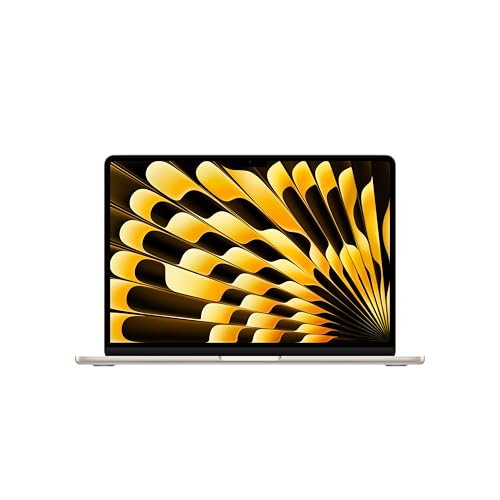
Apple MacBook Air 13-inch (M5, 2026), 16GB, 512GB, 8-core GPU, Starlight
ASIN B0GR1L8HWT • $1,747.00 • Ships from Amazon AU
The 2026 13-inch MacBook Air with the M5 chip is #1 in Amazon AU's Traditional Laptops category at time of writing, and at $1,747 for 16GB of memory and a 512GB SSD it's the lowest price of the five. It's sold and shipped by Amazon AU. The listing gives it a 13.6-inch Liquid Retina display, the M5 with a 10-core CPU and 8-core GPU, a 12MP Center Stage camera, a three-mic array and four speakers, two Thunderbolt 4 ports, MagSafe charging and a headphone jack. Wi-Fi 7 and Bluetooth 6 come through Apple's N1 chip, and it supports up to two external displays. Apple quotes up to 18 hours of battery.
For writing, browsing, Microsoft 365, video calls, uni work and photo editing, this is all the Mac most people will ever need. It has no fan, so it's silent, and it'll slow itself down a little on long, heavy jobs, which most owners never notice. The 16GB of memory is the right amount for this kind of use and should hold up well for years. The 13-inch size is the one I'd pick for anyone who carries a laptop every day. It fits a normal backpack and a small desk, and it's light enough that you won't leave it at home. If you're coming from an older Intel MacBook, the difference in battery life and heat alone will feel like a different class of machine.
The one thing I'd think hard about is storage. 512GB is fine if your files live in iCloud or OneDrive. If you keep a big photo library, shoot video or install creative apps, the 1TB version below is $302 more and also gets the 10-core GPU. That's money well spent if you're unsure, because you can never add more storage to this machine. If you're happy with 512GB, buy this one and put the difference towards a backup drive and a decent sleeve. Keep the box and receipt somewhere safe too, since you'll want them for warranty claims or resale down the track.
Honest caveats: 512GB of storage and 16GB of memory are soldered, so they can't be upgraded later. This version has the 8-core GPU, not the 10-core. The 18-hour battery figure is Apple's own, under its own test conditions. Weight isn't stated on the listing. With no fan, it slows down under long, heavy loads.
Best for: Students, office workers and most households who want a MacBook that'll last years without being overkill.
Display: 13.6-inch Liquid Retina • Chip: Apple M5, 10-core CPU, 8-core GPU • Memory: 16GB unified (soldered) • Storage: 512GB SSD (soldered) • Ports: 2x Thunderbolt 4, MagSafe, headphone jack • Wireless: Wi-Fi 7, Bluetooth 6 (Apple N1) • Battery: Up to 18 hours (Apple figure) • Rank: #1 in Traditional Laptops (Amazon AU)
View on Amazon AU
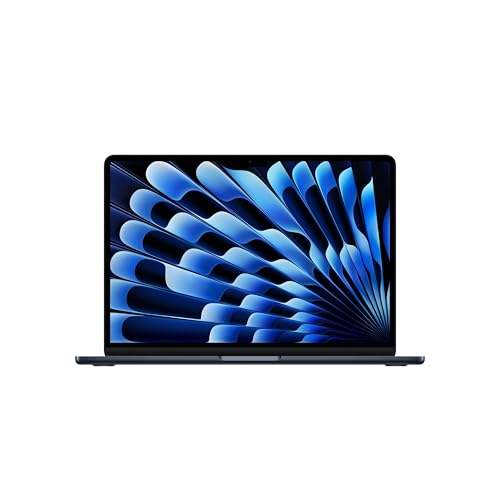
Apple MacBook Air 13-inch (M5, 2026), 16GB, 1TB, 10-core GPU, Midnight
ASIN B0GR1N4467 • $2,049.00 • Ships from Amazon AU
This is the same 2026 13-inch MacBook Air as the lead pick, with the storage doubled to 1TB and the GPU stepped up to 10 cores. It's $2,049 in midnight, sold by Amazon AU, and it shares the #1 rank in Amazon AU's Traditional Laptops category. The rest of the listing matches: 13.6-inch Liquid Retina display, M5 with a 10-core CPU, 16GB of unified memory, a 12MP Center Stage camera, four speakers, two Thunderbolt 4 ports, MagSafe, a headphone jack, Wi-Fi 7 and Bluetooth 6, support for two external displays, and Apple's quoted 18 hours of battery. It's the one I'd buy for myself. Amazon AU ships it, so returns and warranty claims go through a local seller.
Why? Because the $302 step from 512GB to 1TB is the best-value insurance you'll ever buy on a Mac. You can't add storage later, and running out is the most common reason people think their Mac has slowed down. With 1TB you can keep a decent photo library on the machine, install creative apps, and still have room for macOS to breathe after years of updates. The extra GPU cores help a little with photo and video editing too, though storage is the real reason to pick this one. I'd rather see someone buy this than stretch to a Pro they don't need. Spread over five or six years of ownership, that $302 works out to under two dollars a week.
One thing I'd be careful of: midnight shows fingerprints and fine scratches more than the lighter colours, and it's the finish most likely to show wear around the trackpad and palm rest after a few years. That's cosmetic, not a fault, but if it bothers you, check the other colours at the same spec. Everything else from the lead pick applies, including the lack of a fan and the soldered memory. If you're buying it for a student, the lighter colours also hide the scuffs from being pulled in and out of a bag every day, which is worth thinking about on a machine they'll use for four years.
Honest caveats: memory is 16GB and can't be upgraded, so if you edit 4K video or run virtual machines, 24GB is a better fit. Weight isn't stated on the listing. Midnight shows fingerprints and wear more than the lighter colours. With no fan, it slows under long heavy loads. Battery hours are Apple's own figure.
Best for: Anyone who keeps photos or creative apps locally and wants a Mac that won't run out of room.
Display: 13.6-inch Liquid Retina • Chip: Apple M5, 10-core CPU, 10-core GPU • Memory: 16GB unified (soldered) • Storage: 1TB SSD (soldered) • Ports: 2x Thunderbolt 4, MagSafe, headphone jack • Wireless: Wi-Fi 7, Bluetooth 6 (Apple N1) • Battery: Up to 18 hours (Apple figure) • Rank: #1 in Traditional Laptops (Amazon AU)
View on Amazon AU
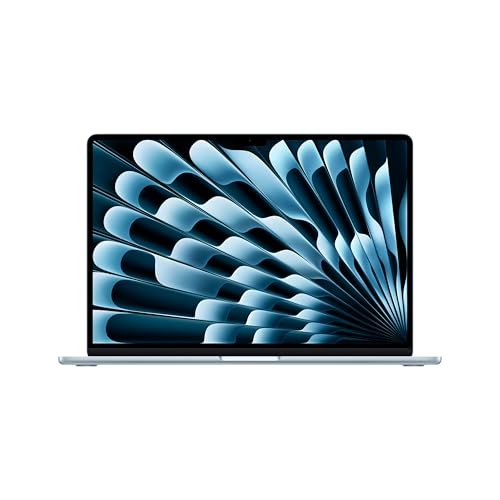
Apple MacBook Air 15-inch (M5, 2026), 16GB, 512GB, 10-core GPU, Sky Blue
ASIN B0GR1G6Q3P • $2,047.00 • Ships from Amazon AU
The 2026 15-inch MacBook Air is $2,047 for 16GB of memory and a 512GB SSD in sky blue, sold by Amazon AU, and it's #2 in Amazon AU's Traditional Laptops category. The listing gives it a 15.3-inch Liquid Retina display, the M5 with a 10-core CPU and 10-core GPU, a 12MP Center Stage camera, a three-mic array and six speakers rather than the 13-inch's four, two Thunderbolt 4 ports, MagSafe, a headphone jack, Wi-Fi 7 and Bluetooth 6 through the N1 chip, support for two external displays and up to 18 hours of battery by Apple's figure. It's the 13-inch Air with more screen and better sound. Like the other Airs, returns are simple because Amazon AU is the seller.
This is the Air I'd suggest for anyone who works at home with a spreadsheet and a browser side by side, or who doesn't want to plug into a monitor. The extra screen makes a real difference to how much you can see at once, and the speakers are noticeably fuller. It still has no fan, so it's silent, and it'll throttle a bit on long, heavy jobs the same way the 13-inch does. The bigger lid also means a bigger screen to break, so I'd keep it in a sleeve and be careful not to close it on anything. Lap use is fine too, since there's no fan to block, though the bottom does get warm under load.
The value question is storage again. At $2,047 you're paying $300 over the 13-inch for screen size, with the same 512GB. If you want both the bigger screen and 1TB, the 15-inch 1TB version is $2,349 at time of writing. If that's past your budget, think about which matters more to you day to day, because you can add a monitor to a 13-inch Air later but you can never add storage. For most people who sit at a desk, I'd still lean towards this one. A bigger screen is something you use every hour of the day, and it's worth paying for if that's how you work.
Honest caveats: 512GB and 16GB are soldered and can't be upgraded. The listing doesn't state the weight, which matters on a 15-inch you'll carry. With no fan, it slows under long heavy loads. The larger screen is a costlier repair if it cracks. Battery hours are Apple's own figure under its own tests.
Best for: Home and office users who want a bigger screen and better speakers without paying for a Pro.
Display: 15.3-inch Liquid Retina • Chip: Apple M5, 10-core CPU, 10-core GPU • Memory: 16GB unified (soldered) • Storage: 512GB SSD (soldered) • Audio: Six speakers, three-mic array • Ports: 2x Thunderbolt 4, MagSafe, headphone jack • Battery: Up to 18 hours (Apple figure) • Rank: #2 in Traditional Laptops (Amazon AU)
View on Amazon AU
Apple MacBook Pro 14-inch (M5, 2025), 16GB, 1TB, Space Black
ASIN B0FWDRB1J6 • $3,097.00 • Ships from Amazon AU
The 2025 14-inch MacBook Pro with the M5 chip is $3,097 for 16GB of memory and a 1TB SSD in space black, sold by Amazon AU, and it's #18 in Amazon AU's Traditional Laptops category. The listing describes the M5 with a 10-core CPU and 10-core GPU, a Neural Accelerator in each GPU core, up to 24 hours of battery by Apple's figure, and says the 14-inch Pro delivers the same performance on battery as plugged in. It names Microsoft 365 and Adobe Creative Cloud as apps it runs well. That's where the listing stops. The display, ports, camera and weight aren't stated, so check Apple's spec page before you order.
On paper the chip is the same M5 as the Airs, so why pay $1,048 more than the 1TB Air? It comes down to holding that performance over time. The Pro is built to keep the chip running flat out for long stretches, which is exactly where the fanless Air backs off. If you export video, compile code or batch-edit hundreds of photos, you'll feel the difference. If you mostly write, browse and run office apps, you won't. The longer quoted battery life is a real bonus for people who work away from a power point a lot. Developers running builds all day and editors working to deadlines are the people who get their money back on this one.
The 1TB of storage is a sensible starting point for the kind of work this machine is built for. The 16GB of memory is the one spec I'd question. It's plenty for most photo work and lighter video, but if you're buying a Pro for heavy creative work, the 24GB version below is $249 more, and memory is soldered just like storage. Space black also shows fingerprints. If you're not sure the Pro is for you, the 1TB Air is the better buy. And if you're buying through a business, keep the invoice handy, since it's a fair amount of money to account for come tax time.
Honest caveats: the listing doesn't state the display, ports, camera or weight, so check Apple's spec page. 16GB of memory is soldered and may be tight for heavy video work. The 24-hour battery figure is Apple's own. Space black shows fingerprints. It costs $1,048 more than the 1TB Air for performance many people won't use.
Best for: Photographers, developers and video editors whose work keeps the chip busy for long stretches.
Chip: Apple M5, 10-core CPU, 10-core GPU • Memory: 16GB unified (soldered) • Storage: 1TB SSD (soldered) • Battery: Up to 24 hours (Apple figure) • Performance: Same on battery as plugged in (per listing) • Display and ports: Not stated on the listing • Seller: Amazon AU • Rank: #18 in Traditional Laptops (Amazon AU)
View on Amazon AU
Apple MacBook Pro 14-inch (M5, 2025), 24GB, 1TB, Space Black
ASIN B0FWF8RJZC • $3,346.00 • Ships from Amazon AU
This is the same 2025 14-inch MacBook Pro with the M5 chip, with memory raised from 16GB to 24GB. It's $3,346 in space black, sold by Amazon AU, and shares the #18 rank in Amazon AU's Traditional Laptops category. The listing is the same thin one: M5 with a 10-core CPU and 10-core GPU, a Neural Accelerator in each GPU core, 1TB of storage, up to 24 hours of battery by Apple's figure, and the same performance on battery as plugged in. Display, ports, camera and weight aren't stated on the listing, so check Apple's spec page. It's the most expensive pick here, and for the right person it's the best value of the lot.
Here's why. Memory is the spec that decides how long a Mac stays useful for demanding work, and on this machine it's fixed forever. 24GB gives you room for 4K video timelines, big Lightroom catalogues, a few virtual machines or local AI models without the Mac leaning on its SSD for swap. That matters for speed today, and it matters for the SSD's life too, because heavy swapping adds writes to a drive you can't replace without replacing the board. For $249 over the 16GB Pro, I think that's well spent if your work is heavy. Heavy users also tend to keep their machines longer, which makes the extra memory even better value over the life of the laptop.
If you're buying a Pro to keep for six or seven years, this is the configuration I'd choose from the five. Pair it with Time Machine on an external drive from day one, keep it in a padded sleeve, and it should see you through a lot of macOS versions. If your work is lighter, don't let anyone talk you into it. The 1TB Air does everyday work just as well and costs about $1,300 less. It's worth adding AppleCare or listing it on your contents insurance too, because a board or screen repair on a machine like this isn't small.
Honest caveats: the listing doesn't state the display, ports, camera or weight, so check Apple's spec page before you order. Memory and storage are soldered. The 24-hour battery figure is Apple's own. At $3,346 it's a lot of laptop for anyone whose work doesn't keep the chip busy. Space black shows fingerprints.
Best for: Video editors, developers and creative professionals who'll keep a Mac for six years or more.
Chip: Apple M5, 10-core CPU, 10-core GPU • Memory: 24GB unified (soldered) • Storage: 1TB SSD (soldered) • Battery: Up to 24 hours (Apple figure) • Performance: Same on battery as plugged in (per listing) • Display and ports: Not stated on the listing • Seller: Amazon AU • Rank: #18 in Traditional Laptops (Amazon AU)
View on Amazon AUSide-by-side comparison
| Product | Price | Best for |
|---|---|---|
| MacBook Air 13-inch M5, 512GB, Starlight | ~$1,747 | Lowest-cost way in: the 13-inch Air with 512GB |
| MacBook Air 13-inch M5, 1TB, Midnight | ~$2,049 | 1TB and 10-core GPU, the one I'd buy |
| MacBook Air 15-inch M5, 512GB, Sky Blue | ~$2,047 | A bigger 15-inch screen at 512GB |
| MacBook Air 15-inch M5, 24GB, 1TB, Starlight | ~$2,797 | 13-inch with 24GB memory and 1TB |
| MacBook Air 15-inch M5, 1TB, Silver | ~$2,349 | 15-inch screen with 1TB storage |
| MacBook Pro 14-inch M5, 16GB, 1TB | ~$3,097 | Sustained load on a 14-inch Pro, 16GB |
| MacBook Pro 14-inch M5, 24GB, 1TB | ~$3,346 | Heavy video and VMs, 24GB memory |
What we see fail at the bench: MacBooks
Modern MacBooks are well built, and most of them that come in haven't simply worn out. They've had something happen to them: a drink, a closed lid on an earbud, a bad charger, or a battery that's finally done after years of daily cycles. Because so much is on one board, the cost of each of these depends a lot on how quickly it's dealt with. These are the three I'd most like owners to know about.
Liquid on the keyboard
A spill is the most expensive thing that happens to a MacBook. Liquid runs through the keyboard onto the logic board, where it shorts power lines and starts corrosion that keeps working for days, even after the machine seems dry. Because the memory and SSD are on that board, a bad spill can mean losing the data as well as the computer. Unplug it, switch it off, tip it upside down in a tent shape and don't power it back on to check. Then get it to a board-level repairer as soon as you can. The ones caught in the first day or two are the ones we usually save.
Screens cracked by the lid
Most cracked MacBook screens weren't dropped. They were closed on something: an earbud, a pen, a USB stick, or the corner of a phone left on the keyboard. The gap between the keyboard and the screen is tiny, and anything thicker than a sheet of paper puts pressure on the glass when the lid shuts. On these machines the display is one assembly with the lid, so it's a costly part. A quick look at the keyboard before you close it saves a lot of money. A keyboard cover can also cause marks on the screen over time, so I'd skip those.
Batteries and charging faults
MacBook batteries wear with every charge cycle, and after a few years most hold noticeably less than they did new. That's normal, and a battery replacement is a routine job. What isn't normal is a trackpad that's started clicking stiffly or a bottom case that's not sitting flat, which usually means the battery is swelling. Stop using it on charge and get it looked at. Charging faults on the board are the other one, and most of the ones we see trace back to no-name chargers or damaged cables. Stick to a known-brand USB-C charger and replace frayed cables early.
Decision tree: which one should you actually buy?
- Office work, uni and browsing, files in the cloud? → The 13-inch MacBook Air (M5) with 512GB at $1,747.
- Keep photos and apps on the machine? → The 13-inch MacBook Air (M5) with 1TB at $2,049. It's the one I'd buy.
- Work at a desk and want a bigger screen? → The 15-inch MacBook Air (M5) at $2,047.
- Photo or video work that keeps the chip busy? → The 14-inch MacBook Pro (M5) with 16GB and 1TB at $3,097.
- Heavy video, virtual machines, keeping it six years or more? → The 14-inch MacBook Pro (M5) with 24GB and 1TB at $3,346.
- Spilt a drink, cracked the screen or it won't charge? → Switch it off and bring it to our Erina workshop. We'll check the board, screen and battery and quote you before any work starts.
Frequently asked questions
Can you upgrade the RAM or SSD in a new MacBook?
No. On every Apple silicon MacBook, including all five picks here, the memory and the SSD are soldered to the logic board. There's no slot for more RAM and no removable drive. Whatever you buy is what the machine will have for its whole life. That's why I'd spend on storage first and memory second, and think about how you'll use the Mac in five years, not just today. External drives are fine for backups and big archives, but they don't replace internal storage for apps and the system.
Is 16GB of RAM enough on a MacBook in 2026?
For most people, yes. 16GB handles office apps, a browser with lots of tabs, video calls, photo editing and light video work comfortably. You'll want 24GB or more if you edit 4K video regularly, run virtual machines, work with very large photo catalogues or run AI models locally. If you plan to keep the Mac for six years or more and your work is getting heavier, the extra memory is worth it, because you can't add it later. On the 14-inch Pro the step from 16GB to 24GB is $249 at time of writing.
Should I get 512GB or 1TB on a MacBook Air?
If your photos, documents and music live in iCloud or OneDrive and you don't install big creative apps, 512GB is fine. If you keep a large photo library on the machine, shoot video, or install apps like Final Cut or Adobe's suite, take the 1TB. On the 13-inch Air the difference is $302 at time of writing, and the 1TB model also gets the 10-core GPU. Running out of space is the most common reason a Mac starts to feel slow, and it can't be fixed by adding storage later.
Is the MacBook Pro worth it over the MacBook Air?
Only if your work keeps the chip busy for long stretches. Both use the M5, but the Air has no fan, so it slows itself down on long, heavy jobs like video exports or big code builds. The Pro is built to hold its performance, and Apple quotes longer battery life for it, 24 hours against 18. For writing, browsing, office work and everyday photo editing, the Air is the better buy, and the money saved is better spent on more storage. Video editors, developers and working photographers are the people who'll feel the Pro's advantage.
How long does a MacBook battery last?
In terms of years, most MacBook batteries hold up well for three to five years of daily use before the drop in capacity becomes annoying. Every charge cycle wears the cell a little. macOS has optimised charging built in, which slows the wear by holding the charge lower when you're usually plugged in, and it's worth leaving on. Heat is the other enemy, so don't leave a MacBook in a hot car or charging under a doona. A battery replacement is a normal part of keeping one going for six or seven years.
Can you recover data from a dead MacBook?
Sometimes, but it's much harder than it used to be. On older MacBooks the SSD could be removed and read in another machine. On Apple silicon Macs the storage is soldered to the board and encrypted to it, so recovering data usually means getting that board working again first. After liquid damage or a power fault, the chances are best if the machine hasn't been repeatedly powered on since. The real answer is backups: set up Time Machine to an external drive and keep a cloud copy as well.
Related buying guides
Spilt a drink, cracked the lid or won't charge?
On a MacBook, liquid on the keyboard is the one that can't wait, because corrosion on the board keeps spreading after it dries and the SSD is part of that board. Switch it off and bring it into Erina. We'll check the board, the screen and the battery, and tell you what it'll cost and whether it's worth fixing before you spend anything.
Visit our Erina workshop Book Online