Prices from Amazon AU, updated daily. Swipe or use the arrows for more.
Disclosure: This article contains affiliate links to amazon.com.au. If you buy through one of these links iFix may earn a small commission at no extra cost to you. It doesn't change which products we recommend, we focus on what actually lasts based on 16 years of repair-shop experience.
Quick summary8 picks
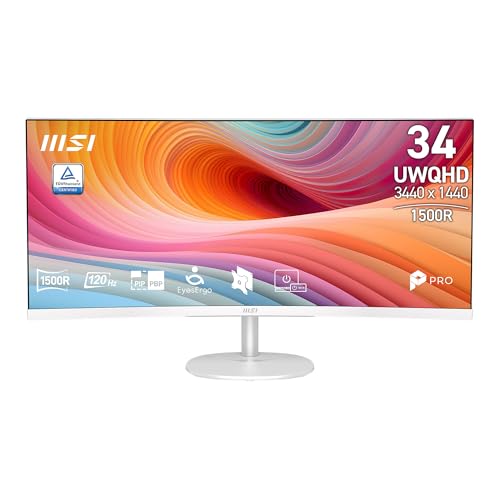
- Entry PickMSI PRO MP341CQW E12 34" UltraWide Business… about$299120Hz refresh, 34" screen.
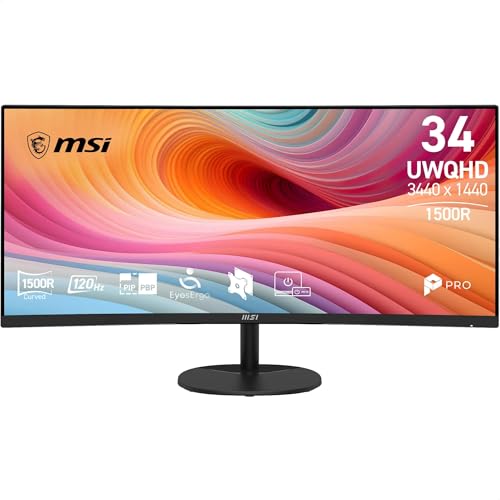
- MSI PRO MP341CQ E12 34" UltraWide Business… about$299120Hz refresh, 34" screen.
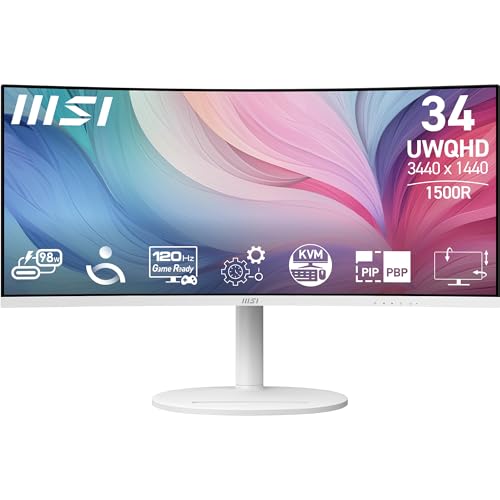
- MSI Modern MD342CQPW 34" UltraWide USB-C… about$647120Hz refresh, 34" screen, 98W.
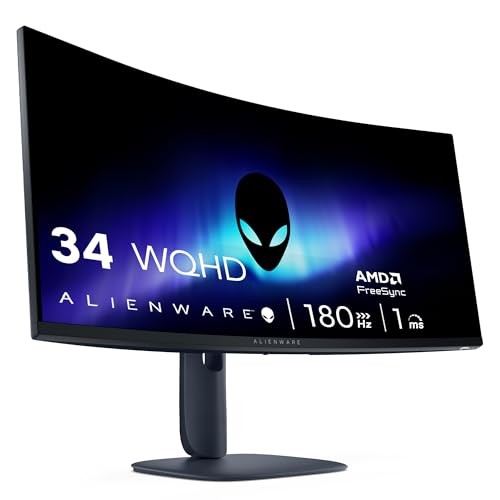
- Alienware 34 Gaming Monitor AW3425DW about$1,499240Hz refresh, OLED.
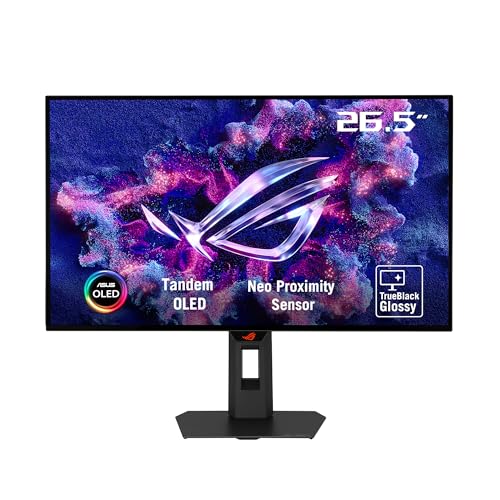
- ASUS ROG Strix OLED XG27AQWMG Gaming… about$1,198.95280Hz refresh, OLED.
- Lenovo Legion Pro 34WD-10 34-inch WQHD OLED… about$1,299240Hz refresh, OLED, 140W.
- Alienware AW3225QF Gaming Monitor 31.6-Inch… about$1,532.75240Hz refresh, OLED.
- Most PremiumSamsung 49 Inch Odyssey OLED G95SD DQHD… about$2,197240Hz refresh, OLED.
Why premium ultrawide, and why now
The value-monitor market has never been better, and for a lot of people a good sub-$500 panel is the right buy. This guide is the tier above it, and the reason to step up is not bragging rights. It is that for anyone whose desk earns money, a single wide OLED does the work of two flat LCDs and does it better.
The numbers behind that are worth naming plainly. Australia's gig and independent workforce sits at roughly 1.3 million people, and the household savings ratio has fallen to about 2.4%, well down from where it sat before the cost-of-living squeeze. Both figures are from published ABS data. Put together they say something simple: more people rely on a home setup for income, and there is less spare cash to waste on the wrong tool. The rational purchase in that environment is the one that earns its keep. A screen that fits a document beside a browser beside a timeline, with no bezel down the middle, quietly saves minutes on every task you repeat all day. Over a working year that adds up faster than the sticker price.
So this is not a fear pitch. If a flat 27-inch panel covers what you do, keep it, and our value monitors guide or the gaming monitors under $500 list will serve you better. If you already spend your day fighting two screens and a bezel, or you want the black levels only OLED gives, this is the tier that fixes it.
What separates this tier: panels, curve and ports
Four things actually matter once you go past $500, and OLED is the first of them.
- OLED versus LCD. Every panel on the value list is an LCD with a backlight, so black is really very dark grey and contrast is limited by how well the backlight dims. OLED lights each pixel individually, so black is off, contrast is effectively infinite, and motion is cleaner because the pixels switch almost instantly. On a dark scene or a dark UI the difference is not subtle.
- QD-OLED versus WOLED. Both are OLED. QD-OLED, in the Samsung and both Alienware panels here, adds a quantum-dot layer for brighter, more saturated colour that holds up at wide angles, and looks its best in a dimmer room. WOLED, in the Lenovo Legion Pro, pairs a white OLED with a colour filter and a matte anti-glare coating that copes better under bright office lighting. Neither is wrong; pick for your room.
- Resolution and the curve. 3440x1440 is the 34-inch ultrawide sweet spot, roughly two 24-inch screens of width in one surface. The 49-inch Samsung runs 5120x1440, two 27-inch QHD screens wide. The 32-inch Alienware is a true 4K 3840x2160. The gentle curve, 1800R on the big Samsung down to 800R on the Lenovo, exists to keep the far edges the same distance from your eyes as the centre, which matters more for a spreadsheet than a game.
- Ports and USB-C. Check the DisplayPort or HDMI version carries the panel's full resolution at full refresh, and use a cable rated for it, because a marginal cable is the number-one cause of a monitor that drops signal or refuses its top refresh rate. USB-C with power delivery is the feature to want if you dock a laptop: the Lenovo pushes 140W down one cable, carrying picture and charge together.
The 4 picks, from entry OLED to the dual-monitor replacer
Prices are checked against Amazon AU every morning and move week to week on premium panels, so treat each figure as "around". The list runs from the most affordable OLED here up to the 49-inch halo. Every one records a live Amazon AU price and ships domestically.

Dell Alienware AW3425DW 34" QD-OLED UW-QHD 240Hz
34" QD-OLED · 3440x1440 · 240Hz · 0.03ms · curved · DisplayHDR True Black 400 · height-adjustable · around $1,499 · Ships from Amazon AU
This is the one I would point most people at. It is the least expensive OLED here and gives up almost nothing to do it: a 34-inch Quantum Dot OLED panel at the 3440x1440 ultrawide sweet spot, the full 240Hz refresh with a 0.03ms response time, and VESA DisplayHDR True Black 400 so the black levels and the 1.07 billion colours land the way OLED should. Alienware's stand earns its keep too, with height, tilt, swivel and slant adjustment that a lot of less costly ultrawides skip, and it matters when a screen this wide has to sit at the right height all day.
Why it is the default. At around $1,499 it is the cleanest way into a true OLED ultrawide. You are paying for the panel and the stand, not a gimmick, and for a work-and-play desk that wants deep blacks and smooth 240Hz motion without going to $1,700-plus, it is the sensible pick.
Best for: the everyday premium desk that wants OLED and the full 34-inch ultrawide experience for the least money here.
Panel: 34" QD-OLED, curved · Resolution: 3440x1440 UW-QHD · Refresh: 240Hz, 0.03ms GtG · HDR: VESA DisplayHDR True Black 400 · Colour: 1.07 billion · Adaptive sync: AMD FreeSync · Stand: height, tilt, swivel · Ports: HDMI, DP, USB · Warranty: Dell limited + Australian Consumer Law
View on Amazon AU
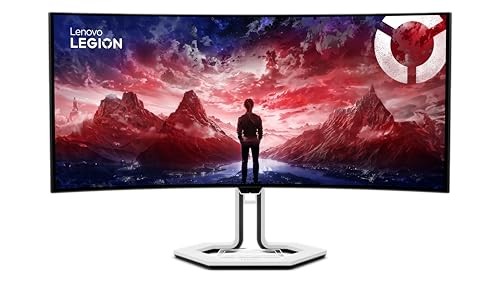
Lenovo Legion Pro 34WD-10 34" WQHD OLED 240Hz
34" OLED (anti-glare WOLED-class) · 3440x1440 · 240Hz · 0.03ms · 800R curve · DisplayHDR TB400 · USB-C 140W · around $1,299 · Ships from Amazon AU
The Legion Pro is the pick if a laptop lives on your desk. Its standout is USB-C connectivity that delivers up to 140W of smart power, so one cable carries the picture from the laptop and charges it at the same time, which is exactly the tidy hot-desk setup a lot of gig and hybrid workers actually want. The panel backs that up: a 34-inch WQHD OLED with an 800R curve, a matte anti-glare finish that handles a bright room better than a glossy QD-OLED, and colour coverage of 99% sRGB and 98.5% DCI-P3 with true 10-bit depth. Motion is handled by a 240Hz refresh, a 0.03ms response and a ClearMR 13000 rating for blur-free movement.
The room it suits. The anti-glare WOLED coating is the reason to choose this over a QD-OLED panel if your desk sits under bright overhead lights or near a window. In a dim room a QD-OLED will look a touch punchier; in a bright office the Legion is easier on the eyes.
Best for: a hybrid or laptop-first desk that wants one-cable docking, in a room where glare is a problem.
Panel: 34" OLED, anti-glare, 800R curve · Resolution: 3440x1440 WQHD · Refresh: 240Hz, 0.03ms GtG, ClearMR 13000 · HDR: VESA DisplayHDR True Black 400 · Colour: 99% sRGB, 98.5% DCI-P3, 10-bit · USB-C: up to 140W power delivery · Warranty: Lenovo limited + Australian Consumer Law
View on Amazon AU
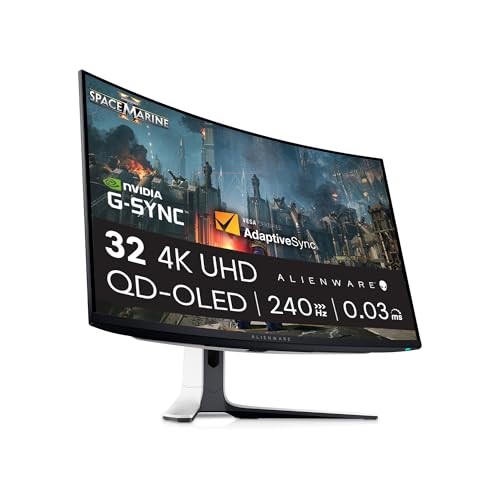
Alienware AW3225QF 32" 4K QD-OLED 240Hz
31.6" QD-OLED · 3840x2160 4K · 240Hz · 0.03ms · curved · 1000 nits peak · USB-C · G-Sync + FreeSync · around $1,532.75 · Ships from Amazon AU
This is the pick when pixel density matters more than raw width. It is not a 21:9 ultrawide but a gently curved 32-inch 4K QD-OLED, and the 3840x2160 resolution puts real detail into photo and video editing, code and fine text that a 1440p ultrawide cannot. The QD-OLED panel drives 1.07 billion colours with a peak brightness up to 1000 cd/m² and a million-to-one contrast ratio, and it still runs the full 240Hz at 0.03ms with both NVIDIA G-Sync and AMD FreeSync on tap, so it doubles as a serious gaming screen. USB-C, HDMI and DisplayPort with built-in cable management round it out.
Worth knowing first. Driving 4K at 240Hz is genuinely demanding, so plan on a strong graphics card if you want to feed it at full refresh in games; adaptive sync keeps it smooth at whatever rate your card actually holds. If you need the widest possible desktop rather than the sharpest, the 34 and 49-inch panels here are the better shape.
Best for: creators and detail-first users who want 4K sharpness and colour, with 240Hz gaming as a bonus rather than the point.
Panel: 31.6" QD-OLED, curved · Resolution: 3840x2160 4K · Refresh: 240Hz, 0.03ms · Brightness: up to 1000 cd/m² peak · Contrast: 1,000,000:1 · Colour: 1.07 billion · Sync: G-Sync Compatible + FreeSync · Ports: USB-C, HDMI, DP · Warranty: Dell limited + Australian Consumer Law
View on Amazon AU
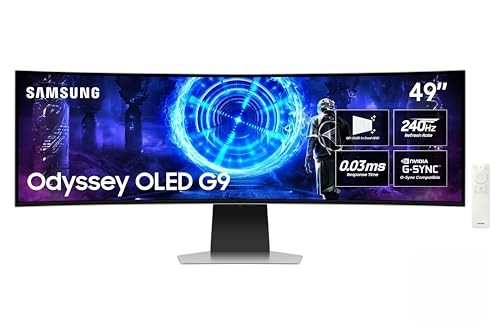
Samsung Odyssey OLED G95SD 49" DQHD 240Hz
49" QD-OLED · 5120x1440 DQHD · 240Hz · 0.03ms · 1800R curve · DisplayHDR True Black 400 · OLED Safeguard+ · Smart Hub · around $2,197 · Ships from Amazon AU
The halo of the list, and the one that genuinely retires a two-monitor setup. At 49 inches and 5120x1440 it is the width of two 27-inch QHD screens fused into one continuous 32:9 surface, so the split-and-snap workflow that needed two panels and a bezel now happens on one, driven by Samsung's own multi-view tools. Underneath is a QD-OLED panel with the Neo Quantum Processor Pro, the full 240Hz at 0.03ms, DisplayHDR True Black 400, and an 1800R curve that wraps a screen this wide back into your field of view. It also carries HDMI 2.1, DisplayPort 1.4, a height-adjust-and-pivot stand and Samsung's Smart Hub apps built in, so it works as a standalone screen without a PC attached.
What you are paying for. At around $2,197 it is the most expensive pick here, and the money buys width and the OLED Safeguard+ burn-in protection Samsung ships to back a panel meant to run all day. Give a desk this wide the depth it needs and check your graphics card has an output that can carry 5120x1440 at high refresh.
Best for: anyone replacing a dual-monitor rig with one uninterrupted surface, and willing to pay for the width.
Panel: 49" QD-OLED, 1800R curve · Resolution: 5120x1440 DQHD (32:9) · Refresh: 240Hz, 0.03ms · HDR: DisplayHDR True Black 400 · Protection: OLED Safeguard+ · Ports: HDMI 2.1, DP 1.4 · Stand: height-adjust, pivot · Extras: Smart Hub, no-PC apps · Warranty: Samsung limited + Australian Consumer Law
View on Amazon AUSide-by-side comparison
Prices are approximate and move week to week on premium panels. All four are OLED at 240Hz with a 0.03ms response; the real choice is width versus sharpness, and QD-OLED versus a matte anti-glare panel.
| Product | Price | Best for |
|---|---|---|
| Lenovo Legion Pro 34WD-10 34-inch WQHD OLED… | ~$1,299 | |
| Alienware 34 Gaming Monitor AW3425DW | ~$1,499 | |
| Alienware AW3225QF Gaming Monitor 31.6-Inch… | ~$1,532.75 | |
| Samsung 49 Inch Odyssey OLED G95SD DQHD… | ~$2,197 |
OLED burn-in, told straight from the bench
Burn-in is the one worry that keeps people on LCD, so here is the honest version rather than the marketing one or the horror stories. Burn-in is uneven ageing: an OLED pixel that shows the same bright element for thousands of hours dims a little faster than its neighbours, and eventually the ghost of that element, a taskbar, a logo, a game HUD, stays faintly visible on other content. It is real. It is also, in 2026, a manageable risk rather than a reason to avoid the technology. The same question lands in the lounge room, not just on the desk. We give OLED televisions the same straight treatment in our 65-inch TV guide.
Every panel in this guide fights it three ways. Pixel shift nudges the whole image by a pixel or two periodically so static elements never sit on the exact same pixels. Logo and taskbar dimming automatically lowers brightness on detected static bright areas. And a compensation cycle runs when you power the monitor off, evening out pixel wear; on Samsung's panels this is branded OLED Safeguard, and it is why you should let the screen finish its shutdown rather than yanking the power. Makers now trust these protections enough to publish multi-year burn-in warranties on the panels, which they would not do if it were still a coin flip.
What actually causes trouble is a narrow set of habits: the same static dashboard at full brightness for eight hours a day, day after day, with the compensation cycle never allowed to run because the machine never sleeps. If that is your use case, a trader with a fixed layout, a signage screen, an LCD is still the safer tool. For everyone else, mixed work, browsing, video and games, with the monitor allowed to sleep, burn-in is very unlikely inside the warranty and beyond. Keep the panel below maximum brightness, hide the taskbar on auto, let the compensation cycle finish, and vary what is on screen. Those four habits cost nothing and settle the question.
Common mistakes from the repair shop
The faults and regrets we see with big monitors are rarely bad luck. They are a buying or setup decision catching up with the owner. The ones worth avoiding:
- Blaming the panel for a cable. A screen that flickers, drops signal or refuses its top refresh rate is, more often than not, a cable not rated for the bandwidth. Use the cable in the box or a certified DisplayPort/HDMI lead before you assume the monitor is faulty.
- Running OLED at 100% brightness all day. You do not need it, and it is the fastest way to age the panel. Drop it to a comfortable level and the screen lasts longer and is easier on your eyes.
- Never letting the monitor sleep. The compensation cycle that protects an OLED runs at power-off. A machine that never sleeps never runs it. Let the screen turn off overnight.
- Underpowering the graphics. Buying a 4K-240Hz or 49-inch panel and feeding it from graphics that cannot drive the resolution, then wondering why games stutter. Match the screen to the machine, or plan the upgrade. Our graphics cards guide and premium mini PC guide cover what actually drives these.
- A wobbly desk arm rated too light. These panels are wide and heavier than they look. If you VESA-mount one, check the arm's weight rating and the desk clamp, or a slow sag turns into a fall.
- Skipping the Consumer Law claim. A dead sub-pixel cluster or a real defect inside a couple of years on a premium screen is usually grounds for repair, replacement or refund. Keep the invoice and photograph faults early.
Which one is right for you?
- The everyday premium desk, best value into OLED? Alienware AW3425DW at around $1,499. The full 34-inch QD-OLED experience for the least money.
- A laptop-first or hybrid desk, bright room? Lenovo Legion Pro 34WD-10, for one-cable USB-C docking and the anti-glare coating.
- Editing, code and detail work? Alienware AW3225QF 32-inch 4K QD-OLED, when sharpness beats width.
- Replacing two monitors with one? Samsung Odyssey OLED G95SD 49-inch, the true dual-monitor replacer.
- On a tighter budget, or want a flat 27-inch? Start with the value monitors guide instead. There is no shame in the LCD tier if it covers what you do.
Frequently asked questions
Does an OLED monitor really get burn-in?
It can, but the risk in 2026 is far lower than the reputation suggests. Burn-in is uneven wear: pixels that show the same bright static element for thousands of hours age faster than the rest, and the ghost of that element stays behind. Every panel here fights it with pixel shift, logo dimming and a periodic compensation cycle that runs when you turn the monitor off. In normal mixed use, browsing, gaming, video and varied work, you are very unlikely to see it inside the warranty period. The people who do are usually running the same trading dashboard or the same HUD at full brightness for eight hours a day, every day. Vary what is on screen, let the compensation cycle finish, and it is a non-issue for most desks.
What is the difference between QD-OLED and WOLED?
Both are OLED, so both give you per-pixel light control and true blacks. QD-OLED, used in the Samsung and the two Alienware panels here, adds a quantum-dot layer for brighter, more saturated colour and holds that colour better at wide viewing angles. WOLED, the panel type in the Lenovo Legion Pro, uses a white OLED base with a colour filter and typically ships with a matte anti-glare coating that handles a bright room well. In practice QD-OLED looks punchier in a dim room and WOLED handles glare better in a bright one. There is no bad choice between them at this tier.
Can one ultrawide really replace two monitors?
For most people, yes, and it is the main reason to buy one. A 34-inch 3440x1440 ultrawide gives you roughly the width of two 24-inch screens side by side, but as one continuous surface with no bezel down the middle and one cable to manage. The 49-inch Samsung goes further, matching two 27-inch QHD screens. Windows snapping and the tools that ship with these monitors let you split the screen into panes, so a document sits beside a browser beside a chat window. The one job it does not replace is a genuine dual-orientation setup, where you want one screen rotated to portrait. For everything else, one good ultrawide is tidier and usually nicer to work on.
Do I need a powerful graphics card to run one of these?
For work, no. Driving a desktop, browser and video at 3440x1440 or even 5120x1440 is light duty for any current integrated or discrete graphics. For gaming at the full 240Hz refresh, that is where it matters: 3440x1440 at high frame rates wants a solid mid-to-upper graphics card, and the 4K Alienware at 240Hz is genuinely demanding. The good news is these panels run adaptive sync, so a card that cannot hold 240fps still gives you tear-free, smooth motion at whatever rate it does hit. If you are pairing a screen with a new machine, our graphics card and mini PC guides cover what actually drives them.
Is a curved ultrawide good for work, or just games?
It is arguably better for work than for games. The curve exists to keep the far edges of a wide screen the same distance from your eyes as the centre, so at a normal desk viewing distance a long spreadsheet, a video timeline or two documents side by side stay in comfortable focus corner to corner. Gaming immersion is the headline feature the marketing leads with, but the people who get the most out of the shape are the ones who sit in front of it all day working. A gentle 1800R or 800R curve reads as natural within a few minutes and you stop noticing it.
Does Australian Consumer Law cover a monitor with dead pixels or burn-in?
Yes. Australian Consumer Law applies to a monitor sold to an Australian buyer and sits on top of the manufacturer warranty, and at this price a panel is expected to last a reasonable number of years. Most makers publish a dead-pixel policy and, importantly, several now include a specific burn-in warranty on their OLED panels, often two or three years, precisely because they are confident in the protections built in. Keep your invoice, photograph any fault early, and raise it with the seller. A premium panel that develops a real defect inside a couple of years is generally grounds for repair, replacement or refund.
What ports should I care about on an ultrawide?
Two things. First, that the DisplayPort or HDMI version on the monitor can actually carry its full resolution at its full refresh rate; every panel here does, but check the cable you use is rated for it, because a marginal cable is the single most common cause of a monitor that drops out or refuses its top refresh rate. Second, USB-C with power delivery if you use a laptop. The Lenovo Legion Pro here pushes up to 140W over one USB-C cable, meaning a single lead carries the picture and charges the laptop at the same time. For a hot-desk or a clean setup, that one feature is worth a lot.
Related buying guides
Monitor dead, flickering, or showing a fault on a screen you just paid four figures for?
Before you write off a premium panel or fight a warranty claim alone, bring it to our Erina workshop. We can tell you fast whether it is the cable, the power board or genuinely the panel, and give you the written diagnosis a seller asks for. We diagnose displays for free and quote before any paid work. See our pricing guide for what common jobs cost, or read how our Central Coast computer repairs work.
Visit our Erina workshop Book Online