Prices from Amazon AU, updated daily. Swipe or use the arrows for more.
Disclosure: This article contains affiliate links to amazon.com.au. If you buy through one of these links iFix may earn a small commission at no extra cost to you. It doesn't change which products we recommend. We focus on what actually lasts based on 16 years of repair-shop experience.
Quick summary8 picks
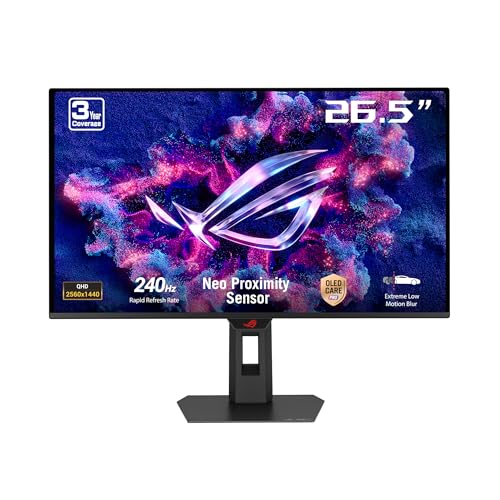
- Entry PickASUS ROG Strix OLED XG27AQDMES Gaming… about$795240 Hz refresh, OLED.
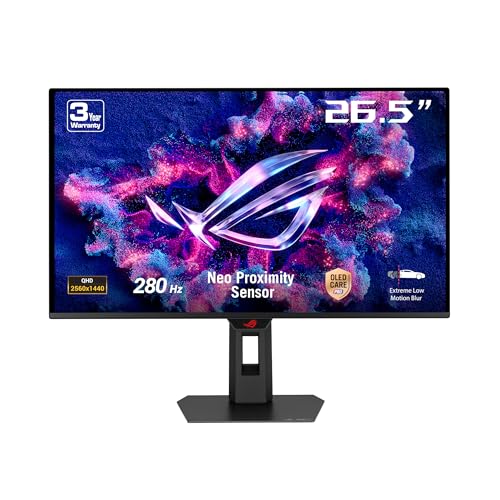
- ASUS ROG Strix OLED XG27ACDMS Gaming… about$1,029280 Hz refresh, OLED, 15W.
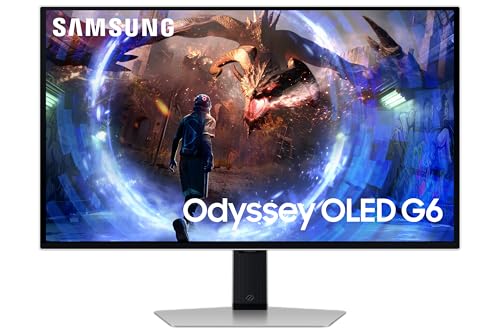
- Samsung 27 Inch Odyssey OLED G60SD QHD… about$899360Hz refresh, OLED.
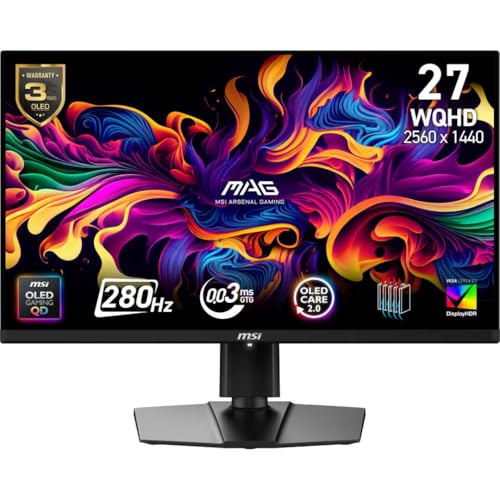
- MSI MAG 271QP QD-OLED X28 about$998280Hz refresh, 26.5" screen, OLED.
- ASUS ROG Strix XG27ACDNG 26.5" 360Hz QHD… about$1,038.95360Hz refresh, 26.5" screen, OLED.
- Most PremiumAlienware AW2725DF 27" QD OLED Gaming Monitor about$1,272.93360Hz refresh, 27" screen, OLED.
- ASUS ROG Strix OLED XG27AQWMG Gaming… about$1,198.95280Hz refresh, OLED.
- Alienware 27 Gaming Monitor AW2725Q about$1,199OLED.
Why OLED, and why 27 inches
An OLED gaming monitor is the biggest jump in picture quality you can make on a gaming PC right now, bigger in my view than going from a mid-range graphics card to a high-end one. Every pixel makes its own light and switches off completely for black, so dark scenes look properly dark, there's no backlight glow in the corners, and motion is far cleaner because pixels change state in a fraction of a millisecond. If you've been gaming on an IPS or VA screen, the first night on an OLED is a bit of a shock.
Twenty-seven inches is the size most people should buy. At a normal desk distance of 60 to 80cm, a 27-inch screen fills your vision without making you turn your head to see the minimap, and 1440p at that size is sharp enough for games and everyday desktop work. Most of these panels are actually 26.5 inches of viewable screen, which the ASUS and MSI listings state honestly. If you want something wider for sims or a bigger immersive view, I've covered the curved ones in the OLED ultrawide guide.
The price gap has also closed. Two or three years ago a 27-inch OLED cost far more than a good IPS gaming monitor. Now the entry models in this guide start at $849, which is still a lot of money, but it's within reach of anyone already spending that much on a graphics card. If $800 is past what you want to spend, my gaming monitor under $500 guide covers the best of the IPS options.
QD-OLED vs WOLED, without the marketing
There are two kinds of OLED panel in gaming monitors, and the five picks here cover both. QD-OLED, made by Samsung Display, uses a blue OLED layer with quantum dots converting some of that light into red and green. WOLED, made by LG Display, uses a white OLED layer with colour filters on top, plus a clear white subpixel for brightness. Both are proper OLED with per-pixel light, and both look stunning in a dark room. The differences are smaller than the forums make out, but they're real.
QD-OLED generally gives you more saturated colours, especially bright greens and reds, and the panels in this guide all claim around 99 percent of DCI-P3. The weakness is ambient light. QD-OLED panels don't use a polariser the way WOLED does, so in a bright room the blacks can look slightly grey or purple-tinged when light falls on the screen. WOLED holds black better in a lit room and, on the newer tandem panels like the one in the ASUS XG27AQWMG, claims higher brightness and a longer life than the older WOLED design.
Both types have slightly unusual subpixel layouts, so some people notice faint colour fringing on the edges of small text. In games you'll never see it. For spreadsheets and coding all day, it's worth knowing about, and running Windows scaling at 125 percent usually makes it far less noticeable. If your desk sits under a bright window, I'd lean WOLED. If it's a darker room and you want the most vivid colour, QD-OLED.
Burn-in: what actually happens and how to avoid it
Burn-in is the question everyone asks, and it's a fair one. OLED pixels age a little every time they light up, and the blue ones age fastest. If the same bright image sits in the same spot for thousands of hours (a taskbar, a game HUD, a news ticker), those pixels age faster than the ones around them, and you end up with a faint permanent shadow of that image. It isn't a defect so much as how the technology wears, and it's why OLED monitors come with care features built in.
Every pick here has those features. The monitors run a short pixel refresh routine when they go into standby, and a longer one every so often, which evens out the wear. Let them run. That means leaving the monitor on standby power rather than switching it off at the wall straight after you finish, because the refresh happens while it's sleeping. The two ASUS models add a Neo Proximity Sensor that blacks the screen when you walk away from the desk, and MSI's OLED Care 2.0 does similar work in software.
The rest is habit. Use a dark desktop theme, set the taskbar to auto-hide, use a screen saver or a short sleep timer, and don't leave a static game menu sitting on screen while you make dinner. Mixed gaming and normal desktop use, with those settings, is what these monitors are designed for. Where I'd hesitate is a monitor that runs a static dashboard, trading screens or the same work app for ten hours every day, because that's the use that ages pixels unevenly.
1440p or 4K, and how many hertz you need
Four of the five picks are 1440p, and the Alienware AW2725Q is the only 4K one. At 27 inches, 1440p is the sweet spot for most gaming PCs. It's sharp enough that you rarely notice pixels at desk distance, and it's far easier to drive at high frame rates than 4K, which needs roughly two and a quarter times as many pixels per frame. Running a 280Hz or 360Hz panel only makes sense if your graphics card can actually hit those frame rates in the games you play.
So match the monitor to the card. A mid-range graphics card will run most competitive shooters well above 200 frames per second at 1440p, which is where a 280Hz or 360Hz panel earns its keep. The same card will struggle to hold 100 frames in a demanding single-player game at 4K. If you're shopping for a GPU at the same time, my graphics card picks are a good place to start matching the two.
The 4K AW2725Q makes sense for a different buyer: someone with a high-end card who plays slower, prettier games and also spends a lot of time on text, photo editing or video, where the extra sharpness is obvious. For esports and fast shooters, a 1440p panel at 280Hz or 360Hz will feel better every time. Refresh rate also matters less than people think past about 240Hz, because OLED's near-instant pixel response already makes motion look much cleaner than an LCD at the same number.
Ports, consoles and the cables to use
Check the ports against what you'll plug in. The ASUS XG27ACDMS and MSI 271QP both list DisplayPort 1.4, HDMI 2.1 and USB-C with 15W of power delivery, and the MSI states its full 1440p at 280Hz works over all of them. Use DisplayPort for a gaming PC and the HDMI 2.1 port for a PS5 or Xbox Series X, both of which can output 1440p at 120Hz to a monitor that supports it. HDMI 2.0 ports cap out lower, so a console on the wrong port won't get the full refresh rate.
The USB-C ports are handy for a laptop, but 15W isn't enough to charge one properly while you work. It'll slow the drain on a thin-and-light at best, so keep the laptop's own charger plugged in. Use the cables that come in the box where possible, or certified ones. A lot of the flickering, blank-screen and dropped-signal complaints I hear about high refresh monitors turn out to be a lower-grade cable that can't carry the bandwidth, not a faulty monitor.
If you're mounting the monitor on an arm, the MSI states a 100mm VESA pattern. Check the weight and the pattern on the maker's spec sheet for the others, and pick an arm from the monitor arm guide that's rated above it.
Warranty terms worth checking first
With an OLED monitor the warranty fine print matters more than usual, because burn-in is a known wear mode rather than a random fault. Several of the big monitor brands now cover burn-in under warranty for a set period, but the terms vary by brand, by model and by country, and they change from year to year. Before you buy any of these, look up the Australian warranty page for that exact model number, check whether burn-in is listed, and note how long the cover runs.
Keep the Amazon AU invoice somewhere you'll find it in three years. Warranty claims on monitors usually go back to the manufacturer, not the retailer, after the first month or so, and the invoice is the first thing they'll ask for. Australian Consumer Law also gives you rights against a major fault for a reasonable time based on what you paid, which for a $1,000 monitor is generally longer than a single year.
Check for dead or stuck pixels in the first few days, too. Run a full-screen white, red, green, blue and black test (plenty of free sites do this) and look closely. A single stuck pixel can be easy to miss for weeks and much harder to return once the return window has closed.
Heat, fans and what wears out
OLED panels run warm, and heat speeds up pixel ageing, so how a monitor gets rid of heat matters for how long it'll look new. The ASUS XG27ACDMS lists a custom heatsink, and the MSI 271QP lists a graphene heatsink and calls itself fanless. Fanless is good news for longevity, because small cooling fans are one of the first moving parts to fail in a monitor, and a dying fan sounds like a buzz or a rattle that gets worse over a few weeks.
Give whichever one you buy room to breathe. Don't push it flat against a wall on an arm, don't cover the vents on the back with cables, and don't run it at maximum brightness all day for desktop work. A comfortable desktop brightness is usually well below what the panel can do, and dropping it a few notches cuts both heat and pixel wear without you noticing much difference.
The other part that fails on monitors is the power supply. Some monitors use an internal supply and some use an external brick, and either can be damaged by a power surge. A surge-protected powerboard for the desk is worth having for the PC as well as the screen, and if a monitor goes completely dead with no power light, it's often the supply rather than the panel, which is good news for a repair.
Setting it up on day one
Most of these monitors ship in a vivid picture mode with the brightness turned well up, because that's what sells screens in a shop. Before you start gaming, update the monitor's firmware if the maker offers it, then set Windows to the monitor's full refresh rate, because Windows often defaults to 60Hz on a new screen and plenty of people run a 280Hz panel at 60 for months without noticing. You'll find it under Display, Advanced display, and it's worth checking again after a graphics driver update.
Turn on HDR in Windows only if you'll use it, and run the Windows HDR Calibration app once so games know the panel's real brightness limits. For desktop work, an sRGB or standard mode at a comfortable brightness will look more natural and run cooler than the wide-gamut gaming mode. In the graphics driver, switch on G-SYNC or FreeSync for the monitor so variable refresh works in games, and cap your frame rate a few frames below the refresh rate to keep it inside the range where tearing never shows up.
Then set up the burn-in habits straight away rather than meaning to later. Auto-hide the taskbar, choose a dark theme, set the screen to sleep after five or ten minutes, and leave the monitor on standby at night so its pixel refresh can run. It takes five minutes and it's the single best thing you can do for how the panel looks in three years.
The 5 picks, $849 to $1,199
Prices are Amazon AU at time of writing (12 October 2026) and move week to week. Ranks are Amazon AU category sales ranks, checked the same day.

Alienware AW2725DF 27-inch QD-OLED Gaming Monitor, 1440p 360Hz
ASIN B0CVN8HWG7 • $1,272.93 • Ships from Amazon AU
The Alienware AW2725DF is the 27-inch OLED most gamers end up buying, and Amazon AU's rank says the same thing: it was sitting at #12 in Monitors when I checked, well ahead of the others here. It's a 1440p QD-OLED panel at 360Hz with a 0.03ms response time, AMD FreeSync Premium Pro for tear-free gaming, and 99.3 percent of the DCI-P3 colour space. That 360Hz is the highest refresh rate in this guide, and for competitive shooters where you're chasing every frame, it's the one I'd pick. It's sold and shipped by Amazon AU, which makes a return or a warranty question much easier than a marketplace seller would. For a 27-inch OLED that's had time to build a track record, it's the safe choice.
The stand is better than most. The listing names height, tilt, swivel and pivot adjustment, so you can get the top of the screen at eye level without buying an arm straight away, and that matters on a monitor you'll sit in front of for hours. The listing names HDMI, DisplayPort and USB-C ports. For a PC, use DisplayPort to get the full 360Hz. QD-OLED colour on this panel is very saturated out of the box, which looks great in games. If you also do photo work, switch it to the sRGB mode for anything that needs accurate colour, because the wide gamut mode will make skin tones and web images look oversaturated.
The trade-offs are the usual QD-OLED ones. In a bright room with light falling on the screen, the blacks lift a little and can look slightly grey. The listing doesn't state the HDR certification, the speaker situation (assume none) or the cooling design, so check Dell's spec sheet if those matter. You'll also need a graphics card that can push well over 200 frames per second in your games to get the value from 360Hz. If yours can't, the ASUS XG27ACDMS gives you almost the same picture at 280Hz for $200 less.
Honest caveats: The listing doesn't state the HDR certification, cooling design or VESA pattern. QD-OLED blacks lift slightly in a bright room. Amazon AU reports the same #12 rank on the AW2725Q, so the rank may be shared across Alienware's 27-inch listings. 360Hz only pays off with a card that can reach those frame rates.
Best for: Competitive PC gamers who want the fastest 27-inch OLED here, from Amazon AU.
Screen: 27-inch QD-OLED • Resolution: 2560 x 1440 • Refresh rate: 360Hz • Response time: 0.03ms • Sync: AMD FreeSync Premium Pro • Colour: 99.3% DCI-P3 • Stand: Height, tilt, swivel and pivot • Price: $1,049 at time of writing • Rank: #12 in Monitors (Amazon AU)
View on Amazon AU
ASUS ROG Strix OLED XG27ACDMS 27-inch QD-OLED, 1440p 280Hz
ASIN B0FQV3222X • $1,029 • Ships from Amazon AU
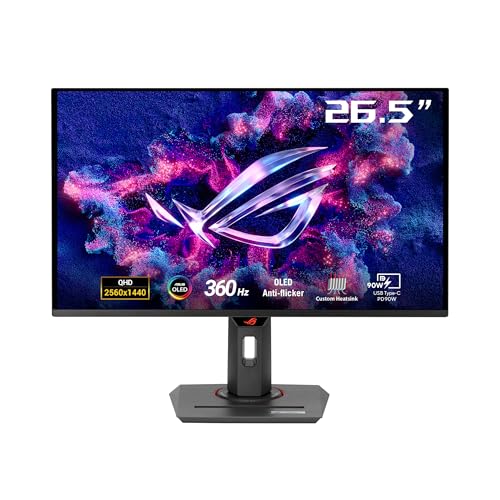
The ASUS XG27ACDMS is where I'd start if you want OLED without paying for the very top refresh rates. At $849 it's the lowest-priced monitor in this guide, and you're not giving much away: it's a 26.5-inch QHD QD-OLED panel at 280Hz with the same 0.03ms response as the Alienware. Few people can feel the difference between 280Hz and 360Hz outside of top-level competitive play, and plenty of graphics cards never reach either figure in demanding games. It's sold by Amazon AU and was ranked #164 in Monitors when I checked, so it's a less common buy than the Alienware, partly because it's a newer listing. On specs alone it gives up very little to monitors costing $200 or $350 more.
Where it beats the Alienware on paper is the spec sheet detail. The listing states VESA DisplayHDR 400 True Black, 99 percent of DCI-P3, true 10-bit colour and a Delta E under 2, which is a measure of colour accuracy good enough for photo and video work. It also lists DisplayPort 1.4, HDMI 2.1 and USB-C with 15W power delivery, so a PC, a console and a laptop can all live on one screen. The custom heatsink is a good sign for longevity, and ASUS OLED Care Pro with the Neo Proximity Sensor blacks the screen when you leave the desk, which cuts burn-in risk without you having to remember anything.
The downsides are small. 280Hz is a touch behind the AW2725DF, and the listing doesn't state the stand's adjustment range or the VESA pattern, so check the ASUS spec sheet if you're mounting it. It's QD-OLED, so it shares the slight black lift in a bright room. For most people building or upgrading a gaming PC around a mid-range card, this is the one I'd point them at, because it's the best value way into OLED in this guide. Pair it with a decent arm or the stand, set it up properly on day one, and it should serve a gaming PC for years.
Honest caveats: 280Hz rather than 360Hz. The listing doesn't state the stand adjustments or VESA pattern. QD-OLED blacks lift slightly with light on the screen. The 15W USB-C won't properly charge a laptop. It ranks well below the Alienware on Amazon AU, partly as a newer listing.
Best for: Mid-range gaming PCs, and anyone who wants OLED, HDMI 2.1 for a console and good colour accuracy for the least money here.
Screen: 26.5-inch viewable QD-OLED • Resolution: 2560 x 1440 • Refresh rate: 280Hz, 0.03ms • HDR: VESA DisplayHDR 400 True Black • Colour: 99% DCI-P3, 10-bit, Delta E under 2 • Ports: DP 1.4, HDMI 2.1, USB-C 15W • Burn-in care: OLED Care Pro, Neo Proximity Sensor • Price: $849 at time of writing • Rank: #164 in Monitors (Amazon AU)
View on Amazon AU
MSI MAG 271QP QD-OLED X28 27-inch Gaming Monitor, 1440p 280Hz
ASIN B0FX412YQS • $998 • Ships from Amazon AU
The MSI MAG 271QP X28 is the monitor with the most honest, detailed listing in this guide, and I like buying hardware where the maker tells you what's in it. It's a 26.5-inch WQHD QD-OLED panel at 280Hz with a 0.03ms response time, VESA ClearMR 15000 for motion clarity, DisplayHDR True Black 400, up to 1,000 nits peak brightness, 10-bit colour, 99 percent DCI-P3 and Delta E of 2 or less. MSI also states an enhanced subpixel layout that improves sharpness, which goes some way toward the text fringing that bothers some QD-OLED owners. It's sold by Amazon AU at $998 and ranked #234 in Monitors. That level of detail makes it easy to check against what you actually need.
The feature I'd actually buy it for is the cooling. The listing describes a graphene heatsink and calls the monitor fanless, which is the right way to cool an OLED panel. There's no fan to wear out, buzz or fill with dust, and less heat sitting on the panel means slower pixel ageing. MSI's OLED Care 2.0 software handles the burn-in prevention routines, and the stand adjusts four ways with a 100mm VESA mount if you'd rather use an arm. For a monitor you want to keep five years or more, those are the details that count. It's also one less thing to go wrong in a hot Australian summer, when a fan is working its hardest.
Ports are the most console-friendly here, and MSI states that DisplayPort 1.4a, HDMI 2.1 with CEC and USB-C with 15W power delivery all run the full 1440p at 280Hz, so a PC, a PS5 and a work laptop can share it without compromise. CEC means a console can wake the monitor when you turn it on. The catch is price, since it costs $149 more than the ASUS XG27ACDMS for a similar panel, and it's still QD-OLED in a bright room. If fanless cooling and a clear spec sheet matter to you, it's worth the gap.
Honest caveats: It costs $149 more than the ASUS XG27ACDMS with a similar 280Hz QD-OLED panel. The 1,000 nit figure is a peak for small HDR highlights, not full-screen brightness. QD-OLED blacks lift a little in a bright room. The AI Vision and AI Crosshair features are software extras, not reasons to buy.
Best for: Buyers who want a fanless OLED that runs full spec over every port, for PC and console on one desk.
Screen: 26.5-inch WQHD QD-OLED • Refresh rate: 280Hz, 0.03ms, ClearMR 15000 • HDR: DisplayHDR True Black 400, up to 1,000 nits peak • Colour: 99% DCI-P3, 10-bit, Delta E 2 or less • Cooling: Graphene heatsink, fanless • Ports: DP 1.4a, HDMI 2.1 CEC, USB-C 15W • Mounting: 4-way stand, VESA 100mm • Price: $998 at time of writing • Rank: #234 in Monitors (Amazon AU)
View on Amazon AU
ASUS ROG Strix OLED XG27AQWMG 27-inch Tandem WOLED, 1440p 280Hz
ASIN B0GHTTRSZK • $1,198.95 • Ships from Amazon AU
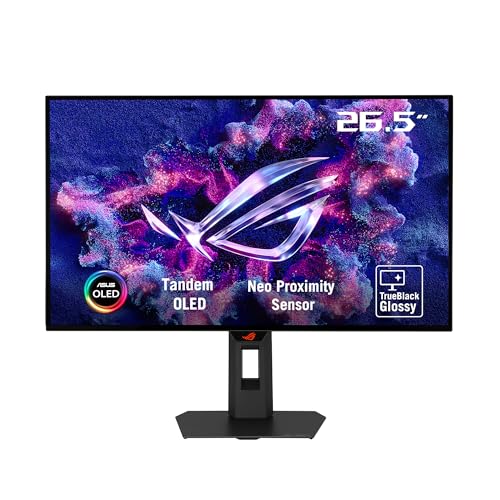
The ASUS XG27AQWMG is the only WOLED panel in this guide, and it's the one I'd choose for a desk near a window. It's a 26.5-inch QHD TrueBlack Glossy panel at 280Hz with LG Display's newer tandem OLED design, which stacks two light-emitting layers so each one works less hard. ASUS states that gives 15 percent higher peak brightness, 25 percent more colour volume and 60 percent longer OLED lifespan than the previous generation of WOLED panels. That lifespan figure is the one I care about, because a longer-lived emitter is direct protection against burn-in. It's sold by Amazon AU at $1,199 and ranked #165 in Monitors. It's the newest panel technology in this guide.
WOLED holds its blacks better than QD-OLED when light falls on the screen, and the glossy finish keeps the image sharp and clear rather than hazy. The trade-off with any glossy screen is reflections, so think about what's behind your chair. On paper the HDR is the strongest of the 1440p picks, with VESA DisplayHDR 500 True Black, 99.5 percent DCI-P3, true 10-bit colour and Delta E under 2. It also gets the same OLED Care Pro and Neo Proximity Sensor as the XG27ACDMS, plus ELMB, ASUS's motion blur reduction mode, which some competitive players like for tracking fast targets. If you play fast shooters at night and work on spreadsheets by day, it suits both.
The cost is the main argument against it, as it's $350 more than the XG27ACDMS for the same resolution and refresh rate. The listing also doesn't state the ports, stand adjustments or VESA pattern, so check ASUS's spec sheet before you buy, especially if a console is going on it. If your room is dark at night and that's when you game, the lower-priced QD-OLEDs will look just as good. If the desk faces a window or sits under bright lights, this is the one that'll still look like an OLED at two in the afternoon.
Honest caveats: It costs $350 more than the ASUS XG27ACDMS for the same 1440p 280Hz. The listing doesn't state the ports, stand adjustments or VESA pattern. A glossy screen shows reflections from lamps and windows behind you. The lifespan and brightness gains are ASUS's figures against older WOLED panels.
Best for: Desks in bright rooms, and buyers who want the longest-life OLED panel in the guide.
Screen: 26.5-inch TrueBlack Glossy tandem WOLED • Resolution: 2560 x 1440 • Refresh rate: 280Hz, 0.03ms, ELMB • HDR: VESA DisplayHDR 500 True Black • Colour: 99.5% DCI-P3, 10-bit, Delta E under 2 • Panel life: 60% longer than previous WOLED (ASUS figure) • Burn-in care: OLED Care Pro, Neo Proximity Sensor • Price: $1,199 at time of writing • Rank: #165 in Monitors (Amazon AU)
View on Amazon AU
Alienware AW2725Q 27-inch 4K QD-OLED Gaming Monitor
ASIN B0F2JJ1T9K • $1,199 • Ships from Amazon AU
The Alienware AW2725Q is the only 4K monitor in this guide, and it's for a different buyer from the other four. At 3840 x 2160 on a 27-inch QD-OLED panel, text is noticeably sharper than on the 1440p models, and the fringing some people see on QD-OLED text is much harder to spot at this pixel density. If you split your time between gaming and work like photo editing, coding or video, that sharpness is something you'll notice every day. It's sold by Amazon AU at $1,199, and Amazon AU reports the same #12 in Monitors rank as the AW2725DF, which suggests the two share a listing family. I'd still treat it as a sharp 4K monitor first.
The listing names a 0.03ms response time, NVIDIA G-SYNC Compatible support and VESA DisplayHDR True Black 400. It also mentions an anti-reflective coating, which should help a little with the QD-OLED black lift in a lit room, and Dell's ComfortView Plus, which cuts blue light at the hardware level rather than by tinting the picture yellow. The stand adjusts for tilt, pivot, height and swivel, and the listing says the cables and accessories you need come in the box. That last one matters at 4K and high refresh rates, because a poor cable is the usual cause of flickering or blank screens. For a $1,199 screen, a proper cable in the box is a small but welcome touch.
The catch is that the listing doesn't state the refresh rate, so check Dell's spec sheet before you buy and make sure it suits how you play. You'll also need a high-end graphics card to run demanding games at 4K and high frame rates, and even then, fast shooters will usually feel better on the AW2725DF at 1440p and 360Hz. If you mostly play slower, good-looking single-player games and spend a lot of time on text, this is the sharper choice for the same money as the ASUS WOLED. It's the screen I'd want for a mixed work and play desk.
Honest caveats: The listing doesn't state the refresh rate, ports in detail or VESA pattern. 4K needs a high-end graphics card to run at high frame rates. QD-OLED blacks lift slightly in a bright room. The #12 rank appears shared with the AW2725DF, so it may not reflect this model's own sales.
Best for: Gamers with a high-end card who also do a lot of text, photo or video work.
Screen: 27-inch QD-OLED • Resolution: 3840 x 2160 (4K) • Response time: 0.03ms • Sync: NVIDIA G-SYNC Compatible • HDR: VESA DisplayHDR True Black 400 • Coating: Anti-reflective, ComfortView Plus • Stand: Tilt, pivot, height and swivel • Price: $1,199 at time of writing • Rank: #12 in Monitors (Amazon AU)
View on Amazon AUSide-by-side comparison
| Product | Price | Best for |
|---|---|---|
| ASUS ROG Strix OLED XG27AQDMES Gaming… | ~$795 | |
| ASUS ROG Strix OLED XG27ACDMS Gaming… | ~$1,029 | |
| Samsung 27 Inch Odyssey OLED G60SD QHD… | ~$899 | |
| MSI MAG 271QP QD-OLED X28 | ~$998 | |
| ASUS ROG Strix XG27ACDNG 26.5" 360Hz QHD… | ~$1,038.95 | |
| Alienware AW2725DF 27" QD OLED Gaming Monitor | ~$1,272.93 | |
| ASUS ROG Strix OLED XG27AQWMG Gaming… | ~$1,198.95 | |
| Alienware 27 Gaming Monitor AW2725Q | ~$1,199 |
What we see fail in the workshop: OLED and gaming monitors
Monitors are simpler than laptops, but they still come in with a handful of familiar faults, and an OLED adds one or two of its own. These are the three I'd plan around on any of the screens above, with what causes each one and what you can do about it before it happens. Only one of them is usually the end of the screen.
Burn-in and uneven wear
Burn-in shows up as a faint ghost of something that sat on screen for too long, most often a taskbar, a game HUD or a browser tab bar. You'll notice it first on a plain grey background. It's permanent, because those pixels have aged faster than their neighbours, and the panel is the most expensive part of the monitor, so it's rarely economic to repair. The fix is prevention: let the pixel refresh run in standby, auto-hide the taskbar, use a dark theme and a sleep timer, and check the warranty terms for burn-in cover before you buy.
Dead power supplies
A monitor that's completely dead, with no power light at all, usually has a failed power supply rather than a dead panel. Surges and storms take them out suddenly, and years of heat dry out the capacitors so they fail slowly, often starting with a monitor that takes a few tries to wake up. On monitors with an external power brick the fix can be as simple as a replacement brick of the right voltage and rating. Internal supplies are a board-level repair and often worth doing on a monitor this expensive. A surge-protected powerboard costs far less than any of these repairs.
Damaged ports and flickering
HDMI and DisplayPort sockets crack their solder joints when cables are yanked out sideways or left hanging with their own weight, and on a monitor that gets moved between a PC and a console it happens faster. The symptoms are flickering, a picture that drops out when you touch the cable, or no signal on one input while the others work. Before you blame the monitor, try a different certified cable, because a lot of flicker at high refresh rates turns out to be the cable. If one port really is damaged, it can usually be replaced at board level.
Decision tree: which one should you actually buy?
- Playing competitive shooters on a fast PC? → The Alienware AW2725DF, for 360Hz and the top sales rank here.
- Want the best value way into OLED? → The ASUS ROG Strix XG27ACDMS, $849, at 280Hz with HDMI 2.1 for a console.
- Want a fanless OLED that runs full spec on every port? → The MSI MAG 271QP X28, $998, with a graphene heatsink and HDMI 2.1 CEC.
- Does your desk face a window or sit under bright lights? → The ASUS XG27AQWMG, $1,199, for its tandem WOLED panel and better blacks in a lit room.
- Doing as much text and photo work as gaming? → The Alienware AW2725Q, $1,199, for 4K sharpness on a 27-inch screen.
- Current monitor dead, flickering or lost a port? → Bring it to our Erina workshop or see our computer repairs on the Central Coast: power supplies and ports are often fixable.
Frequently asked questions
Will an OLED gaming monitor get burn-in?
It can, but with normal mixed use and the built-in care features it's much less likely than it used to be. Burn-in happens when the same bright image sits in the same place for thousands of hours, like a taskbar or game HUD. Let the monitor run its pixel refresh in standby, auto-hide the taskbar, use a dark theme and a sleep timer. Avoid using an OLED for static dashboards all day. Check whether the maker's Australian warranty covers burn-in for your model before you buy.
Is QD-OLED or WOLED better for gaming?
Both are excellent for gaming and the differences are smaller than forums suggest. QD-OLED usually has more saturated colour, especially bright reds and greens, but its blacks look slightly grey when room light falls on the screen. WOLED holds black better in a lit room, and newer tandem WOLED panels claim longer life and higher brightness. If you game mostly at night in a darker room, QD-OLED is a great choice. If your desk faces a window, WOLED is usually the safer pick.
Should I buy a 1440p or 4K OLED monitor at 27 inches?
For most gamers, 1440p. It's sharp at desk distance on a 27-inch screen and far easier for a graphics card to run at high frame rates, which is what these 280Hz and 360Hz panels need to shine. 4K makes sense if you have a high-end card, play slower single-player games, and also do a lot of text, photo or video work where the extra sharpness is obvious every day. For fast competitive shooters, a 1440p panel at high refresh feels better.
Can I use an OLED gaming monitor with a PS5 or Xbox?
Yes. Use the HDMI 2.1 port, because both the PS5 and Xbox Series X can output 1440p at 120Hz to a monitor that supports it. The ASUS XG27ACDMS and MSI MAG 271QP X28 both list HDMI 2.1, and the MSI states full 1440p at 280Hz over HDMI, though consoles cap at 120Hz. The MSI also lists HDMI CEC, so the console can wake the monitor. On an HDMI 2.0 port the console will usually be limited to a lower refresh rate.
How do I clean an OLED monitor screen?
Turn the monitor off and let it cool, then wipe gently with a dry, clean microfibre cloth. If you need more, lightly dampen the cloth with plain water, never spray liquid straight onto the screen, because it can run down into the bottom edge of the panel and the electronics. Avoid glass cleaner, alcohol and paper towels, which can damage the anti-reflective coating or scratch a glossy finish. Don't press hard on the screen, because the panel is thin and the glass can flex.
Is a cracked or burnt-in OLED monitor worth repairing?
Usually not. The OLED panel is the most expensive part of the monitor, and a replacement panel generally costs close to the price of a new monitor, so cracked screens and burn-in aren't economic fixes. Check the warranty first for burn-in, and your contents insurance for accidental damage. Other faults are different: a dead power supply, a damaged HDMI or DisplayPort socket, or a monitor that won't power on after a storm can often be repaired for a fraction of the replacement cost.
Related buying guides
Monitor dead, flickering or lost an input?
Most monitors that come in completely dead have a failed power supply, and most that flicker or drop one input have a cracked port joint or a tired cable. Both are often fixable for a fraction of a new OLED. Bring it into our Erina workshop and I'll tell you what's wrong and whether it's worth repairing before you spend anything.
Visit our Erina workshop Book Online