Prices from Amazon AU, updated daily. Swipe or use the arrows for more.
Disclosure: This article contains affiliate links to amazon.com.au. If you buy through one of these links we may earn a small commission at no extra cost to you. It does not change which products we recommend. We only suggest products we’d genuinely use ourselves.
The gaming monitor market in 2026 is genuinely excellent value for Australian buyers. You can get a 144Hz IPS monitor for under $200, a serious 34-inch ultrawide for under $400, and a 300Hz 1440p panel for under $500. The hard part isn't finding a good monitor at this budget. It's knowing which specs actually matter for your setup and which are pure marketing.
We're a tech repair shop, not a gaming publication. We don't get review units and we don't chase affiliate clicks. What we do know is displays. We replace cracked screens, diagnose backlight failures, and repair GPU issues every week. This guide is about what makes a monitor worth buying in the real world, not just what looks good in a spec table.
What Actually Matters in a Gaming Monitor
Before we get to specific picks, let's cut through the spec sheet noise. Here's what genuinely affects your gaming experience at this price range:
Refresh Rate: The Single Biggest Upgrade
If you're coming from a 60Hz monitor, jumping to 144Hz will be the most dramatic display improvement you've ever experienced. Everything looks smoother, not just games, but the whole operating system. Scrolling web pages, dragging windows, moving your mouse: it all feels fundamentally different.
Going from 144Hz to 240Hz is a smaller but real step, and you'll only notice it if your GPU can consistently deliver 200+ frames per second in the games you play. Going beyond 240Hz to 320Hz+ is for competitive esports players where every millisecond counts. If you're playing casual games or anything story-driven, it's overkill.
Our recommendation: Aim for at least 144Hz. If your budget allows and your GPU is capable, 165–240Hz is the sweet spot for most gamers in 2026.
Panel Type: IPS is the Winner for Most People
There are three main panel technologies available at this price range:
- IPS (In-Plane Switching): The best all-rounder. Accurate colours, wide viewing angles, and fast response times on modern fast-IPS panels. Slight weakness in black depth compared to VA, but the tradeoff is worth it for most uses. This is what we recommend for the majority of gamers.
- VA (Vertical Alignment): Deeper blacks and better contrast ratio than IPS, excellent for dark atmospheric games like horror titles or space exploration. The weakness is motion blur on fast lateral movement. If you play a lot of fast-paced shooters, avoid VA. If you mostly play RPGs, strategy, or single-player narrative games, VA's contrast advantage is real.
- TN (Twisted Nematic): The oldest technology. Fastest theoretical response times, but poor viewing angles and washed-out colours. Modern fast-IPS panels have largely closed the speed gap. You'll rarely see TN recommended in 2026 for new purchases.
Resolution: Match It to Your GPU
A common mistake is buying a 1440p or 4K monitor when your GPU can't consistently hit 100fps at that resolution. A 1080p/144Hz monitor will always feel smoother than a 1440p/60fps monitor in gameplay, even though the 1440p image is sharper.
- 1080p (Full HD): Still the most GPU-efficient option. At 27 inches and above, pixels become visible at close range, ideal at 24–25 inches for a sharp image. Best for mid-range GPUs (RX 6600, RTX 3060 class) that can push high frame rates.
- 1440p (WQHD): The sweet spot in 2026. Noticeably sharper than 1080p, and modern mid-to-high-end GPUs handle it well. On a 27–34 inch screen, 1440p looks excellent.
- 4K (UHD): Beautiful, but demanding. You need a top-tier GPU (RTX 4080/4090 class) to run most modern games at 4K with high frame rates. Under $500, most 4K monitors make compromises on refresh rate or panel quality.
The most common mistake we hear from gamers who've just bought a new monitor: "It looks the same as my old one." Almost always, they bought a higher resolution but didn't notice they dropped from 144Hz to 60Hz. Refresh rate beats resolution for perceived smoothness.
Response Time: Don't Obsess Over It
Monitor makers advertise response times like 0.5ms or 1ms, but these numbers are measured at maximum overdrive settings that introduce visible inverse ghosting (bright halos on moving objects). At normal overdrive settings, most quality IPS panels sit at 3–5ms in practice. That's fine for 99% of gamers. Only ultra-competitive esports players benefit from the absolute minimum response time, and those people know who they are.
Adaptive Sync: FreeSync or G-Sync Compatible
Adaptive sync technology (AMD FreeSync / NVIDIA G-Sync Compatible) synchronises your monitor's refresh rate to your GPU's output. The result is tear-free gaming without the input lag of V-Sync. At this price point, almost all good gaming monitors support FreeSync Premium, which also works with most NVIDIA cards as G-Sync Compatible. Make sure any monitor you're considering has this, it's a meaningful quality-of-life feature, especially if you're not always hitting your monitor's maximum refresh rate.
Our Picks
Budget Entry: Under $200
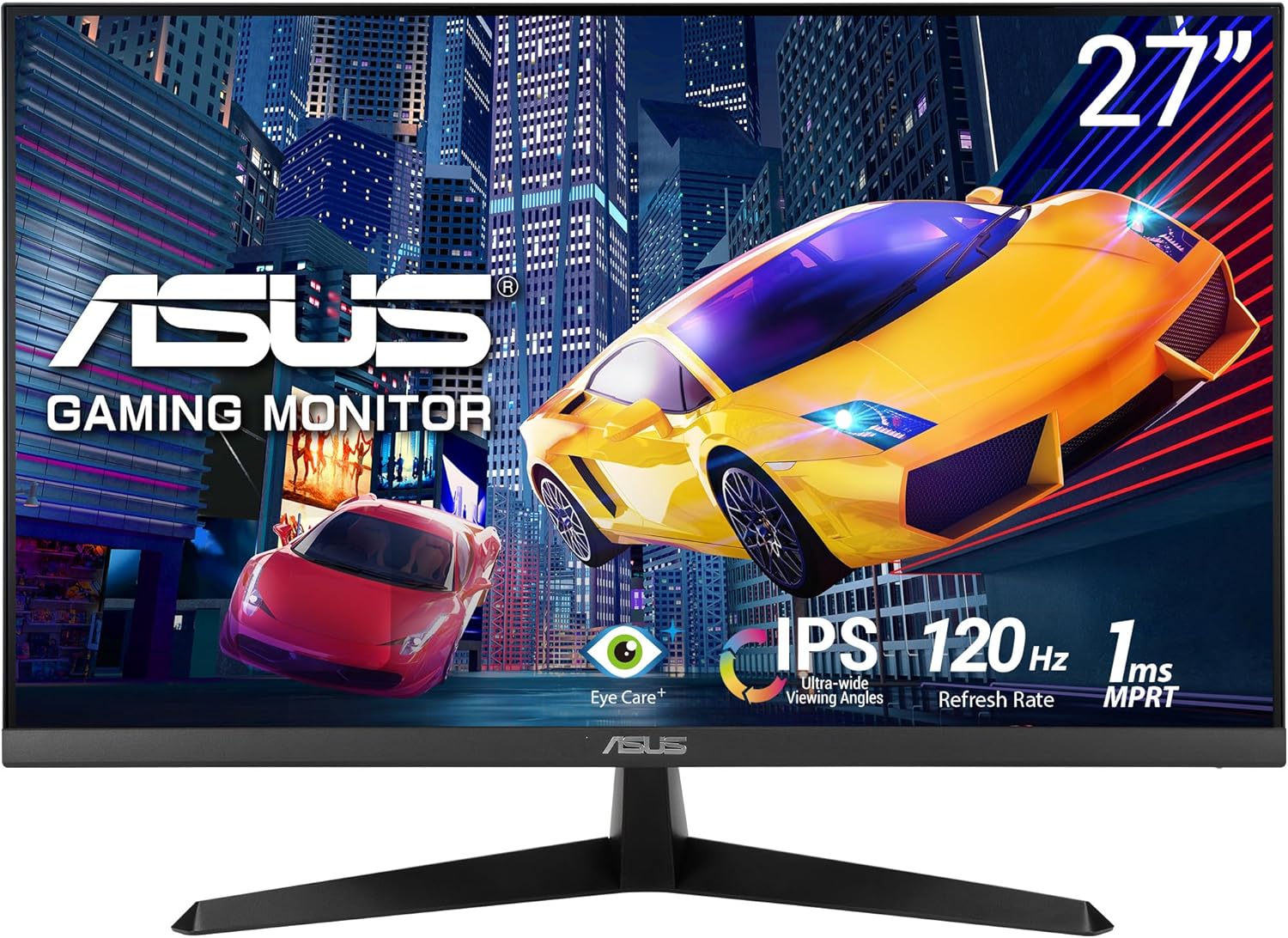
ASUS VY279HGR 27" FHD IPS 120Hz
Budget PickAt $145, the ASUS VY279HGR is an honest entry point for anyone climbing off a 60Hz monitor. The 27-inch IPS panel at 1080p is a sensible size for this resolution, so you won't be leaning in to count pixels. The 120Hz refresh (via the overclock game mode) isn't as fast as the 144Hz-plus panels higher up, but it's twice what most people are coming from, and the jump is immediately noticeable.
The IPS panel gives you accurate colours and wide viewing angles, which helps if you share the screen or sit off to one side. Unlike a lot of sub-$150 displays, this one carries Adaptive-Sync, so it will tear-free sync with both AMD and most NVIDIA cards, a genuinely useful feature at this price. ASUS also bundles the usual eye-care extras: a blue-light filter, flicker-free backlight, and a 1ms MPRT setting for cleaner motion.
What you're not getting at this budget: HDR worth the name, USB-C, or a fully adjustable stand (this one tilts only). Those are fair trade-offs for a no-frills panel that just gets you off 60Hz without a big spend.
Specs: 27" FHD (1920×1080) IPS • 120Hz (OC) • Adaptive-Sync • 1ms MPRT • HDMI • ~$145 AUD

Best Value 1440p: Under $250
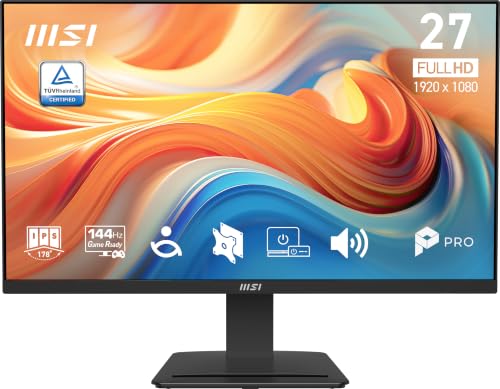
MSI PRO MP273Q E14 27" WQHD IPS 144Hz
Value Pick: 1440pAt $199.99 this is the most screen per dollar on the list, and it's the one I point people to when their graphics card is mid-range. It's a 27-inch WQHD (2560×1440) IPS panel at 144Hz, which is the exact combination the resolution section above argues for: enough pixels that 27 inches stays sharp, enough refresh that motion stops smearing. MSI sells it as an eye-care business display rather than a gaming one. The panel doesn't care what the box says.
Colour is 97% sRGB at 300 nits with a 1500:1 contrast ratio, so it's honest mid-range IPS, good for photo and video work but not a real HDR display. Adaptive-Sync is supported, and both inputs carry the full panel: HDMI 2.0b and DisplayPort 1.2a each run 2560×1440 at 144Hz, so you're not forced onto one port. HDMI-CEC is there if a console goes in. Speakers are built in, there are 100mm VESA holes for an arm later, and MSI backs it for three years, which matters more than people expect at this price.
What you give up against the faster ASUS TUF below: the panel is 1080p rather than QHD, refresh tops out at 120Hz (overclocked) against 300Hz, the stand tilts only, and there's no G-SYNC or FreeSync certification (plain Adaptive-Sync instead). The trade in the other direction is TÜV Rheinland eye-comfort certification with anti-flicker and an anti-glare coating, and six hours into a session that isn't nothing.
Specs: 27" WQHD (2560×1440) IPS • 144Hz • 1ms MPRT • Adaptive-Sync • 97% sRGB, 300 nits, 1500:1 • HDMI 2.0b, DisplayPort 1.2a • 3-year warranty • ~$200 AUD

Best All-Rounder: Under $400
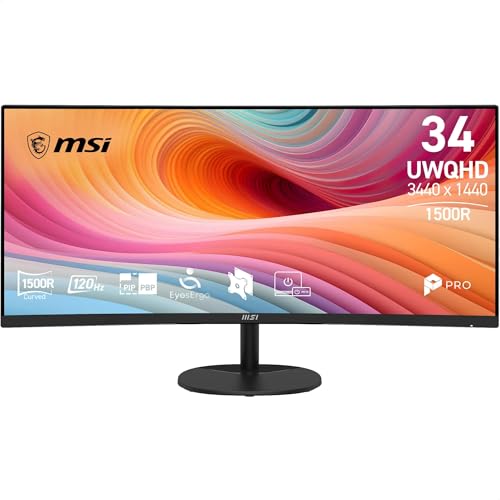
MSI PRO MP341CQ 34" UWQHD 120Hz Curved VA
Top Pick: Best Value OverallThis is the monitor we'd point most people to at this budget. A 34-inch 1500R curved ultrawide with UWQHD resolution (3440×1440) for $307 is a lot of screen for the money, the kind of setup that would have cost $600–$800 three years ago.
The VA panel gives you strong contrast, MSI quotes a 3500:1 ratio, so blacks look genuinely deep and atmospheric games like horror titles, space sims, and cinematic RPGs look their best. The 1500R curve wraps the extra width around you and adds to the sense of immersion. At 3440×1440 across 34 inches, text and detail stay sharp for everyday work.
Refresh tops out at 120Hz over DisplayPort (100Hz over HDMI), paired with Adaptive-Sync so most games feel smooth. It is not a competitive-frame-rate panel, and that is the point: this slot is for someone who wants one immersive screen for gaming and work, doesn't chase 240Hz, and wants the biggest quality-per-dollar jump for their desk. It even includes built-in speakers and a three-year warranty.
One thing to check before buying: ultrawide monitors ask more of your GPU. A budget card (RX 6600 or below, RTX 3060 or below) may struggle to hold high frame rates at UWQHD in demanding games, so you might drop a few settings. That's a GPU question, not a fault of the monitor, but it's worth knowing before you buy.
Specs: 34" UWQHD (3440×1440) VA • 1500R curved • 120Hz • Adaptive-Sync • HDR Ready • ~$307 AUD

High Refresh Rate: Under $500
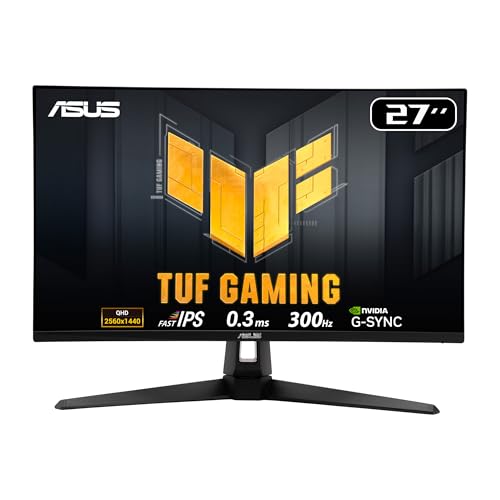
ASUS TUF VG27AQM5A 27" QHD 300Hz
High-Refresh PickAt $319 this is the fast one, and it earns the label with the one number that matters here. It's a 27-inch QHD (2560×1440) Fast IPS panel running at 300Hz with a 0.3ms (GTG, minimum) response time, the format most serious PC gamers settle on because 1440p stays sharp while the frame rate stays high.
ASUS pairs it with ELMB Sync, which runs the low-motion-blur mode and variable refresh rate at the same time, so you don't have to choose between a clear moving image and tear-free frames. Colour is handled well for a fast panel at 95% DCI-P3, which means it doubles as a capable screen for photo and video work between matches. Shadow Boost lifts detail in dark areas without over-exposing the bright parts, there are stereo speakers built in for when you don't want a headset, and DisplayWidget Center lets you adjust settings from your mouse.
This is the pick for someone with a mid-to-high-end GPU who wants competitive smoothness at a resolution worth looking at, rather than dropping to 1080p to chase frames. A 300Hz panel only pays off if your GPU can hold 200+ frames per second in the games you play. If you mostly play slower single-player games or want the biggest screen for the money, the MSI ultrawide above is the better buy; if raw responsiveness at 1440p is the goal, this is it.
Specs: 27" QHD (2560×1440) Fast IPS • 300Hz • 0.3ms GTG • ELMB Sync • 95% DCI-P3 • Stereo speakers • ~$319 AUD

Ultrawide vs Standard: Which Should You Choose?
This is the most common question we get about monitors, so it deserves a proper answer.
Go ultrawide if: You play games that support 21:9 aspect ratios (most modern games do), you also use the screen for work or study, and you value immersion over raw frame rates. A 34-inch curved ultrawide changes the way you experience both games and productivity. Open-world games, driving games, RTS titles, and narrative RPGs are all significantly better on ultrawide.
Stick with standard 16:9 if: You primarily play competitive multiplayer games (shooters, MOBAs, battle royales) where maximum frame rate matters most, or you have a mid-range GPU that may struggle to drive ultrawide resolutions at high frame rates. Some older games also have ultrawide support issues. If you have a specific title in mind, check whether it supports 21:9 natively.
Everything on this list caps at $500. If your budget runs past that and you want true blacks and a screen that replaces a dual-monitor desk, the step up is OLED. Our guide to premium and OLED ultrawide monitors covers the QD-OLED and WOLED panels from $1,499, with honest repair-bench guidance on burn-in. And if you want to leave desk monitors behind entirely for movie night, a 4K projector throws a 100-inch-plus image no monitor can match. Our best 4K laser projectors guide runs the home-cinema payback maths.
Tip for PS5/Xbox players: If you're connecting a console to a PC monitor, make sure the monitor has HDMI 2.1 support for 4K/120Hz output. Most monitors in this guide use standard HDMI 2.0 or earlier, so check the manufacturer's spec sheet for the exact model before you buy if the console is the main use.
Connectivity: What Ports Do You Need?
Monitor connectivity matters more than it used to, especially for PS5/Xbox Series X owners or laptop users:
- DisplayPort 1.4: The preferred connection for PC gaming. Supports 1440p at 165Hz and 1080p at 240Hz+. Almost all gaming GPUs have at least one DP port. Always use DP over HDMI for high-refresh gaming on PC if possible.
- HDMI 2.1: Required for 4K/120Hz from a PS5 or Xbox Series X. Standard HDMI 2.0 maxes out at 4K/60Hz or 1080p/144Hz. If you're console gaming at high frame rates, confirm HDMI 2.1 is present.
- USB-C: Useful for laptops that can output video over USB-C. Some monitors also support USB-C power delivery, meaning one cable can carry video signal and charge your laptop simultaneously. Very handy for a clean desk setup.
- Built-in USB hub: Business monitors often have this; gaming monitors less so. Useful for connecting peripherals through the monitor rather than directly to your PC.
What to Avoid at This Price Range
Look For
- IPS or VA panels from established brands
- FreeSync Premium / G-Sync Compatible certification
- 144Hz or higher refresh rate
- 1080p on 24–25" or 1440p on 27–34"
- DisplayPort 1.4 for PC gaming connections
- VESA mount support if you want an arm later
Avoid These
- No-name brands with suspicious review counts
- 1080p on 32"+ screens, visibly low pixel density
- TN panels at 2026 prices (better options exist)
- 60Hz monitors, the single most impactful upgrade
- "HDR400" labels, essentially marketing; true HDR needs 600+ nits
- Ultra-budget 4K monitors that skimp on refresh rate and panel quality
Watch out for misleading HDR labelling. "HDR400" on a budget monitor means the peak brightness is 400 nits, which looks identical to a standard monitor in practice. Real HDR (HDR600 or HDR True Black) requires significantly higher brightness and local dimming. On a budget monitor under $500, the HDR badge is largely decorative. Don't pay extra for it.
Should You Buy a Gaming Monitor or a TV?
With modern TVs increasingly supporting 120Hz, HDMI 2.1, and variable refresh rate, this is a legitimate question. For PC gaming at a desk, monitors still win for several reasons: lower input lag, higher maximum refresh rates, better desktop ergonomics, and the ability to sit close without the image looking bad. TVs are optimised for 2–3 metres viewing distance; monitors are built for 50–80cm.
If you're primarily console gaming from a couch, a 4K OLED TV with HDMI 2.1 is genuinely compelling. For PC gaming at a desk, a dedicated monitor is still the right choice.
If you're setting up a full gaming station and need to think about the whole picture (GPU, laptop or desktop, peripherals), our guide to student and everyday laptops covers what to pair with a new monitor for the best overall setup.
Prices shown are from Amazon AU at time of writing. As an Amazon Associate, iFix Electronics earns from qualifying purchases.
Got a monitor with a cracked screen or display issues?
We repair laptop screens and external monitor panels at our Erina shop. Dead pixels, backlight failure, cracked panels. Bring it in for a free diagnosis. Console gamers: we also do PS5 and Xbox HDMI port repair.
Frequently Asked Questions
What refresh rate do I need for gaming in 2026?
For most gamers, 144Hz is the sweet spot. You'll notice the difference going from 60Hz to 144Hz, the game feels significantly smoother and more responsive. Going from 144Hz to 240Hz+ is a smaller but real improvement, mostly relevant for competitive shooters where every millisecond counts. If you're playing story games, open-world titles, or RTS games, 100–144Hz is more than enough. Only chase 240Hz+ if your GPU can actually push those frame rates consistently.
IPS vs VA vs TN, which panel is best for gaming?
IPS panels are the best all-rounder for gaming in 2026, good colour accuracy, wide viewing angles, and fast enough response times for most gamers. VA panels have deeper blacks and better contrast (great for dark game environments) but can suffer from motion blur on fast movement. TN panels have the fastest response times but poor viewing angles and washed-out colours. They've been largely superseded by fast-IPS panels. For under $500, look for IPS or high-quality VA monitors.
Is ultrawide worth it for gaming under $500?
At the right price, yes. A 34-inch ultrawide at around $350–$400 delivers a genuinely immersive gaming experience and doubles as an excellent productivity setup. The trade-off is that not all games support ultrawide aspect ratios natively, some older titles will have black bars or stretched visuals. Most modern games handle it fine. If your GPU is mid-range, also keep in mind that higher resolution takes more GPU power to run at decent frame rates.
Does HDMI 2.1 matter for PC gaming monitors?
For PC gaming, HDMI 2.1 is less critical than it is for console gaming. PC gamers typically use DisplayPort, which supports high refresh rates at high resolutions on most gaming monitors. HDMI 2.1 matters if you want to connect a PS5 or Xbox Series X and play at 4K/120Hz or 1080p/144Hz via HDMI. If you're a PC-only gamer, ensure your monitor has DisplayPort 1.4. That covers you for 1440p at 165Hz and 1080p at 240Hz+.
Can I use a gaming monitor for work and school too?
Absolutely. A good gaming monitor is just a fast, high-quality display. It works brilliantly for productivity. The higher refresh rate makes scrolling and general UI interactions feel noticeably smoother. An IPS gaming monitor with good colour accuracy is also excellent for photo editing, video work, and reading. The 34-inch ultrawide format in particular is outstanding for spreadsheets, coding, and multi-window workflows. If you're also building a home office setup, check our guide to laptops for students and home work. A monitor and a good laptop together make an excellent permanent desk setup.