Prices from Amazon AU, updated daily. Swipe or use the arrows for more.
Disclosure: This article contains affiliate links to amazon.com.au. If you buy through one of these links iFix may earn a small commission at no extra cost to you. It doesn't change which products we recommend. We focus on what actually lasts based on 16 years of repair-shop experience.
Quick summary8 picks
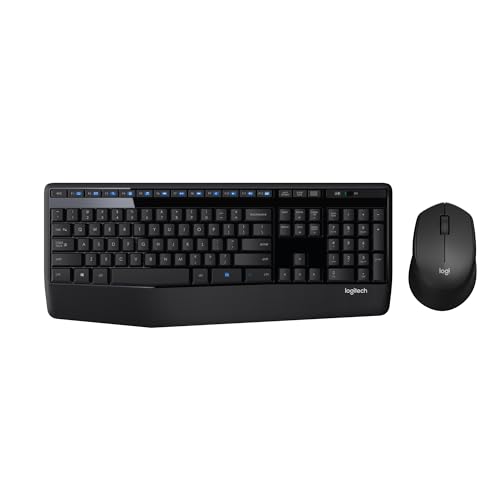
- Logitech MK345 Wireless Keyboard and Mouse… about$59
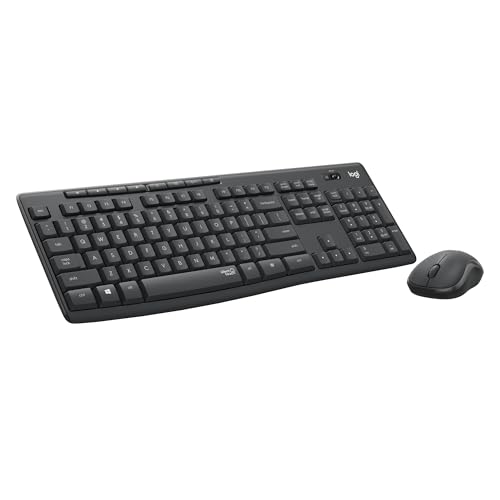
- Entry PickLogitech MK295 Silent Wireless Keyboard and… about$55
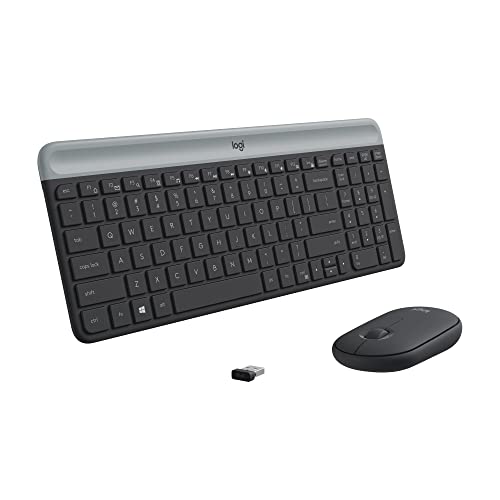
- Logitech MK470 Slim Wireless Keyboard and… about$64
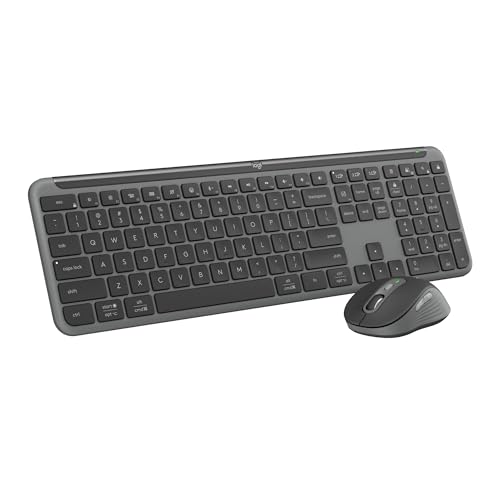
- Logitech MK950 Signature Slim Wireless… about$119
- Logitech MK950 Signature Slim Wireless… about$129
- Logitech MX Master 3S – Bluetooth Edition about$115.50
- Logitech MK850 Performance Wireless… about$120
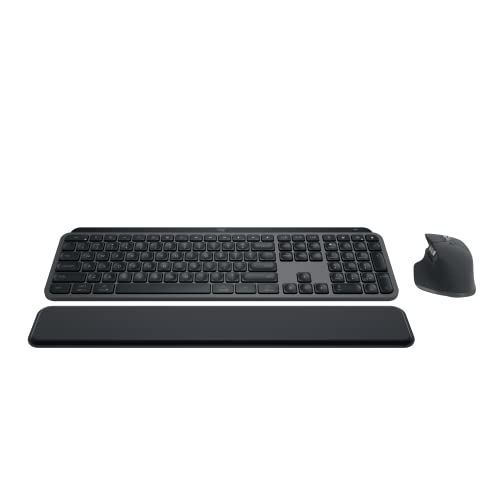
- Most PremiumLogitech MX Keys S Combo Performance… about$279
A cup of tea, and the gap between a $30 part and a $400 invoice
The job arrives the same way most Mondays. A laptop caught half a cup of tea on Friday afternoon, sat open on a bench over the weekend, and now types four Ws when you touch the W key. Or nothing at all below the number row. The customer asks the sensible question: how much to replace the keyboard?
On almost any laptop built in the last decade, that question has no small answer. The keyboard is not a module you unclip. It is riveted or heat-staked into the top case from underneath, sixty to eighty melted plastic posts holding the membrane assembly flat against the shell. Removing it means drilling or melting every one of those posts. Fitting a new one means re-staking all of them by hand, one at a time, and the result is never quite as flat as the factory job. Some techs will do it. It is hours of work and the odds are not brilliant.
So the real repair is not a keyboard. It is a palmrest assembly: top case, keyboard, nearly always the trackpad, and on plenty of models the battery, the speakers and a fistful of ribbon cables, all sold as one part. That is why a spill quote lands where it does. The liquid touched a membrane worth about thirty dollars and the invoice is for a several-hundred-dollar assembly plus labour. Our repair pricing guide spells out where those numbers sit; the short version is that a keyboard spill is one of the most expensive small accidents in consumer electronics.
Now put an external keyboard on the desk in front of a docked laptop. Every spill risk in the room moves off the palmrest and onto a $119 accessory that you can replace the next day with a courier. The laptop lid sits up and behind, out of the splash zone. This is not a productivity argument. It is an insurance argument, and the premium is a one-off payment that also happens to give you a full-size layout and a proper mouse.
The same logic runs the other way for anyone shopping. If you are choosing between a docked laptop and a small desktop, our mini PC picks for 2026 make a decent case for keeping the expensive computer entirely out of arm's reach. And if you already run a docked machine, the business laptop guide covers which chassis actually survive being carried in and out of a bag five days a week.
What actually lasts: switches, grease, radios and cells
Membrane, scissor and mechanical: the honest lifespan comparison
Manufacturers rate rubber dome and membrane switches somewhere between five and ten million keystrokes. Scissor mechanisms, the flat laptop-style keys used on slim boards, sit in a similar band. Mechanical switches are rated at fifty to a hundred million. Those numbers get quoted as though membrane is a consumable and mechanical is forever. Run the arithmetic before you believe it.
A heavy office typist producing three thousand words a day pushes about fifteen thousand keystrokes through the board. Those are spread unevenly, so the busiest key might take twelve per cent of them, call it eighteen hundred presses a day. Divide ten million by eighteen hundred and you get more than five thousand working days on the worst-treated key. Twenty years. No office keyboard in this country has ever died of old age on the E key.
Buy mechanical because you like the feel, because you want to swap individual switches later, or because you want the sound. They are all good reasons. Durability, for office typing, is not one of them.
Key wear is a contamination problem, not a switch problem
What actually kills keys is grease. A scissor key pivots on two plastic arms with a factory-applied lubricant on the hinge points, and the rubber dome underneath needs to release cleanly. Dust, skin oil, biscuit crumbs and, on the Central Coast, sunscreen and fine beach sand all mix into that grease. The lubricant turns into a grinding paste.
The symptom sequence is consistent. First one key feels slightly stiffer than its neighbours. Then it squeaks. Then it binds on one corner and needs a firmer press. The dome is usually still fine at that point; the mechanism is just filthy. Blowing compressed air across the top of a board does almost nothing once contamination has bonded into the grease, which is why the keyboards that come back to life are the ones where the caps come off and each pivot gets cleaned and re-lubricated properly.
Mechanical boards suffer the same root cause with a different signature. Contamination on the metal contact leaf inside the switch housing produces chatter, which reads on screen as doubled letters. Same problem, different housing.
Dongle versus Bluetooth, and why a receiver still wins on a machine that sleeps
Bluetooth is a software stack that lives inside the operating system. A 2.4GHz receiver, whether that is a Logitech Unifying dongle or the newer Logi Bolt, is a USB human interface device: the firmware sees it, the BIOS sees it, and Windows recovery sees it. That distinction stops being academic the moment something goes wrong. Try getting into UEFI setup to change a boot order, or typing a disk encryption password before the OS loads, on a Bluetooth-only keyboard. You cannot. We keep a wired board in the workshop purely because of it.
Wake behaviour is the everyday version of the same problem. A sleeping desktop with a Bluetooth keyboard often needs a second or three to re-establish the link, and on some docks it needs a mouse click to wake at all. A receiver-based board wakes the machine on the first key press, every time.
One practical note. The 2.4GHz band is shared with Wi-Fi, and USB 3 ports radiate a surprising amount of noise right across it. If a receiver-based mouse stutters, move the receiver to a front port or run it on a short extension cable away from the back of the machine. That fixes it more often than any driver update.
Batteries: replaceable cells versus a sealed pack, three years out
User-replaceable alkaline cells are the honest long-term option, with one caveat that costs people their keyboards. Alkalines leak when they are left flat, and the potassium hydroxide that creeps out travels up the spring contacts and into the board, where it eats copper traces. I have opened plenty of otherwise perfect keyboards with green crust across the battery compartment and a dead controller behind it. Pull the cells before anything goes into a drawer, and use lithium cells if the device is going to sit unused.
Sealed lithium-ion is tidier and charges over USB-C. Cells lose noticeable capacity somewhere past five hundred charge cycles, and if you top up fortnightly you are looking at maybe thirty cycles a year, so capacity is not the thing that ends its life. The connector is. USB-C ports on accessories are soldered to thin boards and take side load every time a cable gets knocked, and a torn-off port on a device with no replaceable cell is the end of it. Plug in gently, and do not leave the cable in while you type.
Mouse sensors outlive mouse switches, and that is the whole argument
The optical sensor in a modern mouse is solid state and effectively does not wear out. The 8000 DPI sensor in the MX Master 3S will still be tracking accurately long after everything around it has aged. What fails is the microswitch under the left button, rated in the ten to twenty million click range, and it fails in one specific way: the gold-plated leaf inside loses spring tension and picks up an oxide film, so one press produces contact bounce and the computer sees two clicks.
Everybody recognises the symptom. Dragging a file and having it drop halfway. Selecting text and watching the selection collapse. It starts intermittently, gets worse when the room is warm, and never gets better. The switch is a two dollar part. On a thirty dollar mouse, nobody is soldering that. On a mouse in this bracket, the shell, the sensor and the scroll mechanism are worth keeping, so a switch swap is a sensible half-hour at a bench. That is the durability case for spending a hundred dollars on a mouse, and it is a better case than any DPI number on the box.
Scroll wheels are the other consumable. A traditional wheel uses a rubber tyre that hardens and an optical encoder that gums up with the same grease-and-dust paste that kills keys. The MagSpeed wheel on the MX Master 3S is an electromagnetic ratchet with a machined metal wheel, no rubber and no encoder wheel to clog. It is a genuinely better piece of hardware, not a marketing feature.
The three picks, $119 to $132.87
Prices are Amazon AU at time of writing (10 August 2026) and move week to week. Category ranks are Amazon AU's own, checked the same day.

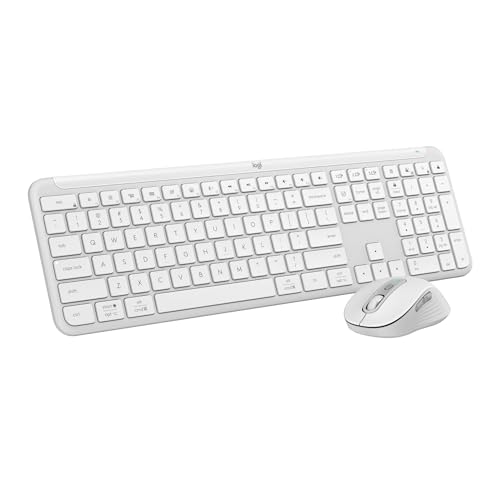
Logitech MK950 Signature Slim Wireless Keyboard and Mouse Combo, Graphite
ASIN B0CW2XSTVY • $119 • Ships from Amazon AU
This is the set I point people at when they want the laptop off the firing line. A full-size slim board with a number pad and familiar laptop-style key travel, paired with the M750 Signature Plus mouse. It holds #4 in Amazon AU's Keyboard & Mouse Sets category, which for a $119 combo in a market full of $40 sets tells you people are buying it deliberately rather than by accident.
The feature that earns its keep is three-device switching. One keyboard and one mouse serving a work laptop, a personal desktop and a tablet, with a button press between them. Logi Options+ handles key and button remapping on Windows and macOS. The typing and clicking are both deliberately quiet: SilentTouch on the mouse cuts click noise by around 90 per cent, which matters in a shared office or a room where somebody else is on a call. The SmartWheel scrolls line by line for spreadsheets, then spins freely through long pages when you flick it.
Honest caveats: it is a low-profile board. If you have come off a mechanical keyboard and type hard, you will bottom out and it will feel abrupt for the first week. There is no wrist rest in the box, so if your wrists already complain, look at pick C instead. The mouse is a mid-size shape, comfortable for most hands but not the sculpted ergonomic contour of an MX Master. Check the listing for the exact power arrangement before you order, because Logitech ships both replaceable-cell and rechargeable variants within this family.
Best for: A docked laptop, a home office desk, anyone who wants one keyboard and mouse covering two or three machines.
Type: Full-size slim scissor keyboard plus M750 Signature Plus mouse • Connection: Bluetooth and Logi Bolt receiver, three-device switching • Noise: Quiet typing, SilentTouch clicking (90% less click noise) • Software: Logi Options+ remapping, Windows and macOS • Scroll: SmartWheel, line-by-line and free-spin • Rank: #4 in Keyboard & Mouse Sets (Amazon AU)
View on Amazon AU
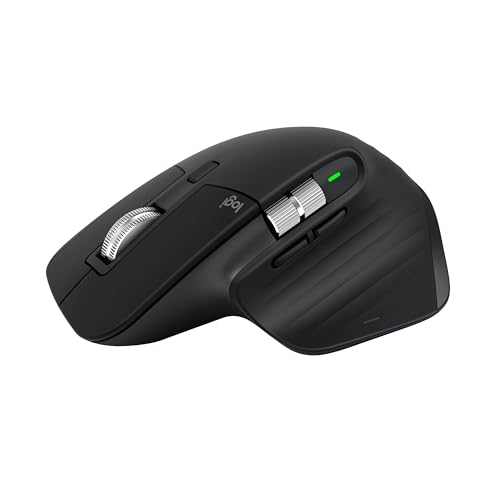
Logitech MX Master 3S Bluetooth Edition, Graphite
ASIN B0FNV6GP6K • $115.50 • Ships from Amazon AU
Most mice are bought as the thing that comes with the keyboard. This one is bought on purpose, and it sits at #10 in Amazon AU's Mice category on its own merits. The 8000 DPI sensor tracks on glass, which sounds like a party trick until you have worked on a glass-topped desk or a hotel table. The MagSpeed wheel switches between a precise ratchet and a free spin that will fly through a two hundred page PDF. Quiet Clicks keep it at about 90 per cent less click noise than the old MX Master switches, and the sculpted shell holds your wrist at an angle that does not twist the forearm.
The durability argument I made above is really an argument about this class of mouse. Every part that normally decides when a mouse gets binned, the sensor, the wheel bearing, the shell surface, is over-engineered here. What will eventually go is a two dollar microswitch, and on a $123.58 mouse that is a repair rather than a replacement. Logitech Flow is the sleeper feature: move the pointer off the edge of one screen and it lands on a second computer, carrying copy-paste and file drags between Windows and macOS.
Honest caveats: read the SKU carefully. This is the Bluetooth Edition, and it ships without the Logi Bolt USB receiver and without a USB-C charging cable. If you want a receiver for firmware-level access or for a machine that sleeps hard, you either already own a Bolt or you buy the standard edition. It is also right-hand only, and it is a big mouse; smaller hands should try one before committing.
Best for: Long document work, dual-machine desks, anyone whose current mouse has started dropping drags.
Sensor: 8000 DPI, tracks on glass, adjustable sensitivity • Scroll: MagSpeed electromagnetic wheel, plus thumb wheel • Noise: Quiet Clicks (90% less click noise) • Connection: Bluetooth only in this edition, no Bolt receiver, no cable included • Multi-device: Logitech Flow across Windows and macOS • Rank: #10 in Mice (Amazon AU)
View on Amazon AU
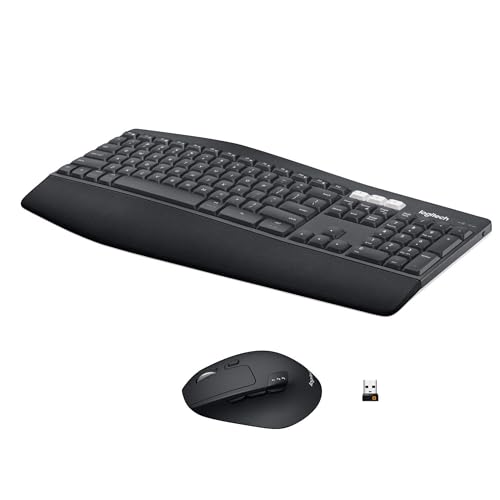
Logitech MK850 Performance Wireless Keyboard and Mouse Combo, Black
ASIN B077DCJV6R • $120 • Ships from Amazon AU
An older design that keeps selling, at #17 in Amazon AU's Keyboards category, because it solves a problem the slim boards do not. The K850 keyboard is curved and split, with a wide cushioned palm rest that carries the weight of your hands instead of letting them hang from the wrists. If you type for six hours a day and your forearms ache by the afternoon, that palm rest is worth more than any switch technology on the market.
The rest of the package is unfussy and well proven. Dedicated media keys for volume and playback, multi-device pairing so it drives more than one machine, and the M720 mouse alongside it. Wireless performance on this generation is receiver-based as well as Bluetooth, which puts it on the right side of the firmware-access problem described earlier. It runs on user-replaceable cells, so there is no sealed pack and no charging port to snap off.
Honest caveats: the curved split layout takes a week or two to relearn, and touch typists who never look down adapt faster than hunt-and-peck typists, who often hate it. The footprint is large; measure your desk. And the fabric palm rest is not removable, so it collects crumbs and skin oil and needs a wipe with a barely damp cloth every few weeks or it goes shiny and grey.
Best for: All-day typists, anyone managing existing wrist or forearm pain, desks with room to spare.
Type: Curved split keyboard with cushioned palm rest, plus mouse • Comfort: Sculpted key wells, integrated wrist support • Controls: Dedicated media keys for volume and playback • Connection: Wireless receiver plus multi-device pairing • Power: User-replaceable cells • Rank: #17 in Keyboards (Amazon AU)
View on Amazon AUSide-by-side comparison
What we see fail at the bench: keyboards and mice
Input devices come across our Central Coast computer repair bench in two forms: as the accessory that stopped working, and as the reason a much more expensive machine is now in pieces. After 16 years the patterns are boringly consistent.
Liquid into a laptop keyboard is a top-case job, and the clock is running
Two mistakes make a survivable spill unsurvivable. The first is leaving the machine running so the board keeps powering circuits that now have a conductive bridge across them. Hold the power button until it dies, do not wait for a graceful shutdown. The second is rice, or a hair dryer, or three days on a windowsill. Drying the liquid does not remove it; it concentrates the salts and sugars that then sit on the board and corrode. Water is the mildest case. Tea, coffee with sugar, soft drink and wine all leave a residue that keeps working long after the surface looks dry. Our MacBook liquid damage walkthrough covers the ultrasonic clean process in detail, and the same approach applies to Windows machines. The economics are the reason this article exists: on a laptop where the palmrest assembly is a large chunk of the machine's value, a spill can quietly total it, and that is doubly true at the value end of the market covered in our entry-level laptop picks.
Sticky keys are dirty grease, not dead switches
The most common keyboard complaint we get is a handful of keys that need a harder press. Nine times out of ten the switch is healthy and the pivot lubricant has turned into abrasive paste. On an external keyboard this is a twenty minute fix with a keycap puller, isopropyl and a fresh dab of the right grease. On a laptop, the caps are fragile clip-on assemblies and the failure rate of removing them climbs sharply on anything post-2016, which is one more argument for typing on something you can actually service.
Double-clicking is a microswitch, and it is repairable at this price point
If your mouse drops drags or selects twice, it is the leaf contact inside the left microswitch, not your settings and not a driver. Software workarounds that filter fast clicks just hide it for a few months. The switch is soldered to the main board and swapping it is straightforward bench work. Whether it is worth doing is pure arithmetic: on a mouse worth under fifty dollars, no. On the picks in this guide, yes, and that is the honest justification for buying up rather than replacing a throwaway mouse every eighteen months.
Leaked cells and torn-off charge ports
Two failure modes end wireless keyboards early, and both are avoidable. Alkaline cells left flat in a device leak, and the crust that forms travels up the battery springs into the controller board. Take them out before anything goes into storage. On rechargeable gear, the USB-C socket is soldered to a thin board with almost no mechanical reinforcement, and it is the single most common physical failure on modern accessories. Do not type with the cable plugged in, do not yank it out sideways, and if the port ever feels loose, stop using it and get it looked at before the pads lift.
Receivers get lost, and it matters more than you think
A Unifying or Bolt receiver is the size of a fingernail and it lives in a laptop's USB port until somebody removes it. When it disappears, a perfectly good keyboard becomes landfill unless the device also does Bluetooth. That is a real reason to prefer sets that support both, and to store the spare receiver in the battery compartment where the manufacturer put a slot for it.
Decision tree: which one should you buy?
- Laptop docked at a desk and you want the spill risk off it? → Logitech MK950 at $119. Full-size layout, quiet keys, three-device switching, and it is the pick that pays for itself the first time somebody knocks a mug.
- Keyboard is fine, mouse is dropping drags? → MX Master 3S Bluetooth Edition at $123.58. Buy the mouse alone. Confirm you have a Logi Bolt receiver if you need firmware-level access, because this edition does not include one.
- Forearms aching by 3pm? → MK850 Performance. The curved split layout and cushioned palm rest are the entire reason it exists, and they work.
- Buying for a shared or public-facing desk? → MK950. Quiet, replaceable, and priced so that swapping one out after somebody destroys it is an afternoon, not a budget meeting.
- Still deciding between a laptop and a desktop for the main workstation? → Read the mini PC and business laptop guides linked above first. The input devices outlive the computer either way.
- Already spilled something? → Stop reading and power the machine down. Bring it in to our Erina workshop today rather than next week; corrosion is a time problem, not a damage-level problem.
Frequently asked questions
I spilled tea on my laptop keyboard. Can you just replace the keyboard?
On most laptops built in the last decade, no, and this is the most expensive surprise in laptop repair. The keyboard is riveted or heat-staked into the top case from underneath, so it is not a part that unclips. Replacing it properly means fitting a whole palmrest assembly: top case, keyboard, almost always the trackpad, and on many models the battery and the speakers as well. That turns a spilled cup into a several-hundred-dollar job. Two things are worth doing immediately. Hold the power button until the machine shuts down, rather than waiting for a tidy shutdown, and get it in for a strip and clean before residue starts corroding what sits under the membrane. Sugary drinks are worse than water, because the sugar stays behind once the liquid has evaporated.
Are mechanical keyboards actually more durable than membrane ones?
Rated on paper, yes. In practice, for office typing, the difference rarely decides anything. Manufacturers rate rubber dome and membrane switches somewhere in the range of five to ten million keystrokes, and mechanical switches at fifty to a hundred million. A heavy office typist producing three thousand words a day puts roughly fifteen thousand keystrokes through the board, and even the busiest key takes only a fraction of that. Divide it out and a membrane board reaches its rated life well past the twenty year mark. Almost no keyboard ever gets there, because contamination and spills kill it first. Buy mechanical if you like how it feels and you want to replace individual switches later. Do not buy it because you think a membrane board will wear out on you.
Why has my mouse started double-clicking on its own?
That is the main button microswitch failing, not a software fault and not a dirty sensor. Inside the switch is a small gold-plated metal leaf that springs back after each press. Over a few million clicks the leaf loses tension and picks up a thin oxide film, so one press produces contact bounce that the mouse reports as two clicks. It shows up on the left button first, gets worse when you drag rather than tap, and often gets worse in warm weather. The switch itself is a two dollar part soldered to the board. On a thirty dollar mouse that repair makes no sense. On a mouse in this guide's price bracket it absolutely does, because the sensor, the shell and the scroll hardware will outlast several sets of switches.
Is a USB receiver better than Bluetooth for a keyboard and mouse?
For a machine that sleeps, boots, or ever needs firmware access, yes. A 2.4GHz receiver presents itself to the computer as an ordinary USB input device, so it works in the BIOS setup screen, in a Windows recovery environment, at a disk encryption prompt, and the instant a sleeping machine wakes. Bluetooth pairing lives inside the operating system, so none of those situations are guaranteed to work, and reconnection after sleep can cost you a couple of seconds every single time. Bluetooth wins on port count and on tablets. My rule at the bench is simple: on a desktop or a docked laptop, run the receiver and keep the Bluetooth pairing as a backup. Worth knowing that the MX Master 3S Bluetooth Edition ships without a Logi Bolt receiver.
Should I buy a keyboard that takes replaceable batteries or a rechargeable one?
Both are fine, and they fail differently. User-replaceable alkaline cells last months to years in a low-power keyboard and can be swapped forever, but alkaline cells leak when they are left flat in a drawer, and the potassium hydroxide that creeps out of them travels up the spring contacts and eats the circuit board traces underneath. That is a common and entirely avoidable write-off. A sealed lithium-ion pack is tidier and charges over USB-C, but it loses noticeable capacity somewhere past five hundred charge cycles and it is rarely user-serviceable. Three years out, a rechargeable board will still hold a useful charge, and an alkaline board will be perfectly healthy as long as you pulled the cells before it went into storage. Buy either. Just never leave flat alkalines sitting in anything.
Is the MX Master 3S worth $123.58 when a full combo costs $119?
It depends which half of your desk you actually notice. If your day is dragging, scrolling long documents and moving between two machines, the mouse is where the money should go, and the MX Master 3S earns it with an 8000 DPI sensor that tracks on glass, an electromagnetic scroll wheel with no rubber tyre to perish, and a shape that keeps your wrist off the desk. If you type all day and click occasionally, the MK950 combo at $119 hands you a full-size keyboard and a competent mouse for the same money. Plenty of people end up with both: the combo keyboard on the desk, the MX Master sitting beside it. That is exactly what is on my bench.
Related buying guides
Spilled something on a laptop? Do not turn it back on.
Power it down by holding the button, leave it off, and get it to us this week. Corrosion keeps working long after the surface feels dry, and the difference between a clean and a palmrest assembly is usually a matter of days. Sixteen years of board-level repair means we can tell you which one you are looking at before you spend anything.
Visit our Erina workshop Book Online