Prices from Amazon AU, updated daily. Swipe or use the arrows for more.
Disclosure: This article contains affiliate links to amazon.com.au. If you buy through one of these links iFix may earn a small commission at no extra cost to you. It doesn't change which products we recommend. We focus on what actually lasts based on 16 years of repair-shop experience.
Quick summary8 picks
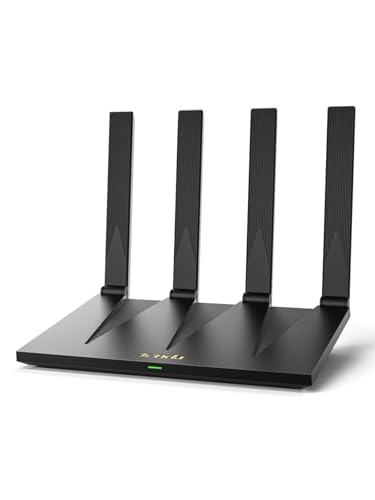
- Entry PickTenda Wi-Fi 6 Router about$79.99
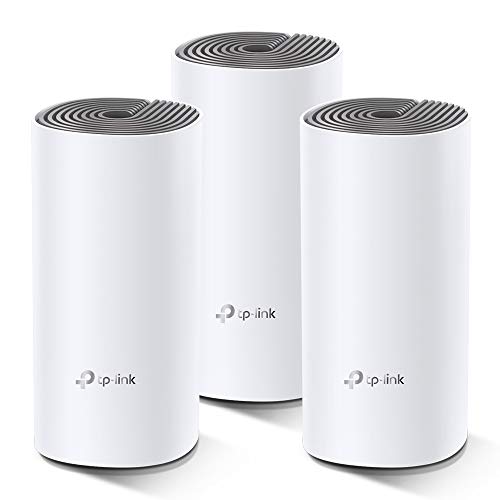
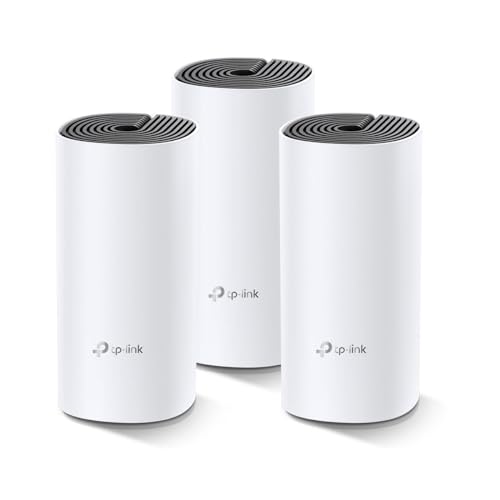
- TP-Link Deco E4 about$149
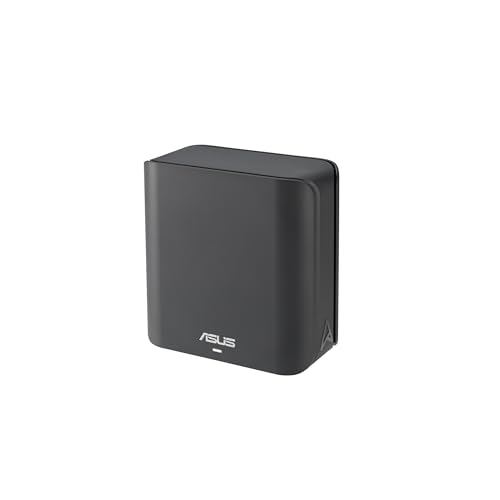
- ASUS ZenWiFi BD4 Dual-Band WiFi 7 Mesh about$258.98
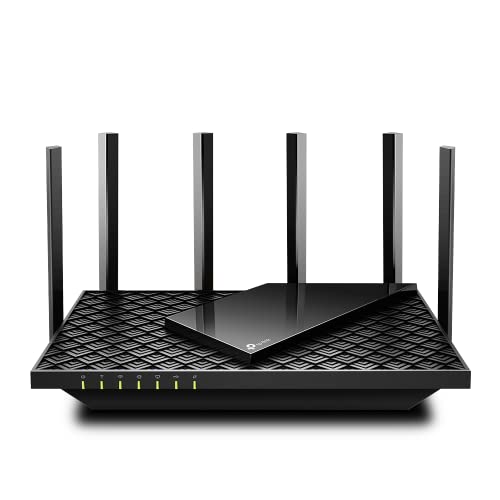
- TP-Link Archer AX55 AX3000 Dual Band Wi-Fi… about$136.50
- TP-Link Deco M4 about$191
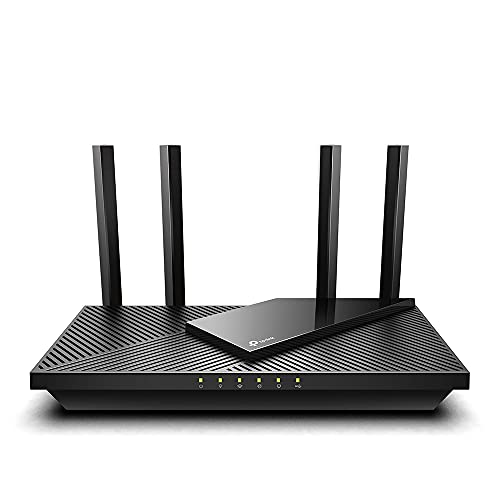
- TP-Link Archer AX72 AX5400 Dual Band Wi-Fi… about$182
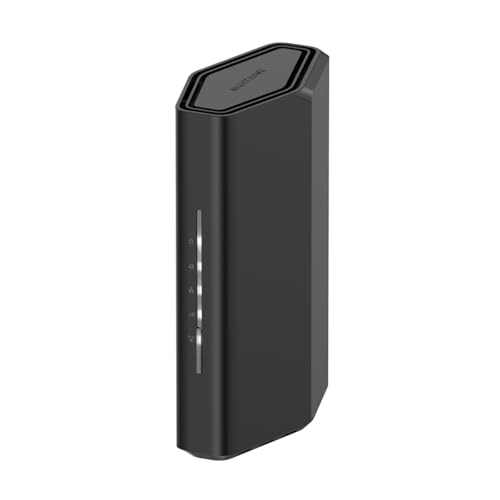
- NETGEAR Nighthawk Dual-Band WiFi 7 Router about$243
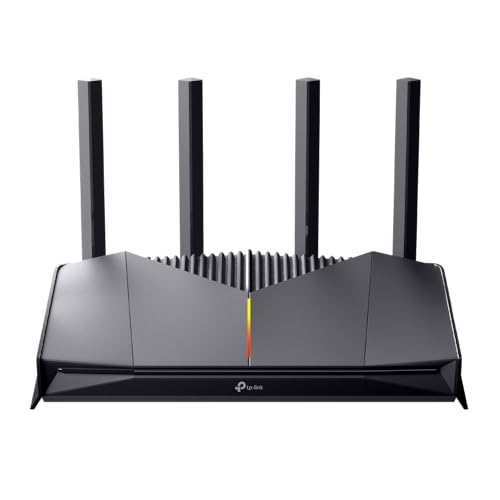
- Most PremiumTP-Link Archer GE230 BE3600 Wi-Fi 7 Gaming… about$267
Why Australia's best-selling router is still Wi-Fi 6
The number one selling router on Amazon Australia right now is not Wi-Fi 7. It is the TP-Link Archer AX72, a dual-band Wi-Fi 6 unit that has been on the market for years, while the Wi-Fi 7 hardware the marketing budget sits behind ranks below it. That is not the market being slow. That is the market being right, and it is the most useful thing this guide has to tell you.
Here is the maths from the bench. A Wi-Fi 6 router of the AX72's class will hold several hundred megabits to a laptop across the house. Most Australian households are on NBN 50 or 100 plans, and the ACCC's Measuring Broadband Australia testing keeps showing those plans deliver close to their rated speed. The bottleneck is the plan, not the router. Paying Wi-Fi 7 money does not move that bottleneck a single megabit.
What has changed is the top end. NBN's wholesale speed uplift, rolling out since September 2025, moved a lot of 100 Mbps households to 500 Mbps for the same monthly spend, and on those plans an older router genuinely is the choke point. So the honest position in 2026 is a split one: Wi-Fi 6 for most homes, Wi-Fi 7 where the ports and the client devices justify it. The picks below cover both sides of that line, plus one for buyers who want nothing to do with TP-Link.
What matters when you buy a router in 2026
Is Wi-Fi 7 worth paying for yet?
Mostly no, and it helps to know which Wi-Fi 7 feature is actually worth having. It is not the headline speed; the number on the box assumes wide channels and client devices your house does not contain. The feature that matters is Multi-Link Operation, MLO: a Wi-Fi 7 device can hold the 2.4GHz and 5GHz bands at the same time and shift traffic between them on the fly, which shows up as a steadier connection under interference rather than a bigger speed-test number. To see any of it you need a Wi-Fi 7 client, which in practice means flagship phones and laptops from about 2025 onward, and to see the speed side you also need a fast plan feeding a 2.5Gbps WAN port. Tick both boxes and the GE230 or RS100 makes sense. Tick neither and you are paying for a badge.
When one good router beats a mesh system
Mesh is the right answer less often than the marketing says. Most Australian homes are single-level and under about 250 square metres, and a six-antenna router placed centrally covers that footprint. One transmitter also means no node hand-off glitches, one firmware to keep updated and one box to power through a storm. Where mesh earns its money: double-brick two-storey houses, long skinny floor plans, granny flats, and homes where the NBN connection enters at a far corner and cannot move. If that is your house, stop reading this guide and read the dedicated mesh Wi-Fi systems guide instead; those picks are chosen for wired backhaul and honest coverage claims.
Fix placement before you spend money
Half the coverage complaints I hear are placement problems wearing a hardware costume. A router in a TV cabinet, behind a fish tank or on the floor behind the couch is fighting physics, and no upgrade wins that fight. Radio hates water, metal and mass. Before buying anything: get the router central, a metre or more off the floor, out in the open, antennas angled in mixed directions rather than all straight up. I have watched that free change fix homes that were a day away from spending $700 on mesh.
Name your bands separately and turn band steering off
This is the workshop's standing advice, and it is not the advice on the box. New routers ship with band steering on: one network name, and the router decides which band each device lands on. In practice, half the "smart plug won't connect" and "laptop keeps dropping" jobs I see trace back to that one setting, because the steering shoves a 2.4GHz-only gadget's setup phone onto 5GHz, or bounces a laptop between bands mid video call. Name the 2.4GHz and 5GHz networks separately, turn steering off, then put slow and far-away gear on 2.4GHz and everything that matters on 5GHz. Devices stop guessing. So do you.
Match the router to your NBN plan
Spend follows plan speed, in that order. On NBN 25 or 50, any current Wi-Fi 6 unit is loafing, so buy on coverage and stability. On 100 to 250, the AX72 class is the sweet spot. On 500 and up, a gigabit WAN port becomes the ceiling, and the 2.5Gbps ports on the two Wi-Fi 7 picks stop being decoration and become the entire point.
The three picks, from $198 to $255
Prices are Amazon AU at time of writing (6 August 2026) and move week to week. Sales ranks are Amazon AU's Routers category, checked the same day.

TP-Link Archer AX72 AX5400 Dual-Band Wi-Fi 6 Router
ASIN B09BMLJ9YD • $182 • Ships from Amazon AU
The #1 seller in Amazon AU's Routers category, and the ranking is deserved. AX5400 splits as 4804 Mbps on 5GHz and 574 Mbps on 2.4GHz, and the 5GHz side is the full-strength implementation: 4T4R with HE160 channels, not the cut-down two-stream version lesser Wi-Fi 6 routers quietly ship. Six antennas with beamforming cover a typical single-level Australian home from a central spot, and OFDMA plus MU-MIMO keep the connection responsive when the whole household piles on at 7pm.
Around the back: gigabit WAN, four gigabit LAN ports and a USB 3.0 socket for basic drive sharing. Setup runs through the Tether app or a browser, band controls are easy to reach (see the steering advice above), and TP-Link backs it with a 3-year warranty, long for this bracket.
Honest caveats: no 2.5Gbps port anywhere, so on a gigabit plan the wired ceiling is roughly 940 Mbps and this is the wrong buy. No 6GHz band, obviously. And it runs warm; give it open air, not a cabinet shelf (more on that in the bench section).
Best for: Homes on NBN 50 to 250 that want one well-placed router doing the whole job.
Standard: Wi-Fi 6 dual-band AX5400 (4804 + 574 Mbps) • Radio: 4T4R, HE160, 6 antennas, beamforming, OFDMA, MU-MIMO • Ports: 1x gigabit WAN, 4x gigabit LAN, USB 3.0 • Rank: #1 in Routers (Amazon AU) • Warranty: 3 years
View on Amazon AU
TP-Link Archer GE230 BE3600 Wi-Fi 7 Gaming Router
ASIN B0FGXQZJ5H • $267 • Ships from Amazon AU
The step-up for when the plan and the devices justify Wi-Fi 7. BE3600 splits as 2882 Mbps on 5GHz and 688 Mbps on 2.4GHz with Multi-Link Operation, and the ports are the real story: a 2.5Gbps WAN plus a 2.5Gbps LAN alongside three gigabit sockets. That WAN port is what a post-uplift 500 Mbps or gigabit plan actually needs, and the multi-gig LAN earns its keep if you run local backups to a NAS; our home NAS and backup picks pair well with it. It sits at #5 in the Routers category, so plenty of buyers agree.
It is sold as a gaming router, and the gaming extras are mostly software: Game Boost traffic priority, a game panel, and the option of pinning the 5GHz band to one machine so ping stays flat while someone else streams 4K. That QoS is genuinely useful on a busy family connection whether anyone games or not. If you are shopping for the machine as well, the gaming laptops under $1,500 picks cover the other half of the equation.
Honest caveats: this is dual-band Wi-Fi 7 with no 6GHz radio, which is why the headline number looks modest next to tri-band marketing. MLO here spans 2.4GHz and 5GHz only. And the gamer styling is a taste question; at least the lighting switches off in the app.
Best for: Fast NBN plans, Wi-Fi 7 phones and laptops, households that want flat ping under load.
Standard: Wi-Fi 7 dual-band BE3600 (2882 + 688 Mbps), MLO • Ports: 1x 2.5Gbps WAN, 1x 2.5Gbps LAN, 3x gigabit LAN • Extras: Game Boost QoS, dedicated gaming band • Rank: #5 in Routers (Amazon AU)
View on Amazon AU
NETGEAR Nighthawk RS100 BE3600 Wi-Fi 7 Router
ASIN B0DWQK25DW • $243 • Ships from Amazon AU
Some buyers want a router that is not TP-Link, whether that is supply-chain caution or plain brand preference, and the RS100 is the one I would hand them. It plays in the same class as the GE230: dual-band Wi-Fi 7 at 3.6Gbps combined with Multi-Link Operation, a 2.5Gbps internet port for multi-gig plans, and four gigabit LAN ports. NETGEAR rates it for up to 185 square metres of coverage, which is an unusually honest number for a router box and maps neatly onto a single-level Australian home.
Setup through the Nighthawk app is the cleanest of the three picks, and firmware updates arrive without drama. Honest caveats: it sits at #21 in the category, so you trade the AX72's proven sales volume for brand choice. NETGEAR Armor is a 30-day trial that becomes a paid subscription, and the app reminds you about it more often than it should; the router works fine without it. And there is no multi-gig LAN port, so wired traffic to a backup drive tops out at gigabit.
Best for: Wi-Fi 7 features and a multi-gig WAN in a non-TP-Link box.
Standard: Wi-Fi 7 dual-band BE3600, MLO • Ports: 1x 2.5Gbps WAN, 4x gigabit LAN • Coverage: rated to 185 sqm • App: Nighthawk, Armor 30-day trial • Rank: #21 in Routers (Amazon AU)
View on Amazon AUSide-by-side comparison
| Product | Price | Best for |
|---|---|---|
| Tenda Wi-Fi 6 Router | ~$79.99 | |
| TP-Link Deco E4 | ~$149 | |
| ASUS ZenWiFi BD4 Dual-Band WiFi 7 Mesh | ~$258.98 | |
| TP-Link Archer AX55 AX3000 Dual Band Wi-Fi… | ~$136.50 | |
| TP-Link Deco M4 | ~$191 | |
| TP-Link Archer AX72 AX5400 Dual Band Wi-Fi… | ~$182 | |
| NETGEAR Nighthawk Dual-Band WiFi 7 Router | ~$243 | |
| TP-Link Archer GE230 BE3600 Wi-Fi 7 Gaming… | ~$267 |
What we see fail at the bench: home routers
Routers cross the bench at our Central Coast computer repair workshop most weeks, usually presented as "the internet keeps dropping" with a laptop cast as the suspect. After 16 years the failure patterns in home networking gear are consistent enough to write down.
The plug pack dies before the router does
The most common router "failure" I see is not the router. It is the wall-wart power supply feeding it. Those plug packs are built down to a cost with small electrolytic capacitors that dry out over three to five years, and as they fade the output voltage sags under load. Symptoms: random reboots in the evening when the house is busy, dropouts during large downloads, a router that behaves after a rest then falls over again. A replacement supply with the right voltage and polarity costs under $20 and is always the first thing to try.
TV cabinets cook routers
Routers are convection cooled, and a closed cabinet has no convection, especially with a set-top box and a console in there running warm. Heat throttles the radio and ages those same capacitors at roughly double the rate for every extra 10 degrees. When I ask a customer where the router lives and the answer is "in the entertainment unit", the fault history usually explains itself. Open shelf, clear air, off the floor.
Double NAT: two routers doing one job badly
A steady stream of jobs arrive as "gaming NAT is strict" or "port forwarding stopped working", and the cause is a new router plugged into the back of the old provider-supplied modem-router with both still routing. Two devices handing out addresses, each hiding the other. The fix depends on your connection type. On FTTP and HFC, the new router plugs straight into the NBN box and the old unit goes in a drawer. On FTTN and FTTC, the modem-router goes into bridge mode so it only translates the line, and the new router does everything else.
Old 2.4GHz smart gear versus new routers
Every router upgrade breaks somebody's smart plugs. Older IoT gear is 2.4GHz-only and often WPA2-only, while new routers default to combined band names, band steering and sometimes stricter security modes. The gear did not fail; the handshake did. Separate 2.4GHz network name, WPA2/WPA3 mixed mode, steering off. I covered this above and repeat it here deliberately, because customers have binned working $50 gadgets over a settings problem.
If a weekly reboot is part of your routine, the hardware is talking
A router that needs rebooting every few days is not "just being a router". Something is degrading, usually supply capacitors, occasionally overheated flash storage. Setting a scheduled auto-reboot masks the symptom while the fault matures into a no-boot. Swap the plug pack first. If the reboot habit continues, replace the router on your own terms rather than mid-meeting on a work-from-home Tuesday.
Decision tree: which router should you buy?
- On NBN 50 to 250 and want one router that covers the house? → TP-Link Archer AX72. The default answer, and the country's best-seller for a reason.
- On a 500 Mbps or gigabit plan, or already holding Wi-Fi 7 devices? → TP-Link Archer GE230 at $255. The 2.5Gbps WAN port is the point; the gaming QoS is a bonus.
- Same fast-plan brief, but you would rather avoid TP-Link? → NETGEAR Nighthawk RS100 at $243.
- Two-storey double brick, long floor plan, or dead rooms even after fixing placement? → One router is not your answer. Start with the mesh Wi-Fi guide.
- Smart plugs and older gadgets refusing to join? → Not a shopping trip. Separate your band names and turn band steering off first.
- Current router only behaves after a reboot? → Try a $20 plug pack first. If the habit continues, walk it into our workshop at Erina for a bench test before you spend real money.
Frequently asked questions
Is Wi-Fi 7 actually worth paying for in 2026?
For most homes, not yet. The headline speeds need two things most households do not have: Wi-Fi 7 client devices and an internet plan fast enough to feed them. Most phones and laptops in Australian houses are still Wi-Fi 5 or 6, and most NBN plans are 50 or 100 Mbps. The Wi-Fi 7 feature that actually matters is Multi-Link Operation, which holds both bands at once for a steadier connection, not a faster one. On a 500 Mbps or gigabit plan with new devices, the step-up is defensible. Otherwise the $197.90 Wi-Fi 6 pick does the same job, and the sales chart says most buyers have worked that out.
Do I need a mesh system or is one router enough?
One good router in the right spot covers most Australian homes. Most are single-level and under about 250 square metres, which is inside the honest range of a six-antenna unit like the Archer AX72. Mesh earns its extra cost in double-brick two-storey houses, long skinny floor plans, and homes where the NBN box sits in a far corner and cannot move. Try placement first: centre of the house, up high, out in the open. If a bedroom is still dead after that, mesh is the answer, and that is a different shopping list.
Why won't my smart plug connect to my new router?
Almost always band steering. Most smart plugs, bulbs and older gadgets are 2.4GHz-only, and a new router broadcasting both bands under one network name will steer the phone you are using for setup onto 5GHz. The plug and the phone end up on different bands and pairing fails or times out. The fix takes two minutes: give the 2.4GHz and 5GHz networks separate names, connect your phone to the 2.4GHz one, and run setup again. I do this on customer routers weekly, and it resolves most smart-home setup complaints before any hardware gets blamed.
Should I use the router my internet provider gave me?
For a 25 or 50 Mbps plan, usually yes. Provider-supplied units are built to a price, but they are fine at those speeds. They hurt on faster plans and busier households: weaker radios, fewer antennas, firmware you cannot do much with. The trap is adding a new router behind the old one without reconfiguring anything, which gives you double NAT: two devices both handing out addresses, broken port forwarding, and consoles complaining about strict NAT. Put the provider unit in bridge mode or, on FTTP and HFC, plug the new router straight into the NBN box and retire the old one.
Why does rebooting my router fix the internet for a day?
Because something is sagging and the reboot resets it. The usual culprit is not software: it is aged electrolytic capacitors, either inside the router or, more often, inside the plug-pack power supply feeding it. As they dry out, the voltage dips under load, the router browns out, and performance falls apart until the next restart. Heat accelerates the process, which is why routers shut inside TV cabinets die younger. A replacement plug pack costs under $20 and is the first thing to try on a router that needs regular reboots. If that does not settle it, the router itself is on the way out.
What router do I need for my NBN plan speed?
Match the spend to the plan. On NBN 25 or 50, any current Wi-Fi 6 router is loafing, so buy on coverage and stability. On 100 to 250, the Archer AX72 class is the sweet spot: the 5GHz band carries several times the plan speed, so the plan stays the bottleneck, which is what you want. At 500 Mbps and up, the gigabit WAN port on a Wi-Fi 6 router becomes the ceiling, and the 2.5Gbps ports on the two Wi-Fi 7 picks start earning their price. A $600 router on a $69 plan does not make the plan faster; it just moves money from your pocket to a spec sheet.
Related buying guides
Router misbehaving? Diagnose before you replace
Bring it in with the plug pack. Half the routers that reach the bench only need a $20 power supply, and half the "dead zones" are placement or band steering, not hardware. Sixteen years of board-level repair means the diagnosis takes minutes, and if the router really is dead, you buy off the list above with a clear conscience.
Visit our Erina workshop Book Online