
Prices from Amazon AU, updated daily. Swipe or use the arrows for more.
Disclosure: This article contains affiliate links to amazon.com.au. If you buy through one of these links iFix may earn a small commission at no extra cost to you. It doesn't change which products we recommend. We focus on what actually lasts based on 16 years of repair-shop experience.
Quick summary8 picks
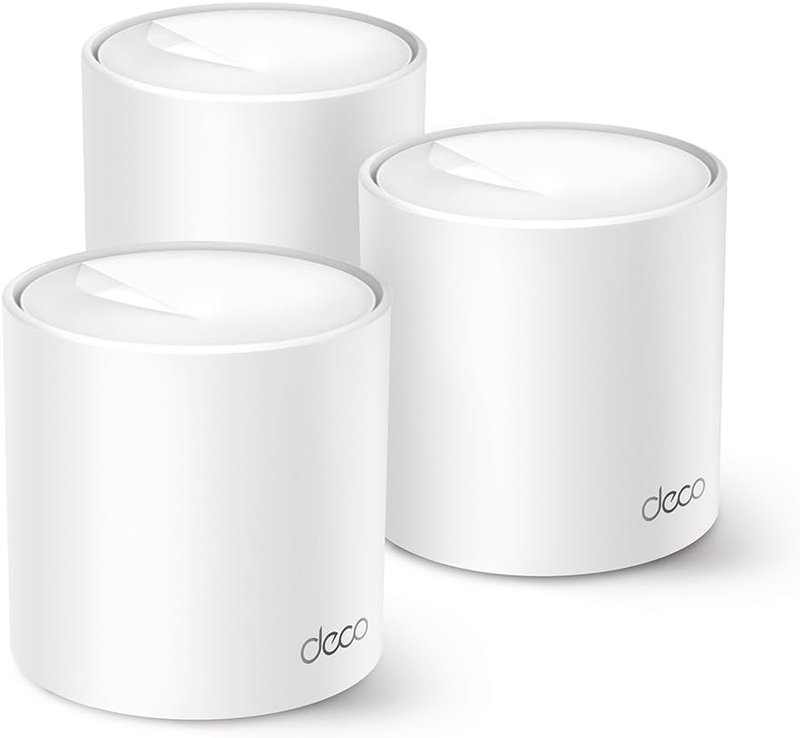
- Entry PickTP-Link Deco X20 about$235
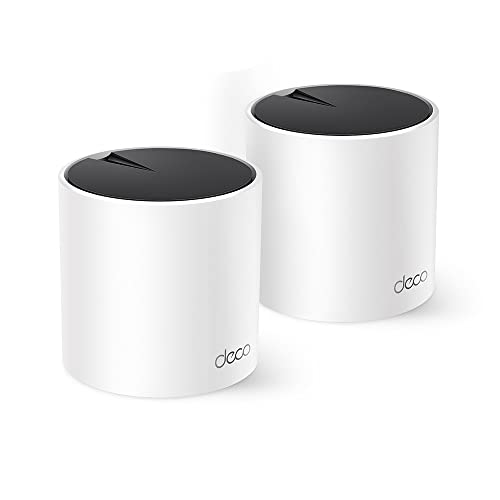
- TP-Link Deco X1500 about$274.50
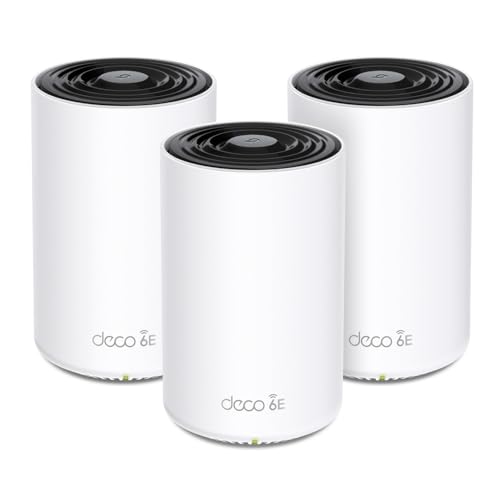
- TP-Link Deco X55 about$280.77
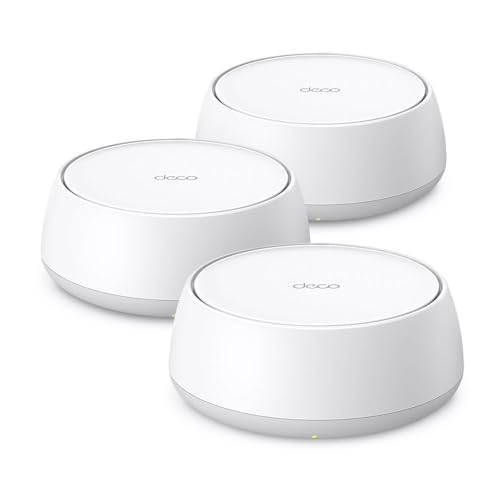
- TP-Link Deco BE22 about$401.77
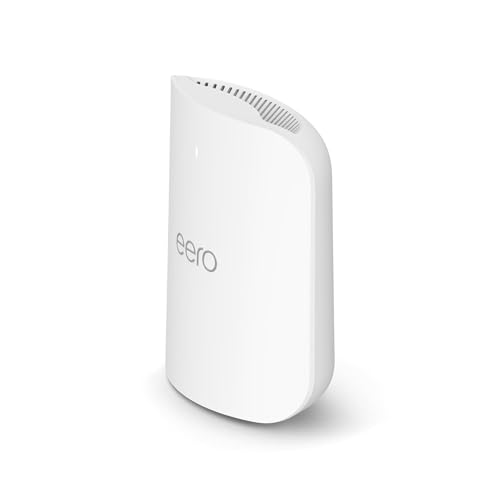
- Amazon eero Pro 7 tri-band mesh Wi-Fi 7 router about$529.99
- TP-Link Deco XE75 Pro about$598.77
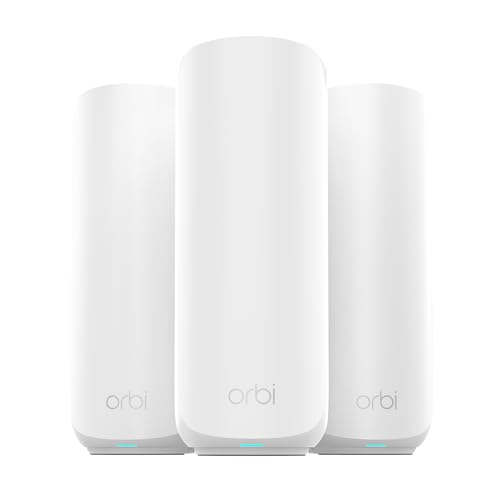
- New Netgear Orbi 370 Series Dual-Band Mesh… about$647
- Most PremiumTP-Link Deco BE11000 Wi-Fi 7 Mesh System… about$944.98
Why this matters now
Most "best mesh Wi-Fi" lists are written by people ranking spec sheets. I spend my weeks on the other end of it: the laptop that "won't hold Wi-Fi", the video call that drops in the back room, the smart plug that keeps falling off the network. And here is the thing that surprises people: roughly half those jobs are not a fault in the device at all. It is the network. An ISP-supplied router parked in the front room, trying and failing to push a signal through a double-brick wall to a home office at the back.
That gap matters more than it used to, because for a lot of people the home network is no longer a convenience. It is the office. Around 1.3 million Australians, roughly 6% of the workforce, now earn at least part of their income through gig or platform work, and countless more work from home some or all of the week. Those figures come from ABS labour-market data. When your income runs over your Wi-Fi, a dead zone is not an annoyance. It is a dropped client call and an hour you cannot bill. A $600 mesh system that ends the dropouts pays for itself the first time it saves you a morning.
The other reason to care now is Wi-Fi 7 and the new multi-gig NBN tiers finally lining up. If you are buying a system to last five or six years, this is a sensible moment to buy into the current generation rather than the last. Just do not buy it for the wrong reason. See the honest take on Wi-Fi 7 below.
What actually matters when you buy mesh
Ignore the headline speed. "BE11000" and "11 Gbps" are the three bands added together, a number no single device will ever see. The things that decide whether a mesh system fixes your problem are less exciting and more useful.
- Coverage and node count. A mesh works by placing nodes so each one still hears the last one clearly. Pack size matters: a two-pack suits an apartment or compact home, a three-pack suits a standard house, and a spread-out or double-brick home may want a fourth node. Placement beats quantity every time.
- Backhaul: wireless or wired. Backhaul is how the nodes talk to each other. Wireless is the default and it is fine; wired (an Ethernet cable between nodes) is dramatically better because it takes that traffic off the air. Every system here supports both. If you can run one cable, run it.
- Ports, and whether they suit your plan. This is where the BE65 units earn their keep. 2.5Gbps and 5Gbps ports mean the mesh can actually carry a fast NBN plan and a wired backhaul run. Gigabit-only ports bottleneck a multi-gig connection before the Wi-Fi even gets involved.
- The band question: 2.4GHz vs 5GHz vs 6GHz. 2.4GHz travels furthest and penetrates walls but is slow and crowded. 5GHz is the workhorse. 6GHz (on 6E and 7) is fast and clean but short-range. A good mesh blends them so you never think about it. But there is a setup-day caveat on band-steering worth knowing, further down.
- Setup and app. The best network hardware is the one you actually get configured correctly. The eero app is the friendliest; the Deco app is more capable but asks a little more of you. Both are a long way ahead of a generic router web page.
The four picks, by what you actually need
Prices are checked against Amazon AU every morning and move week to week on networking gear, so treat every figure as "around". The list runs in price order, top to bottom.
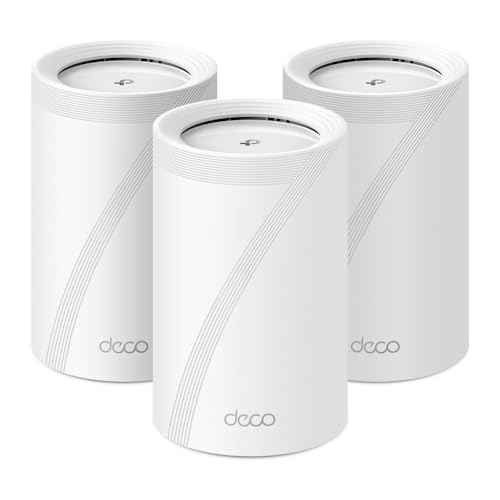
TP-Link Deco BE65 (3-Pack): Tri-Band Wi-Fi 7, BE11000, 4× 2.5Gbps per unit
Tri-band Wi-Fi 7 (6/5/2.4GHz) · 3 nodes · 4× 2.5Gbps + USB 3.0 per unit · MLO, 320MHz · wired or wireless backhaul · around $944.98 · Ships from Amazon AU
This is the one I would put in most Australian houses and not think about again. Three nodes is the right amount of hardware for a standard three or four bedroom home, single or double storey, and tri-band Wi-Fi 7 means there is a dedicated 6GHz band the nodes can use to talk to each other so your devices are not fighting them for airtime. What sells it over the less costly picks is the ports: four 2.5Gbps sockets on every unit, not just the main one. That means you can run a wired backhaul from the far node and still have fast wired ports for a TV, a console or a desktop wherever a node sits.
The reason to buy this over the others. Coverage with headroom. A three-pack of tri-band Wi-Fi 7 with multi-gig ports on all nodes is a system you buy once and keep through several rounds of new phones and laptops. It is the future-proof choice, and the price gap over the value picks is smaller than the years of not thinking about it are worth.
What to be sure of. Three nodes is more than a small home needs. If you are in an apartment or a compact single level, the BE65 Pro two-pack below saves you money and a spare unit. And Wi-Fi 7's best tricks only show up with Wi-Fi 7 client devices; on today's phones you are mostly buying the coverage, the bands and the ports, which is reason enough.
Best for: the family home, especially double-storey or brick, where you want one system to blanket the whole house and never revisit it.
Standard: Wi-Fi 7 (BE11000), tri-band · Nodes: 3 · Ports: 4× 2.5Gbps + USB 3.0 per unit · Features: MLO, 320MHz, AI-Roaming · Backhaul: wired or wireless · App: Deco · Warranty: 3 years + Australian Consumer Law
Check current AU price
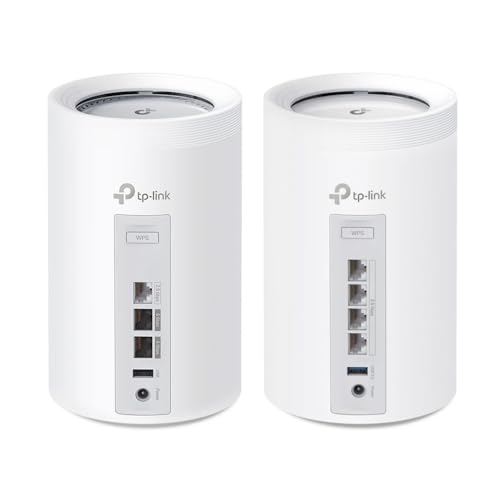
TP-Link Deco BE11000 (2-Pack: BE65 Pro + BE65): Tri-Band Wi-Fi 7, 5Gbps main node
Tri-band Wi-Fi 7 (6/5/2.4GHz) · 2 nodes (BE65 Pro + BE65) · main node 2× 5Gbps + 2.5Gbps, second node 2.5Gbps · MLO, 320MHz · around $780.86 · Ships from Amazon AU
If you are on one of the new multi-gig NBN tiers and your home is a single level or a smaller footprint, this is the smart buy. This pack pairs a BE65 Pro main node, the one with two 5Gbps sockets plus a 2.5Gbps, with a second BE65 node for coverage. Those 5Gbps ports are the reason it is here: they let the main unit carry an NBN 2000 plan without the router itself becoming the bottleneck. Wire the two nodes together and you get close to plugged-in performance at both ends of the house.
Where it beats the 3-pack. Raw wired speed and price. If your problem is "my fast plan feels slow" rather than "the back bedroom is a dead zone", the 5Gbps ports on the main node matter more than a third node, and the two-pack costs less than the three.
Where it falls short. Two nodes only. In a large or double-brick home, two units will leave a corner short, and adding a matching node later costs more than buying the three-pack up front. Match the pack size to your floor plan, not your internet plan alone.
Best for: single-level homes and apartments on a fast plan, where multi-gig wired ports matter more than blanket coverage.
Standard: Wi-Fi 7 (BE11000), tri-band · Nodes: 2 (BE65 Pro + BE65) · Ports: main node 2× 5Gbps + 2.5Gbps + USB, second node 4× 2.5Gbps + USB · Features: MLO, 320MHz, HomeShield · Backhaul: wired or wireless · App: Deco · Warranty: 3 years + Australian Consumer Law
Check current AU price
TP-Link Deco XE75 Pro (3-Pack): Tri-Band Wi-Fi 6E, AXE5400, 2.5Gbps
Tri-band Wi-Fi 6E (6/5/2.4GHz) · 3 nodes · 2.5Gbps + gigabit ports · up to 670m² · ~200 devices · around $598.77 · Ships from Amazon AU
This is the pick when Wi-Fi 7 is more than you need. And for most homes right now, it is. The XE75 Pro is tri-band Wi-Fi 6E, so you still get the clean 6GHz band for backhaul and for the newer devices that can use it, three nodes for real whole-home coverage, and a 2.5Gbps port on each unit for a fast plan or a wired hop. It is rated to around 670m² and 200 devices, which is well beyond what a normal household throws at it. You are giving up the 320MHz channels and Multi-Link Operation of Wi-Fi 7, features most of your current devices cannot use anyway, and pocketing the difference.
The honest positioning. Nine out of ten families would not feel the difference between this and the BE65 three-pack in daily use, and it is less costly for the same node count. Buy this if you want strong, no-drama coverage today and you are not chasing multi-gig headroom you will not use for a few years yet.
Best for: the value-minded family home that wants three-node coverage and the 6GHz band without the Wi-Fi 7 premium.
Standard: Wi-Fi 6E (AXE5400), tri-band · Nodes: 3 · Ports: 2.5Gbps + gigabit per unit · Coverage: up to 670m², ~200 devices · Backhaul: wired or wireless · App: Deco · Warranty: 3 years + Australian Consumer Law
Check current AU price
Amazon eero Pro 7: Tri-Band Wi-Fi 7, 2× 5GbE, expandable
Tri-band Wi-Fi 7 · single unit (add nodes to expand) · 2× 5GbE ports · up to 190m² · 200+ devices · around $529.99 · Ships from Amazon AU
If your priority is "I want it to work and I do not want to fiddle", this is the one. eero built its reputation on the friendliest setup in the category, and the TrueMesh and TrueRoam software genuinely does the hard part for you. You plug it in, follow the app, and it hands your devices between nodes without you touching a setting. The Pro 7 is tri-band Wi-Fi 7 with two 5GbE ports, supports plans up to 5Gbps, and covers up to 190m² per unit. It ships as a single router and you expand by adding more eero units when you need them.
Read this before you buy. This listing is a single unit, so for a whole house you will add one or two more eeros, which changes the total price. Factor that in against the multi-node TP-Link packs. And a few of eero's nicer features (advanced security, ad-blocking, parental controls) sit behind the paid eero Plus subscription. The core mesh works fully without it; just know the upsell is there so you are not surprised.
Best for: anyone who values a painless setup and a tidy app over squeezing the last dollar of value, and who is happy to add nodes as the home needs them.
Standard: Wi-Fi 7, tri-band · Nodes: 1 (expandable) · Ports: 2× 5GbE · Coverage: up to 190m²/unit, 200+ devices · Software: TrueMesh, TrueRoam · Note: some features need eero Plus · Warranty: 3 years + Australian Consumer Law
Check current AU priceSide-by-side comparison
Prices are approximate and move week to week. Note the eero ships as a single unit, add nodes for whole-home coverage, while the TP-Link picks are complete multi-node packs.
| Product | Price | Best for |
|---|---|---|
| Amazon eero Pro 7 tri-band mesh Wi-Fi 7 router | ~$529.99 | |
| TP-Link Deco XE75 Pro | ~$598.77 | |
| TP-Link Deco BE11000 Wi-Fi 7 Mesh System… | ~$944.98 |
How to set one up so it actually works
A mesh system fixes coverage only if you place and configure it properly. The habits that matter, from the bench:
- Place nodes halfway to the dead zone, not in it. A node can only rebroadcast a signal it still hears clearly. Put it where the signal from the main unit is still strong, roughly midway between it and the problem room, not out at the far wall where it is already weak.
- Run a wired backhaul if you possibly can. One Ethernet cable between the main node and a far node moves the mesh's own traffic off the air and lifts the whole system. On the BE65 units the multi-gig ports make this genuinely worthwhile. It is the biggest single improvement you can make.
- Leave it as one network name, mostly. On these systems, keep a single Wi-Fi name and let band-steering put each device on the right band. That is the right default for phones and laptops.
- The band-steering caveat, for smart-home gear. Here is my standing position after years of this: single SSID is right for your main devices, but a lot of smart plugs, older cameras and low-cost sensors will only join a 2.4GHz network, and band-steering can trip them up during pairing. The clean fix is to switch on a temporary separate 2.4GHz network name in the app, pair the stubborn device to it, then leave that name in place for your IoT gear. Do not split every band by default. It just leaves you managing two networks and devices clinging to the wrong one.
- Keep the main node out in the open. Not in a media cabinet, not behind the TV, not in a metal-sided AV rack. Radio waves do not like being boxed in. Vertical, elevated and clear beats hidden every time.
Common mistakes from the repair shop
The Wi-Fi problems that land on my bench, or would, if people did not assume it was the laptop, usually come down to a handful of avoidable decisions.
- Blaming the laptop for a network problem. The most common one. If the Wi-Fi is fine next to the router and dies down the hall, the machine is innocent. It is coverage. Test at both distances before you spend money on the wrong thing.
- Buying on the big throughput number. "11,000 Mbps" is three bands added together and no device sees it. Ports, bands and node count decide the real-world result. Ignore the hero figure.
- Too few nodes, or nodes in the wrong spot. A single unit stretched across a double-brick house, or a node parked in the dead zone it is meant to fix. Placement and pack size do the work.
- Never running a wired backhaul when the cable run was easy. People leave a big, free upgrade on the table because wireless "works". If you can run the cable, the difference is immediate.
- Assuming a mesh fixes NBN dropouts. If wired devices drop at the same time as wireless ones, the fault is the modem or the line, not your Wi-Fi. A new mesh will not touch an upstream problem. Check which side of the modem it is on first.
Which one is right for you?
- A family home you want to blanket and forget? Deco BE65 3-pack at around $1097, three nodes, Wi-Fi 7, multi-gig ports on every unit.
- Single level on a fast NBN plan? Deco BE11000 2-pack (BE65 Pro + BE65), for the 5Gbps main node that carries the plan.
- Want three-node coverage on a budget? Deco XE75 Pro Wi-Fi 6E 3-pack at around $599, the value pick most families won't out-grow.
- Just want it to work with no fuss? Amazon eero Pro 7 at around $530, the friendliest setup here. Add nodes as the house needs them.
- Not sure the router is even the problem? Start with a free network diagnosis before you spend a cent.
Frequently asked questions
Is my slow Wi-Fi the laptop or the router?
More often than people expect, it is the router. Roughly half the "my laptop's Wi-Fi is faulty" jobs that come across our Erina bench turn out to be the network, not the machine: an ISP-supplied router struggling to cover the house, a dead zone in a back bedroom, or 2.4GHz congestion from every neighbour on the same channel. The quick test is to stand next to the router with the laptop and run a speed test, then walk to where the problem is and run it again. If the speed collapses as you move away, it is a coverage problem a mesh system fixes. If it is slow right next to the router on every device, it is the internet plan or the router itself. If one device is slow while everything else is fine, then it is the device. Bring the laptop in and we will tell you for free which of the three it is.
Do I need Wi-Fi 7, or is Wi-Fi 6E enough?
For most homes today, Wi-Fi 6E is plenty, and the XE75 Pro is here precisely because it is the sensible-money pick. The real-world gains from Wi-Fi 7, the 320MHz channels and Multi-Link Operation, need Wi-Fi 7 client devices and a very fast internet plan to show up, and most phones and laptops in the house are still 6 or 6E. Buy Wi-Fi 7 if you are on one of the new multi-gig NBN tiers, if you have a house full of new hardware, or if you simply want to buy once and not think about it again for five or six years. Buy 6E if you want the clean 6GHz band and strong coverage without paying the Wi-Fi 7 premium. Either way, the jump from an old single router to a proper mesh matters far more than the Wi-Fi 7 badge.
How many mesh nodes do I actually need?
Fewer than the marketing suggests, and placement beats quantity. As a rough guide, a small apartment or a compact single-storey home is fine on a two-pack; a standard three or four bedroom house, especially double-storey or brick, wants a three-pack; and long, spread-out or double-brick homes may need to add a node. What matters more than the count is where they go: each node needs to sit roughly halfway between the last strong signal and the dead zone, not out in the dead zone itself, because a node can only rebroadcast a signal it can still hear clearly. Two well-placed nodes beat four badly placed ones. If you are unsure, start with the pack size we suggest for your home and add a single matching unit later if one corner still lags.
Should I split my 2.4GHz and 5GHz into separate network names?
On a modern mesh, leave it as one network name in normal use. Band-steering has genuinely improved and it will put each device on the right band for you. The exception is setup day. A lot of smart-home gear, plugs, older cameras, some sensors, will only join a 2.4GHz network, and band-steering can confuse them during pairing. The clean fix is to switch on a temporary separate 2.4GHz name in the app, pair the stubborn device to it, then either leave that name in place for your IoT gear or fold it back into the single network. This is my standing position after years of it: single SSID for phones and laptops, a separate 2.4GHz name only when a device refuses to pair. Do not split everything by default. It just gives you two networks to manage and devices that cling to the wrong one.
Is wired backhaul worth the effort?
If you can run a cable, yes, it is the single biggest upgrade you can make to a mesh system. Backhaul is the link between the nodes, and by default it is wireless, which means the mesh spends some of its own airtime talking to itself instead of to your devices. Run an Ethernet cable between two nodes, Cat6 is fine, and that traffic moves off the air entirely, so every node performs like it is plugged straight into the router. All four systems here support wired backhaul, and the multi-gig ports on the BE65 units make it genuinely worthwhile. Even one wired hop, from the main node to the far end of the house, makes a visible difference. If running cable is not an option, the wireless backhaul on these units is still good. Just place the nodes closer together.
Will a mesh system fix my NBN dropouts?
It depends on where the dropout is happening, and this is worth being honest about. A mesh system fixes Wi-Fi problems: dead zones, weak signal in far rooms, congestion from too many devices. It does nothing for a problem on the NBN line itself. If the connection drops on a device plugged into the modem by cable, the fault is upstream and a new mesh will not touch it. The tell is whether wired devices drop at the same time as wireless ones. If only Wi-Fi devices lose connection and anything on a cable stays up, a mesh is the fix. If everything drops together, it is the modem or the line, and that is an ISP conversation. We can help you work out which side of the modem the problem sits on before you spend money.
Can you set up or diagnose my network if I get stuck?
Yes. We diagnose network problems at our Erina workshop, and half the time the job that started as "fix my laptop" ends as "your router can't cover the house". Bring the laptop in and we will confirm whether it is the device, the router or the plan before you buy anything. That part is free. If you have bought a mesh system and the setup or backhaul has you stuck, or a node will not join, we can sort the configuration too. And for anything on the machine itself, a Wi-Fi card that has actually failed, a driver that keeps dropping, an antenna disconnected during a past repair, that is core bench work for us. Start with a free diagnosis rather than guessing.
Related buying guides
Wi-Fi dropping out, or a laptop that "won't hold" the network?
Before you replace the laptop or guess at a new router, bring it into our Erina workshop. Half the "faulty Wi-Fi" jobs we see are the network, not the machine. And we will tell you which for free before any paid work. We diagnose first, fix genuinely failed Wi-Fi hardware at the board level, and never sell you a repair you do not need. See our pricing guide for what common jobs cost, or walk in to our Erina workshop.
Visit our Erina workshop Book Online