Prices from Amazon AU, updated daily. Swipe or use the arrows for more.
Disclosure: This article contains affiliate links to amazon.com.au. If you buy through one of these links iFix may earn a small commission at no extra cost to you. It doesn't change which products we recommend. We focus on what actually lasts based on 16 years of repair-shop experience.
Quick summary8 picks
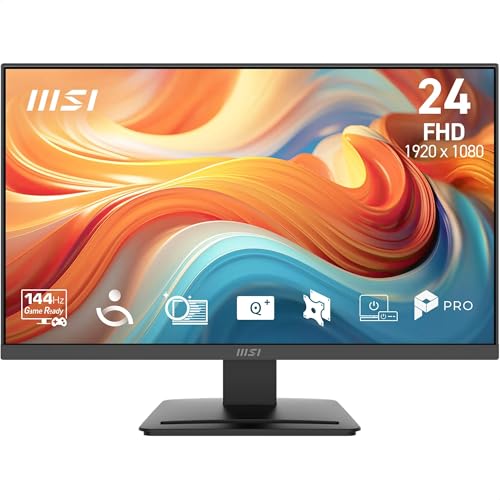
- Entry PickMSI PRO MP241 E14V 23.8" Eye Care Ergonomic… about$114144Hz refresh, 23.8" screen.
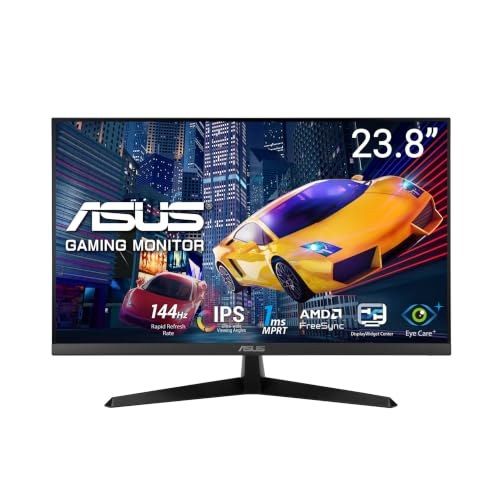
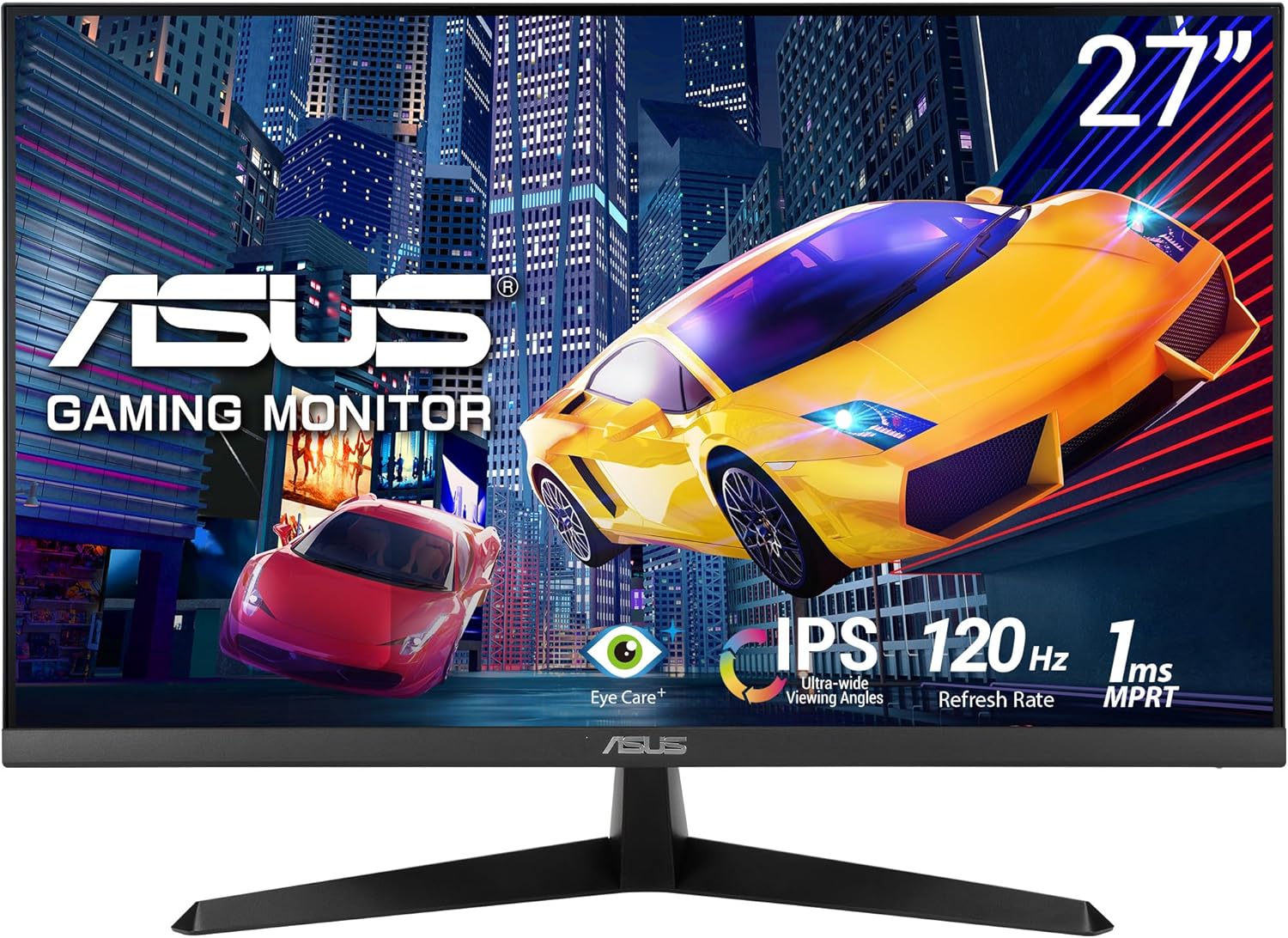
- ASUS VY249HG2 23.8" FHD IPS Gaming… about$129.47120Hz refresh, 23.8" screen.
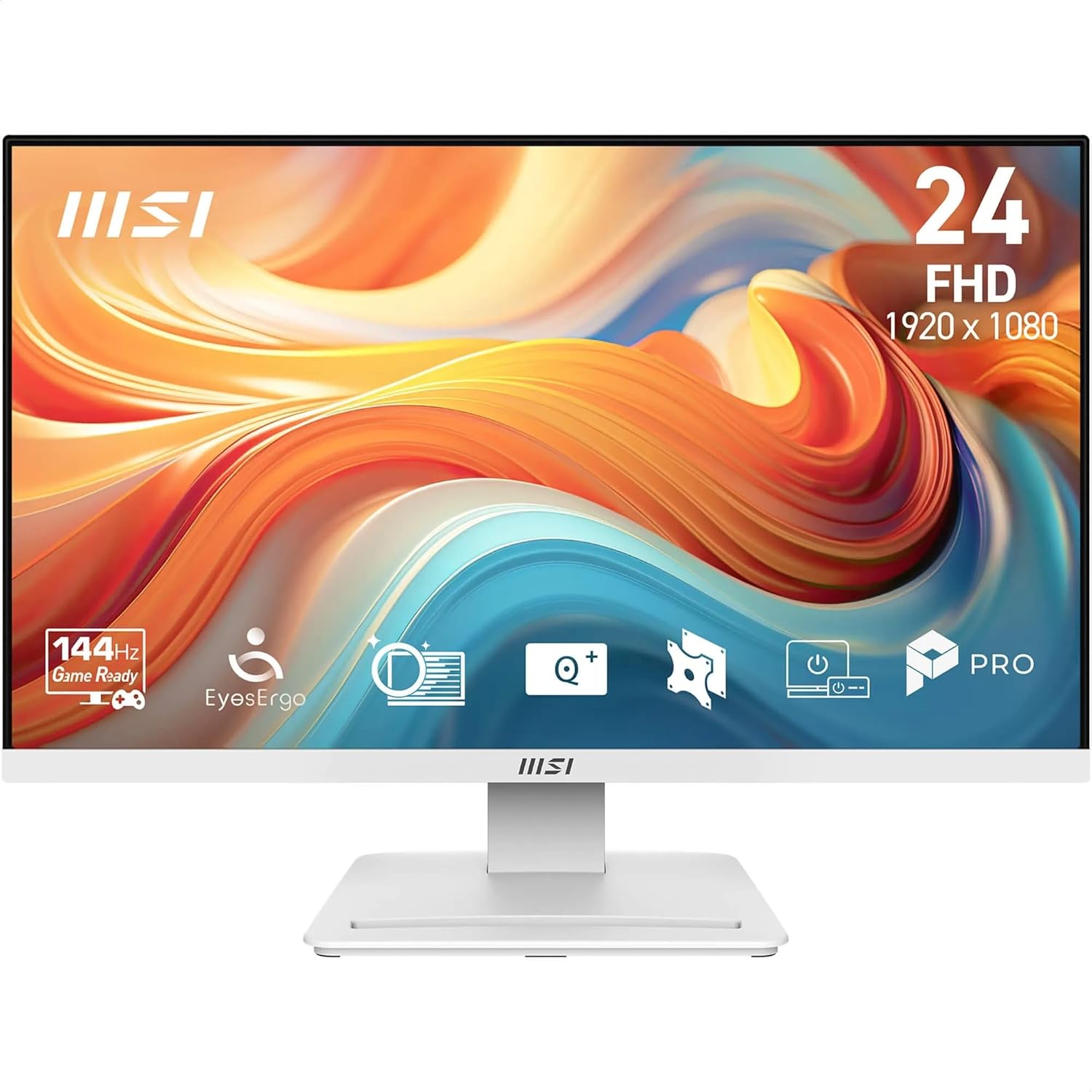
- MSI PRO MP241W E14V 23.8" Eye Care… about$115144Hz refresh, 23.8" screen.
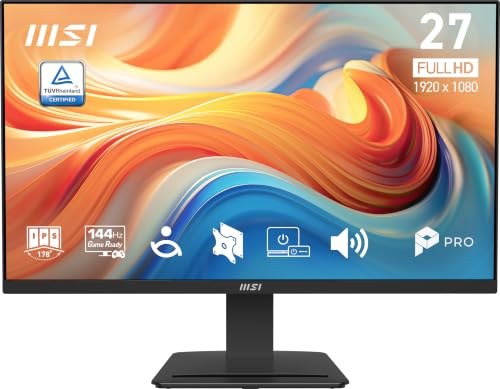
- MSI PRO MP273 E14A 27" Eye Care Ergonomic… about$143144Hz refresh, 27" screen.
- ASUS VY279HGR - 27' FHD IPS Gaming Monitor… about$155120Hz refresh, 27" screen.
- Lenovo L24-4E 23.8" FHD 100Hz Mainstream… about$178100Hz refresh, 23.8" screen.
- MSI PRO MP273Q E14 27-inch WQHD about$201144Hz refresh, 27" screen.
- QHD on a budgetKTC H27T27S QHD 144Hz Monitor about$219.991440p at 144Hz for under $200.
Why the best-selling monitor in Australia is a business panel
The number one selling monitor on Amazon Australia right now is not a gaming screen. It is a $201 MSI business panel with a flicker-free backlight, a TÜV Rheinland eye-comfort certificate and a tilt stand. No RGB, no 240Hz headline. That ranking tells you where the market actually went: most people staring at a 27-inch screen for eight hours a day are working in spreadsheets, browsers and email, and their eyes are copping it.
Just over a third of employed Australians now regularly work from home according to ABS working arrangements data, and the screen on the kitchen-table desk is usually whatever got bought in a hurry in 2021. Often that is a 24-inch FHD panel that dims its backlight by strobing it. Swapping that for a WQHD IPS with proper flicker handling is a bigger day-to-day upgrade than a new laptop, and it costs a fifth as much.
One scope note before the picks. iFix already publishes a value monitors guide ranking six panels from $124 to $499 on pure price-to-spec maths, and a separate set of gaming monitor picks under $500 built around motion handling. This guide is deliberately narrower: eye care, office use and long shifts. Flicker, pixel density, blue light, stands. If that is not your use case, one of those two guides will serve you better.
What matters at this price: flicker, pixel density and honest stands
Backlight flicker is the spec the box never mentions
Most budget monitors dim their backlight with PWM: the LEDs switch fully on and off hundreds of times a second, and the ratio of on-time to off-time sets the brightness. At 100% brightness there is no switching at all. Wind it down to 30% for an evening session and the strobing starts. Plenty of people never notice. Others end up at our bench convinced their graphics card is faulty because the screen "shimmers". Flicker-free and anti-flicker panels dim with DC current instead, so nothing strobes at any brightness. Both the MSI and the VY279HGR carry it; on the MSI it sits inside a TÜV Rheinland Eye Comfort certification, which means it was independently tested rather than typed into a marketing sheet.
WQHD at 27 inches beats FHD for text work, and it is not close
A 27-inch FHD panel spreads 1920x1080 across the glass at 81 pixels per inch. WQHD fits 2560x1440 on the same glass: 109 PPI. The practical difference is letterforms. At 81 PPI, small spreadsheet text shows visible stair-stepping on curves and diagonals; at 109 PPI it reads like print. You also get about a third more rows and columns on screen at the same zoom, which is the real productivity gain: less scrolling, more context. FHD at 27 inches was a fair compromise when WQHD cost $400. The gap between our budget pick and the MSI is now $56, so for a primary text-work screen, WQHD is the default.
Blue light modes: a proper filter beats an orange slider
Every low blue light mode does the same basic thing, shifting the white point warmer. The difference is execution. Certified hardware implementations, like the MSI's Less Blue Light filters or the ASUS Blue Light Filter, cut the harshest part of the blue band while keeping colours usable. Crude software sliders turn the whole screen orange until you get sick of it and switch it off within the week. If the OSD offers a scheduled mode, use it: neutral during the day, warmer after sunset.
When a business monitor beats a gaming panel, and when it does not
A gaming panel is tuned for motion: aggressive overdrive, saturated default colour, the fastest pixel response the panel can survive. A business panel is tuned for defaults you can live with for eight hours: flicker-free at every brightness, matte anti-glare coating, restrained colour, eco presets. If you work all day and play a couple of nights a week, the KTC crossover pick below covers both jobs for about $199. If gaming is the main event, skip this guide and read the dedicated gaming picks linked above instead. And if your work is video timelines, wide financial models or reference-grade colour, that is a different budget conversation entirely; our ultrawide OLED monitor guide starts where this one ends.
The three picks, from $145 to $215
Prices are Amazon AU at time of writing (6 August 2026) and move week to week. Sales ranks are Amazon AU's Monitors category, checked the same day.

MSI PRO MP273Q E14 27" Eye Care Ergonomic Business Computer
ASIN B0GN346Y7S • $201 • Ships from Amazon AU
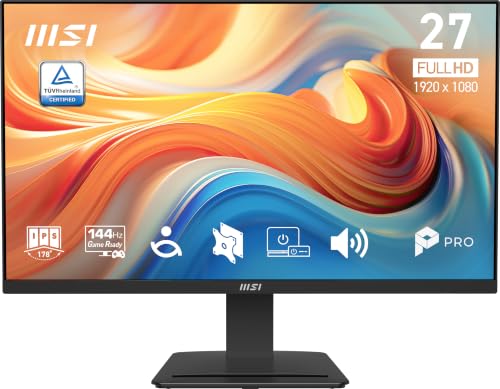
The reigning #1 seller in Amazon AU's Monitors category, and the ranking is earned. The spec set is exactly what long-shift office work needs: a 27-inch WQHD IPS panel at 109 PPI for print-sharp text, TÜV Rheinland Eye Comfort certification covering the anti-flicker backlight and Less Blue Light filters, an anti-glare surface treatment, and a 144Hz refresh rate that keeps a 2,000-row spreadsheet readable while it scrolls instead of smearing. 97% sRGB, 300 nits and a 1500:1 contrast ratio are honest workhorse numbers.
Connectivity is better than the price suggests: two HDMI 2.0b ports and a DisplayPort 1.2a, all driving the full 2560x1440 at 144Hz, with HDMI-CEC if you want to hang a console off it after hours. Built-in speakers cover video calls. VESA 100mm mounting is there for an arm, and MSI backs the panel with a 3-year warranty, which matters at a price point where a dead backlight writes the whole unit off (more on that in the workshop section below).
Honest caveats: the stand is tilt-only. No height adjustment, no swivel. Something had to give at $200 and MSI gave up the stand, which is the right sacrifice, because a VESA arm fixes ergonomics properly anyway. The panel is 6-bit+FRC, fine for office work, not for colour-critical print proofing. This listing is the black version; the white version sold out at time of writing, and the two share the same panel and ports.
Best for: All-day document and spreadsheet work, home offices, anyone whose eyes are gritty by 3pm on their current screen.
Panel: 27-inch WQHD IPS (2560x1440, 109 PPI) • Refresh: 144Hz, 1ms MPRT, Adaptive-Sync • Eye care: TÜV Rheinland Eye Comfort, anti-flicker, low blue light, anti-glare • Colour: 97% sRGB, 300 nits, 1500:1 • Ports: 2x HDMI 2.0b, DP 1.2a • Stand: Tilt, VESA 100mm • Warranty: 3 years
View on Amazon AU
ASUS VY279HGR 27-inch FHD IPS 120Hz Eye Care Monitor
ASIN B08LGHP4C7 • $155 • Ships from Amazon AU
At $145 this is the least expensive 27-inch IPS panel on Amazon AU I would actually put on a desk, and it sits at #5 in the Monitors category because plenty of buyers have worked that out. The eye-care package is unusually complete for the money: a flicker-free backlight, a proper blue light filter, and ASUS Eye Care Plus extras including a Rest Reminder (an on-screen nudge to look away at intervals you set) and a Colour Augmentation mode built for users with colour-vision deficiency, genuinely useful and almost never seen at this price.
The panel overclocks to 120Hz with Adaptive-Sync and 1ms MPRT, so motion holds up for video and casual games. One oddball feature earns its keep in the real world: the bezels and hotkeys carry an antibacterial surface treatment. That sounds like marketing until you spec monitors for a reception counter, a POS station or a homework desk that three sets of hands touch every day. That is exactly where this panel belongs.
Honest caveats: resolution. FHD across 27 inches is 81 PPI and text shows it; at normal desk distance letterforms are visibly softer than either WQHD pick. As a second screen, a shared family display or a spare input for the workshop bench, that is a fair trade $56 under the MSI. As your primary all-day text monitor, it is the wrong trade. Spend the extra.
Best for: Second screens, shared and public-facing desks, a first monitor for a teenager's PC.
Panel: 27-inch FHD IPS (1920x1080, 81 PPI) • Refresh: 120Hz (OC), 1ms MPRT, Adaptive-Sync • Eye care: Flicker-free, blue light filter, Rest Reminder, Colour Augmentation • Extras: Antibacterial bezel and hotkey treatment • Rank: #5 in Monitors (Amazon AU)
View on Amazon AU
KTC H27T27S 27-inch QHD 144Hz Gaming Monitor
ASIN B0H41Q9V1V • $219.99 • Sold by KTC Official on Amazon AU
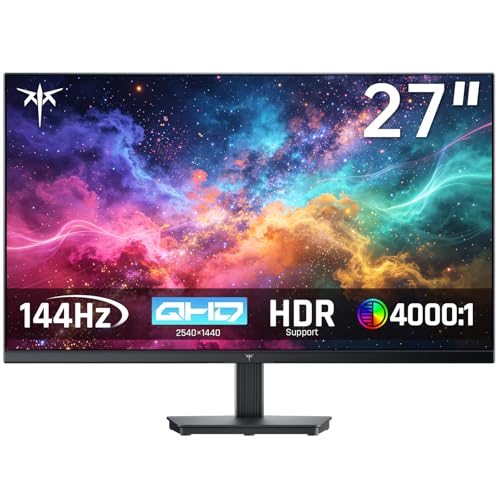
The pick for the work-by-day, game-by-night desk, and the value surprise of this update: 2560x1440 at 109 PPI, the same text sharpness that makes the MSI good for documents, with 144Hz on top for under $200. The panel is HVA rather than IPS, which buys a native 4000:1 contrast ratio, roughly four times the depth of the IPS panels elsewhere on this page. Blacks actually look black after dark.
As an office screen it holds up where it counts: identical QHD text sharpness to the MSI, a flicker-free backlight and a low blue light mode for long shifts. The trade-offs are the ones HVA always carries: colour shifts off-angle sooner than IPS, so it suits a single seat rather than a shared screen, and the default tune leans saturated, so budget ten minutes in the OSD building a neutral daytime preset.
Honest caveats: KTC is a budget panel house, not a tier-one brand; you are paying for the panel, not the badge or the firmware polish. It ships from KTC’s official storefront on amazon.com.au rather than Amazon itself, with a three-year warranty on the listing. No strobing modes, no USB hub: it is a screen, full stop.
Best for: One monitor doing double duty: spreadsheets on weekdays, 144Hz on weekends.
Panel: 27-inch QHD HVA (2560x1440, 109 PPI) • Refresh: 144Hz • Contrast: 4000:1 native • Colour: 129% sRGB, 8-bit, HDR support • Warranty: 3 years
View on Amazon AUSide-by-side comparison
| Product | Price | Best for |
|---|---|---|
| MSI PRO MP241 E14V 23.8" Eye Care Ergonomic… | ~$114 | |
| ASUS VY249HG2 23.8" FHD IPS Gaming… | ~$129.47 | |
| MSI PRO MP241W E14V 23.8" Eye Care… | ~$115 | |
| MSI PRO MP273 E14A 27" Eye Care Ergonomic… | ~$143 | |
| ASUS VY279HGR - 27' FHD IPS Gaming Monitor… | ~$155 | |
| Lenovo L24-4E 23.8" FHD 100Hz Mainstream… | ~$178 | |
| MSI PRO MP273Q E14 27-inch WQHD | ~$201 | |
| KTC H27T27S QHD 144Hz Monitor | ~$219.99 | QHD + 144Hz double duty |
What we see fail at the bench: monitors under $300
Monitors cross the bench at our Central Coast computer repair workshop every week, usually riding shotgun with the PC they were plugged into. After 16 years the failure patterns in this price bracket are consistent enough to write down.
A dead backlight writes the monitor off. The panel almost never dies
Here is the uncomfortable economics of a $145-$220 monitor. The LCD panel itself, the layer that actually forms the image, is close to immortal without physical damage. What dies is the strip of white LEDs behind it. They run in series strings; one LED fails open and the whole string goes dark, so the screen goes black or half-dim while the power light cheerfully stays on. Torch test: power the monitor on, hold a torch flat against the screen, and if you can see a faint ghost of your desktop, the panel is fine and the backlight is dead. Fixing it means a full strip-down: bezel off, panel out, diffuser films separated and reassembled dust-free, LED strips replaced, everything back together. Two hours of careful labour plus parts, against a $145 replacement, does not add up. On a $700 panel it can. At this bracket a dead backlight is a write-off, which is exactly why the MSI's stated 3-year warranty carries real weight.
Power supply capacitors are the fault that is worth fixing
The classic symptom set: the monitor needs three or four presses of the power button to start, clicks audibly, or blinks off for a second when the fridge compressor kicks in. Nine times out of ten that is aged electrolytic capacitors on the internal power board. They dry out, bulge and lose capacitance, and the supply rails sag under load. Unlike a backlight job, this one is economic: the power board comes out with basic disassembly and either gets recapped or swapped as a complete module. If your current monitor is doing the slow-start dance, it is fixable. Bring it in before it becomes a no-start.
HDMI ports break from cable strain, not from use
The HDMI socket is soldered straight to the main board, and the connector was never designed to carry the weight of a thick shielded cable levering on it every time the desk gets bumped. Cracked solder joints show up as intermittent signal loss, a "no input detected" message with a known-good cable, or a picture that returns when you wedge the plug at an angle. A board-level reflow or socket replacement fixes it. Prevention costs nothing: leave slack in the cable and never let it hang under tension off the back of the monitor.
Stands seize, and tilt-only stands are why monitor arms exist
Budget stands use plastic friction hinges that either loosen until the monitor nods at you, or seize solid within a few years. Forcing a seized hinge cracks the case mounts, and at that point the cosmetic damage is permanent. The durable answer is a VESA arm: proper height, rotation and depth adjustment that no factory stand at this price offers, and for long shifts the ergonomic gain beats any single spec in this article. The MSI states 100mm VESA brackets on its listing; confirm VESA support on the ASUS listings before ordering an arm.
Dead pixels: what you can actually claim
Manufacturers grade panels to ISO 9241-307 pixel-fault classes, and most consumer warranties tolerate a small number of dead or stuck pixels before they will swap a panel. Australian Consumer Law gives you more room than the manufacturer chart does, particularly for faults present out of the box. So inspect on day one: full-white, full-black and solid red, green and blue test screens take five minutes. One stuck subpixel in a far corner is a shrug. A cluster in the middle of a brand-new screen is a return, and you are entitled to insist on it. The ACL cheat sheet in our value monitors guide covers the claim process step by step.
Decision tree: which monitor should you buy?
- All-day spreadsheets and documents, eyes tired by mid-afternoon? → MSI PRO MP273Q E14 at $199.99. WQHD text sharpness, certified anti-flicker, 3-year warranty.
- Tightest spend, second screen, or a shared public-facing desk? → ASUS VY279HGR. Flicker-free FHD IPS with a Rest Reminder and antibacterial bezels.
- Work on weekdays, gaming on weekends, one monitor for both? → KTC H27T27S. Same 109 PPI text as the MSI plus 144Hz and 4000:1 contrast.
- Gaming first, work second? → Skip this guide. The dedicated gaming monitor picks under $500 (linked in the intro) are tuned for motion handling first.
- Wide timelines, big financial models, colour-critical work? → A different budget tier. Start with the ultrawide OLED guide linked above.
- Current monitor clicking and slow to start? → That is a capacitor job, not a shopping trip. Walk it into our workshop at Erina for a same-day diagnosis before you spend anything.
Frequently asked questions
Is a $200 monitor actually flicker-free, or is that just marketing?
It is a real, testable hardware difference. Budget panels usually dim the backlight with PWM, switching the LEDs on and off hundreds of times a second, and the flicker gets worse as you lower the brightness. Flicker-free or anti-flicker panels dim with DC current instead, so there is no strobing at any brightness setting. You can test it yourself: point a phone camera in slow-motion mode at the screen with brightness set around 30 percent. A PWM backlight shows rolling dark bands; a DC-dimmed backlight looks steady. The MSI pick goes a step further with TUV Rheinland Eye Comfort certification, which independently tests the anti-flicker and low blue light claims rather than taking the spec sheet at its word.
Can you repair a monitor with a dead backlight?
Technically yes, economically it depends on what the monitor is worth. The LCD panel almost never fails on its own; what fails is the LED backlight strip behind it, and one failed LED can take out a whole series string. Replacing strips means completely stripping the panel, including the diffuser films, which have to go back together dust-free, then reassembling and testing. That is roughly two hours of careful bench labour plus parts. Against a $145 or $201 replacement monitor the maths does not work, so at this price bracket a dead backlight is usually a write-off. On premium panels worth $500 and up, the same repair is genuinely worth doing.
Is WQHD really sharper than FHD on a 27 inch monitor?
Yes, and for text work it is the single biggest difference you will notice. A 27 inch FHD panel works out to 81 pixels per inch; WQHD on the same size glass is 109. At normal desk distance, 81 PPI text has visibly rough letter edges, and a full day of reading it is more tiring than most people realise until they sit in front of the sharper panel. WQHD also fits about a third more spreadsheet rows and columns at the same zoom level. For video and casual gaming the gap matters much less, which is why the $145 FHD pick still earns its place as a second screen.
How many dead pixels count as a warranty fault?
Manufacturers grade panels against ISO 9241-307 pixel fault classes, and most consumer monitor warranties tolerate a small number of dead or stuck pixels before a panel qualifies for replacement, often three to five depending on type and position. Australian Consumer Law runs alongside the manufacturer policy and is often more generous, especially for faults present out of the box. My advice from the bench: test on day one. Run full white, full black, and solid red, green and blue screens for five minutes. A cluster of dead pixels in the middle of a brand-new screen is a legitimate return under ACL even if the manufacturer chart says otherwise, so push back.
Do I need 144Hz for office work?
Need, no. Notice, yes. Static text looks identical at 60Hz and 144Hz. The difference shows up the moment anything moves: scrolling a long document at 144Hz stays readable in motion instead of smearing, and cursor tracking feels tighter. Five years ago high refresh cost a premium and I would have told office buyers to skip it. In 2026 it is effectively free at this price, all three picks in this guide run between 120Hz and 180Hz, so there is no trade-off to weigh. Just do not pay extra for refresh rate alone on an office monitor; pay for resolution and flicker handling first.
Should I just buy a gaming monitor and use it for work?
It works, with caveats, and the KTC pick in this guide is chosen for exactly that job. You get the same QHD text sharpness as the business pick plus 144Hz for the evenings. The caveats: gaming panels ship with saturated colour defaults you will want to tame in the OSD, eye-care features are rarely certified, and motion-clarity modes like ELMB strobe the backlight deliberately, which is the opposite of flicker-free, so leave them off during work hours. If you game most nights, that trade is worth it. If you game twice a year, the certified business panel is the better eight-hours-a-day tool.
Related guides
Not sure if your current monitor is dying or just dim?
Bring it in before you spend money replacing it. Slow starts and clicking usually mean capacitors, a fixable fault; a dead backlight on a budget panel means it is time to buy off the list above. Sixteen years of board-level repair means the diagnosis takes minutes, not days.
Book Online