Disclosure: This article links to upgrade SSDs on amazon.com.au. iFix participates in the Amazon Associates Program, an affiliate advertising program that allows sites to earn fees by linking to amazon.com.au. If you buy through one of these links iFix may earn a small commission at no extra cost to you. It doesn't change which products I recommend. I picked these based on what I've fitted in the workshop, not on commission rate.
Quick answer: Macs from 2012 to 2017 use removable proprietary blade SSDs across four generations (Gen 2 SATA, Gen 3 and Gen 4 PCIe, and a Gen 5 Touch Bar blade variant) and can be upgraded. From 2018 onwards every Mac has soldered NAND storage that cannot be upgraded, and data recovery becomes a chip-off microsoldering job rather than a module swap.
The short version
Amazon affiliate links. Prices checked against Amazon AU on 10 October 2026. Tap through for the live price.
If you've come here trying to work out what SSD is in your Mac, what type it is, how fast it should be, whether you can upgrade it, or whether you can rescue data from it after a failure, this article covers every Apple SSD from the 2012 Retina onwards through the current M4 generation. Across sixteen years in the workshop at iFix Electronics in Erina, Mac SSDs across every generation below have crossed the workshop. The answers vary a lot depending on which Mac you've got. For a broader diagnosis of laptop slowness beyond the SSD bottleneck, see our guide to why your laptop is slow, which covers storage, battery, thermal, and software-side causes.
The headline you need to know upfront: from 2018 onwards, Apple soldered the SSD directly to the logic board. Before that, most Macs had a removable proprietary blade SSD you could upgrade. After it, the storage is part of the motherboard. That's the single biggest fact that changes what's possible for upgrades, replacements, and data recovery.
Apple SSD read and write speeds by generation
Apple SSD read and write speeds depend on the generation, not the badge. SATA blade SSDs manage about 500 MB/s; PCIe blades from 2013 to 2015 reach 1,400 to 2,000 MB/s; current soldered M-series storage runs from roughly 1,500 MB/s on the base M2 Air up to 7,400 MB/s on high-capacity M3 Pro and Max models. Real-world sequential figures below.
| Apple SSD generation | Read (real-world) | Write (real-world) |
|---|---|---|
| Gen 2 SATA blade: MacBook Air 2010–2012, MacBook Pro Retina 2012–early 2013 | ~500 MB/s | ~400 MB/s |
| Gen 3 PCIe 2.0 blade: MacBook Pro Retina 2013–2015, MacBook Air 2013–2017 | ~1,400 MB/s | ~1,000 MB/s |
| Gen 4 PCIe 3.0 blade: MacBook Pro Retina late 2015, iMac 2017–2020 | ~2,000 MB/s | ~1,500 MB/s |
| Base M2 MacBook Air 256GB (single NAND chip) | ~1,500 MB/s | ~1,600 MB/s |
| Soldered M-series 512GB+: M1, M2, M3 (incl. Pro/Max) | 2,800–7,400 MB/s | 2,600–6,600 MB/s |
The four eras of Apple SSDs (and what they mean)
Apple uses four distinct generations of proprietary SSD across the 2012-2017 removable era, plus a fifth bracket that begins with a Touch Bar blade variant in 2016-2017 and continues as soldered NAND from 2018 onwards. These aren't standard M.2; they're Apple-specific connectors that won't fit any other computer. Generation defines the connector shape, the protocol (SATA vs PCIe), and the maximum speed.
Gen 2 (7+17 pin, SATA III): The MacBook Air 2010-2012 and MacBook Pro Retina mid-2012 to early-2013. Two-row connector, SATA III protocol, real-world speeds around 500 MB/s. Still common in workshop trade-ins; OWC and other third parties still make replacement modules.
Gen 3 (12+16 pin, PCIe 2.0 x2): MacBook Pro Retina late-2013 through mid-2015, and MacBook Air 2013-2017. Apple moved off SATA and onto PCIe at this point, which is where SSDs first started genuinely feeling fast; real-world speeds jumped to around 1,400 MB/s. Different connector shape from Gen 2; the two are not interchangeable.
Gen 4 (12+16 pin, PCIe 3.0 x4): MacBook Pro Retina late-2015, MacBook 12-inch 2015-2017, iMac 2017-2020. Same physical 12+16 pin connector as Gen 3 but quadrupled the PCIe bandwidth. Real-world reads near 2,000 MB/s. Most third-party upgrade modules target this connector because the Gen 4 era is where high-performance upgrades make economic sense.
Gen 5 (PCIe 3.0/4.0): Two implementations under one generation. First, a removable Touch Bar MacBook Pro 2016-2017 blade variant, distinct from Gen 4 and with limited third-party support. Second, from 2018 onwards, soldered NAND directly on the logic board across the 2018+ Intel MacBook Pro, all M-series MacBooks (M1, M2, M3, M4), current Apple Silicon iMacs, and current Mac mini. Speeds range from 1,500 MB/s on the base M2 Air up to 7,400 MB/s on higher-capacity M3 Pro/Max MacBook Pros. Generationally, Apple Silicon uses a custom storage controller built into the SoC rather than a separate Apple SSD controller chip.
How to identify which SSD is in your Mac
The easiest way is the model identifier. On the Mac, click the Apple menu, About This Mac, and find the line that gives you the year and screen size, for example "MacBook Pro (Retina, 15-inch, Mid 2015)" or "MacBook Pro (15-inch, 2018)". Match that to the era list above and you've got your generation.
The mid-2012 to early-2013 Retinas are Gen 2 (SATA). Late-2013 through mid-2015 are Gen 3 (PCIe 2.0 x2). Late-2015 Retina is Gen 4 (PCIe 3.0 x4). The 2016-2017 Touch Bar generation introduced a unique Gen 5 removable blade variant, distinct from the 2018+ soldered Gen 5 NAND that came after. From 2018 onwards, every MacBook has its storage soldered to the board and the question of "which generation" becomes about NAND chip count and SoC capability rather than connector type.
The MacBook Air is similar. 2010-2012 used Gen 2 SATA blades, and 2013-2017 used Gen 3 PCIe 2.0 x2 blades with the 12+16 pin connector. From 2018 onwards (the Retina MacBook Air with Touch ID), storage is soldered. On iMacs, 2017-2020 27-inch and 21.5-inch had Gen 4 blade modules; everything from the M1 iMac (2021) onwards is soldered.
When Apple moved to soldered storage, and why it matters
The 2018 transition is the single most important year in this story. Before 2018, almost every Mac had user-replaceable storage. From 2018 onwards, almost none of them do. Apple's stated reason was thermal performance and tighter SoC-to-storage integration. The real-world consequences for owners are significant.
Upgradability disappeared overnight. A 2017 MacBook Pro with a 256GB SSD could be upgraded to 1TB by anyone with a Torx screwdriver and an OWC module. A 2018 MacBook Pro with a 256GB SSD is stuck at 256GB forever, with no upgrade path at any price, at any service centre, including Apple's. Apple's "upgrade" path is buying a new Mac with more storage from the factory.
Data recovery also changed completely. Before 2018, recovering data from a dead Mac was as simple as removing the SSD module and reading it from another machine or an external adapter. After 2018, if the logic board dies, your data is sitting on NAND chips physically attached to that dead board. Recovery requires microsoldering the chips off the board (chip-off recovery), mounting them on a donor board or a specialised chip-reader, and reading them that way. It's possible, and iFix does this work, but it's a different category of service from "swap the SSD module out."
Encryption matters too. From 2018 onwards (and especially on Apple Silicon), every Mac has a hardware security chip (T2 on Intel, Secure Enclave inside the SoC on Apple Silicon) that encrypts the SSD at the hardware level using a key tied to that specific board. Even if you successfully read the raw NAND chips, the data is encrypted with a key that lives on a different chip. Recovery is only possible if either (a) the Secure Enclave chip is still alive on the original board, or (b) you have FileVault recovery credentials. Without one of those, the data is permanently encrypted from anyone, including Apple.
Upgrade options: what's actually possible
If you've got a pre-2018 Mac with a removable SSD, upgrades are straightforward. For Gen 2 (SATA) modules, OWC's Aura line and similar third-party brands offer drop-in replacements up to 2TB. For Gen 3 and Gen 4 (PCIe blade) modules, OWC's Aura Pro X2 is the most commonly recommended upgrade, available up to 4TB. Installation is half an hour with the right pentalobe and Torx drivers.
M.2 NVMe adapters also exist for the Gen 3 and Gen 4 connectors. These are small interposer boards that let you plug a standard M.2 SSD into the Apple blade slot. They work fine but the performance is gated by the older PCIe generation of the Mac itself, so a modern PCIe 4.0 M.2 NVMe SSD won't run any faster in a Gen 4 Mac than a properly-binned Gen 4 module would.
For post-2018 MacBooks, MacBook Airs, and current iMacs, there is no upgrade path. The storage is part of the board. The only way to "get more storage" is to either use external storage (Thunderbolt 3/4 SSDs are fast enough to feel native), use iCloud, or replace the entire computer with a higher-capacity model.
Mac Pro storage is its own category. The 2019 Intel Mac Pro and the 2023 M2 Ultra Mac Pro have proprietary storage modules in pairs (sold by Apple only, at Apple prices), technically removable and technically upgradable but tied to Apple's own modules and the T2 / Secure Enclave pairing on that specific tower.
The actual SSDs iFix would fit on Amazon AU (October 2026)
OWC's Aura Pro X2 is the textbook recommendation and still the safest pick for a 2013-2017 Mac, but it's not always in stock locally and the price climbs above $400 once you go past 1TB. There are two ways to do the job from Amazon AU, all currently in stock on amazon.com.au. The first is a ready-made blade: the two OSCOO drives below carry the Apple 12+16 pin connector themselves, so no adapter is required. The second is the route to take if you would rather have a standard name-brand drive: a small M.2 NVMe adapter card in the Apple slot, plus a normal M.2 NVMe SSD. They're grouped below by route and by which Mac they fit.
For 2013-2017 MacBook Air & 2013-2016 MacBook Pro Retina
Fits: MacBook Air A1369 (2013-2015), A1465 (2013-2015), A1466 (2013-2017) · MacBook Pro Retina A1502 (2013-2016), A1398 (2013-2015). The two OSCOO blades additionally fit Mac mini A1347 (2014), Mac Pro A1481 (2013) and iMac A1418/A1419 (2012-2018).
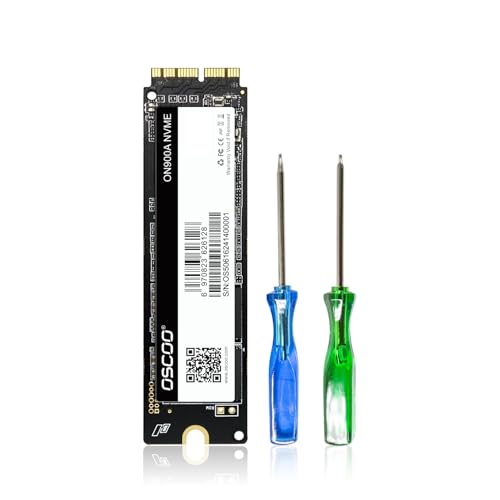
OSCOO ON900A, 1TB
The widest-compatibility pick. Covers Gen 3 (PCIe 2.0 x2) and Gen 4 (PCIe 3.0 x4) Macs with the same module, including Mac mini and iMac. Sequential reads up to 2,100 MB/s, 608 TBW endurance. The right default if you're not sure exactly which year your Mac is.
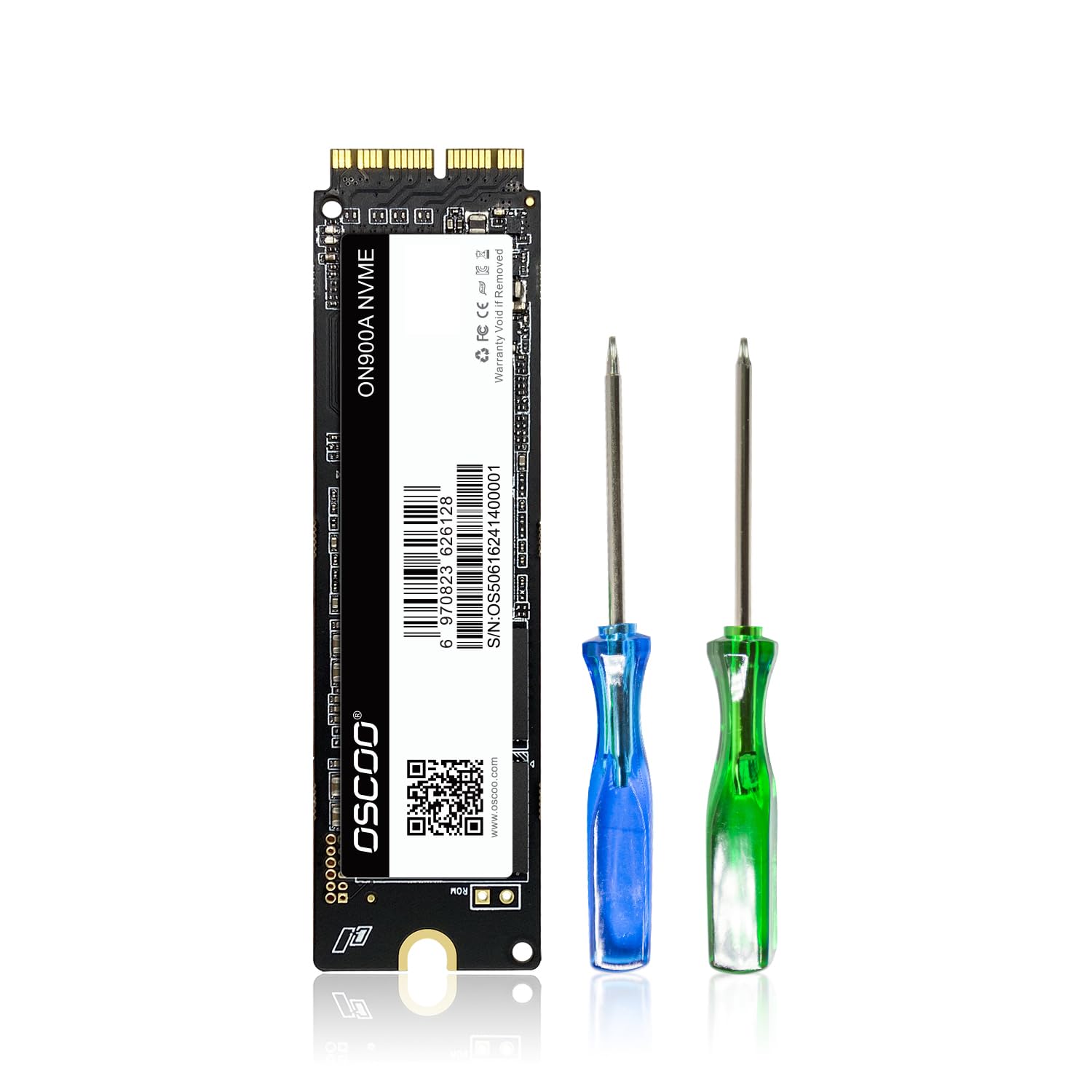
OSCOO ON900A, 512GB
Same blade as the 1TB pick at a lower price. Sequential reads up to 2,100 MB/s and writes up to 1,600 MB/s, 304 TBW endurance on the 512GB version. The sensible pick if your original drive is 128GB or 256GB and you want more room without paying for a 1TB.
The adapter route: M.2 NVMe adapter plus a name-brand drive
Fits: 2013-2017 MacBook Air and Late 2013 to Mid 2015 MacBook Pro Retina, going by the seller's listing. Pick the adapter for your model year: the card below is not the one for the 2016-2017 13-inch A1708, which Sintech lists as a separate adapter, and the 2016-2017 Touch Bar models have soldered storage. Two parts are needed, the adapter and the drive, and the drive is bought separately.
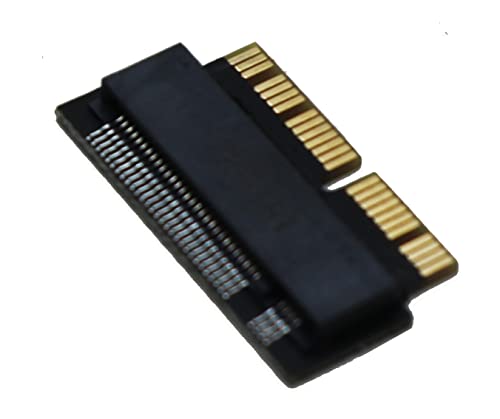
Sintech M.2 NVMe adapter card, MacBook Air 2013-2017 and Pro Late 2013-2015
The small interposer card that lets a standard M.2 NVMe drive sit in the Apple slot. The listing describes it as about 3 mm thick, says a 2280-length drive is close to the length of the original Apple SSD, and says it takes double-sided drives. Things the listing warns about: it cannot recover macOS from the internet, so make a bootable USB installer first because a new drive arrives blank; 2013 and 2014 Macs have a hibernation issue the seller covers in its photos; and if the Mac will not boot after installing macOS, reset the NVRAM (Command, Option, P, R).
Not every NVMe drive works. The seller names Adata SX6000, SX7000 and SX8200, Corsair MP500 and MP510, Crucial P1, HP EX920 and EX950, Intel 600p, 660p and 760p, Toshiba XG3 to XG6, Samsung 960 and 970 Evo and Pro, and WD v1 to v3 as supported. It says Samsung PM981, Samsung 950 Pro and WD Blue SN570 and SN770 do not work in a MacBook. The two drives below are not on that named list, so the maker has not confirmed them either way.
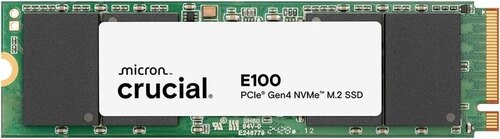
Crucial E100, 1TB M.2 NVMe
The budget name-brand drive for the adapter. PCIe Gen4, up to 5,000 MB/s, 3-year limited warranty, and the listing gives an 80 mm length, the 2280 size. The Gen4 speed is wasted in these Macs because the Mac's own PCIe link is the limit, so there is no point paying more for a faster drive. With the adapter it comes to about $254, a little more than the OSCOO 1TB blade.
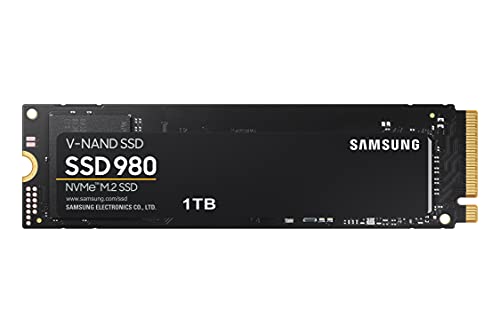
Samsung 980, 1TB M.2 NVMe
The premium name-brand drive for the adapter. PCIe 3.0, up to 3,500 MB/s reads and 3,000 MB/s writes, up to 600 TBW, a 5-year limited warranty, and an 80 mm length per the listing (2280). Sold by Computer Alliance through Amazon AU. It costs well over the OSCOO 1TB, so it only makes sense if you want the Samsung name and warranty. As with the Crucial, it is not on the adapter maker's named list.
Two things none of these will fit. Gen 2 SATA blades (MacBook Air 2010-2012, MacBook Pro Retina mid-2012 to early-2013) need a SATA-protocol module; OWC's Aura SSD line is still the right pick there. Touch Bar MacBook Pro 2016-2017 uses a different Gen 5 blade variant that almost no third-party makes, and OWC Aura Pro X2 is the only realistic upgrade iFix would fit. If you're not sure which connector your Mac has, send iFix the model identifier (Apple menu › About This Mac) and the shop will confirm before you order; saves a return.
Browse the full MacBook Internal SSDs category for the latest stock and pricing.
Got an older MacBook with a removable blade SSD that's running out of space? iFix fits any of the modules above in the Erina workshop, plus the Time Machine restore, EFI update, and a battery-health check while it's open. Book a slot online, same-day fittings most weeks.
Spec-sheet speed vs real-world speed
Apple publishes peak sequential read figures that look impressive on a spec sheet. Real-world performance is often slower, sometimes substantially, because peak numbers are measured under ideal conditions that don't match how you actually use a computer.
The base-model M2 MacBook Air controversy from 2022 is a good example. Apple specified the same "up to 2,800 MB/s" read speed for both 256GB and 512GB+ variants, but benchmarks showed the 256GB base model running at half that speed, around 1,500 MB/s. The reason was that Apple had cost-reduced the 256GB SKU by using a single 256GB NAND chip instead of two 128GB chips in parallel. Modern flash storage gets most of its speed from running multiple chips simultaneously; with only one chip, half the parallelism, half the speed. The same trick appeared on the base M2 MacBook Pro 13-inch.
Higher-capacity M-series MacBook Pros are genuinely fast: 7,400 MB/s sequential read on a current M3 Max with 1TB+ storage. But sustained writes (continuous large file transfer) are still lower than peak reads, and random small-file I/O (which is what most actual computer usage looks like) is lower again. The day-to-day difference between a fast SSD and a very fast SSD is usually smaller than spec sheets suggest.
When SSDs fail, and what iFix can recover
Sixteen years in the workshop at iFix Electronics Erina have made one pattern clear: SSDs fail differently from mechanical drives. Mechanical hard drives degrade gradually; they get slower, develop bad sectors, click, and eventually stop spinning. SSDs more often fail abruptly. The drive works fine, then one day the Mac won't boot, and the SSD isn't visible to Disk Utility either. The most common failure modes I see in the workshop are firmware corruption, controller chip failure, and (less often) bad NAND flash blocks accumulating past the firmware's ability to remap.
On older removable-SSD Macs, recovery is generally straightforward. I pull the SSD module, mount it in an external adapter, and either image it directly or attempt firmware-level recovery via specialised hardware. In workshop experience, removable blade SSDs from Gen 2, 3, and 4 Macs recover more reliably than soldered chip-off jobs, but every drive is its own story and there are no guarantees.
On post-2018 soldered-SSD Macs, recovery is significantly more involved. The NAND chips are physically soldered to the logic board, so iFix has to remove them via microsoldering (the chip-off process), mount them on either a donor logic board or a specialised chip-reader rig, and read them from there. iFix can do this, but two things have to be true for the data to come back: the NAND chips themselves have to be intact (not damaged by the same event that killed the board), and either the T2/Secure Enclave on the original board is still functional for pairing, or FileVault recovery credentials are available, or the disk was not encrypted (rare on post-2018 Macs).
If you've got a dead Mac and the data matters, more detail on what's possible is in the data recovery article. For liquid-damaged MacBooks specifically (a common cause of soldered-SSD recovery jobs), the MacBook liquid damage repair article covers that path. The shortest version: bring it to iFix before trying anything yourself, and the sooner the better.
iMac and Mac Pro storage specifics
The iMac story tracks the MacBook story with a one-year lag. Fusion Drive iMacs from 2012-2016 had a small flash SSD on a separate module paired with a 1TB or 3TB mechanical hard drive in a logical "fused" volume; these can be split back to SSD-only by reformatting, though Apple's Fusion firmware is fussy about it. The 2017-2020 27-inch and 21.5-inch iMacs use Gen 4 blade SSDs and are upgradable with effort (the iMac has to be disassembled by separating the screen from the chassis, so the SSD is replaceable but it's not a quick job). The M1 iMac (2021), M3 iMac (2023), and M4 iMac (2024) all have soldered storage with no upgrade path.
Mac Pro is the outlier. The 2019 Intel Mac Pro and 2023 M2 Ultra Mac Pro both have removable proprietary SSD modules in pairs, but they're sold only by Apple, priced at Apple's storage tier rates ($600+ per upgrade), and they're paired to the specific tower's T2 chip, so you can't move modules between Mac Pros. Technically upgradable, practically constrained.
Need work done on a Mac's storage?
SSD upgrade, data recovery from a dead Mac, or microsoldering recovery from a soldered logic board: iFix does all of it, alongside MacBook screen replacement and battery replacement, from the Erina workshop, with postal repair Australia-wide.
Visit our Erina workshopSee the data recovery guide for soldered-SSD recovery, or walk in to our Erina workshop with your Mac.
Book OnlineCommon questions
What kind of SSD is in a MacBook Pro Retina?
It depends on the year. MacBook Pro Retina mid-2012 to early-2013 uses a Gen 2 blade SSD with a 7+17 pin connector running SATA III, capped at around 500 MB/s real-world. Late-2013 through mid-2015 Retina models use a Gen 3 blade with a 12+16 pin connector running PCIe 2.0 x2 (up to about 1,400 MB/s). The late-2015 Retina uses Gen 4 (same physical 12+16 pin connector but PCIe 3.0 x4, up to roughly 2,000 MB/s). All of these are removable modules and can be upgraded with third-party SSDs from OWC or Apple-pulled spares.
Is the SSD soldered on the iMac?
On the Apple Silicon iMac (M1, M3, M4, released 2021 onwards), yes, the SSD is soldered directly to the logic board as a series of NAND chips, not as a removable module. There is no consumer-replaceable storage on current iMacs. On older Intel iMacs (2017-2020 27-inch and 21.5-inch), the SSD was a removable blade module (Apple Gen 3 or Gen 4 connector) and could be upgraded with effort. The earliest Fusion Drive iMacs (2012-2016) had the SSD on a separate small module paired with a mechanical hard drive.
Can I upgrade the SSD in my MacBook?
Depends on the year. MacBook Pro Retina models 2012-2015 use removable blade SSDs (Gen 2 SATA on mid-2012 to early-2013, Gen 3 and Gen 4 PCIe on later models) and can be upgraded. MacBook Air 2010-2012 used Gen 2 SATA blades and 2013-2017 used Gen 3 PCIe blades; both can be upgraded. The 2016-2017 MacBook Pro Touch Bar models have removable Gen 5 blade SSDs but third-party upgrade options are scarce. From 2018 onwards, both MacBook Air and MacBook Pro have their storage soldered directly to the logic board, with no consumer upgrade path on any post-2018 MacBook regardless of generation. The same applies to all Apple Silicon MacBooks (M1, M2, M3, M4).
How fast are Apple SSDs really?
Real-world speeds vary dramatically by generation. Gen 2 SATA blade SSDs top out around 500 MB/s read. Gen 3 PCIe 2.0 x2 blades hit around 1,400 MB/s. Gen 4 PCIe 3.0 x4 blades reach roughly 2,000 MB/s. Current M-series MacBooks with soldered NVMe storage run between 2,800 MB/s and 7,400 MB/s depending on model and capacity. The base-model M2 MacBook Air had notably slower SSD speeds than the higher-capacity variants because Apple used a single NAND chip instead of two. Apple's official specs reflect peak sequential read; sustained writes and random I/O are lower.
What is the fastest SSD upgrade I can get for an older MacBook?
For the late-2015 MacBook Pro Retina (Gen 4 connector, PCIe 3.0 x4), third-party upgrade SSDs can deliver close to 2,000 MB/s sequential read. The OWC Aura Pro X2 is the most commonly fitted upgrade for the Gen 3/4 12+16 pin connector. M.2 NVMe adapter cards exist for the Gen 4 connector that let you fit a standard M.2 SSD, but performance is gated by the older PCIe lane standard regardless of how fast the modern M.2 drive is.
Can data be recovered from a soldered Apple SSD if my MacBook is dead?
Often yes, but it's a board-level microsoldering job, not a software recovery. On soldered storage (Apple Silicon and post-2018 Intel MacBooks), the NAND chips are physically attached to the logic board. If the board is dead but the NAND chips themselves are intact, iFix can microsolder them off the dead board, mount them on a donor logic board or a chip-reader rig, and read the data that way. Success rate varies by how damaged the board is and what failed. The chip-off process is a specialised service; see our data recovery page for the full picture.